Warning: Attempt to read property "ID" on null in /home/pingtochat/public_html/docs/wp-content/plugins/eazydocs/templates/onepage/fullscreen-layout.php on line 36
Warning: Attempt to read property "ID" on null in /home/pingtochat/public_html/docs/wp-content/plugins/eazydocs/templates/onepage/fullscreen-layout.php on line 111
1. Pingtochat
The WhatsApp Business Platform with pingtochat.
1.1 WhatsApp Api
The WhatsApp API enables businesses to integrate WhatsApp messaging into their customer communication workflows, providing a reliable, secure, and scalable way to interact with customers. It supports sending notifications, automated messages, and real-time customer interactions.
Features of the WhatsApp API in Pingtochat
Rich Messaging
Supports text, images, videos and documents.
Interactive messages like buttons and list messages.
Notification Messaging
Send alerts, order updates, and reminders to customers.
Business Profile
Display company information, contact details, and catalogs.
Multi-Agent Access
Support multiple agents interacting through one WhatsApp number.
Signing Up
To use Pingtochat Messaging APIs with WhatsApp, you will need a WhatsApp-enabled phone number, also referred to as a WhatsApp Sender.
Once you have an approved WhatsApp Sender, continue on below to get started with a WhatsApp Create Token in the language of your choice!
1.1.1 API Overview
The REST API allows developers to interact programmatically with our platform to access and manage resources such as users, messages, and configurations. It follows standard RESTful principles, ensuring a stateless, secure, and scalable design.
With the REST API, you can:
Send messages
Fetch , list and delete messages
Fetch , list and delete media messages
We have three categories of messaging, which are
Marketing
Utility
Authentication
We provide simple messages and template messages. Template messages also support media messages.
Authentication
To add authentication, you need to register on our platform Pingtochat and log in to your account. Then, create the API key and access token. Click here on Add Token to learn more about creating the token.
1.1.2 Create Token
First, you need to create an API key and token for WhatsApp configuration. To create these, click on the Pingtochat Register link to register, or the Pingtochat Login link to log in to Pingtochat. After successfully registering or logging in, you will find an option to add an API key and token on the left side of the dashboard.
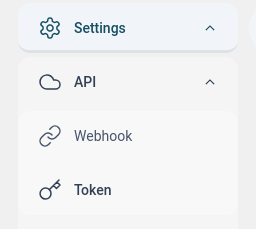
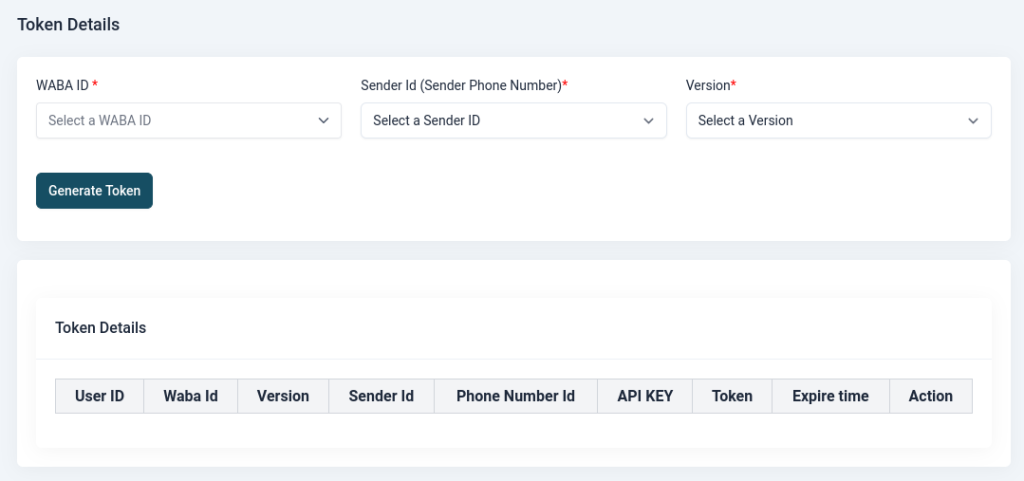
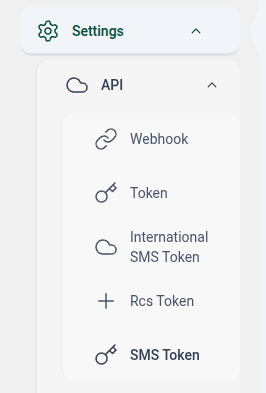
To Generate Token Navigate to: Settings ->API ->Token.
Select your WABA ID and Sender ID, then choose the version. Finally, click the “Generate Token” button to create your Token
Generate the Whatsapp Sender
If you don’t have a WhatsApp sender number, click the “Register” link for Sender ID to create one. Follow the steps provided to complete the registration process. Once registered, ensure the sender number is verified and linked to your account before proceeding with token generation.
1.1.3 Webhook
Pingtochat supports webhooks that can alert you of the following via callback URLs.
Messages received
Messages sent (Template & Session)
Status of the messages sent (Sent/Delivered/read)
How to add a Webhook to Pingtochat?
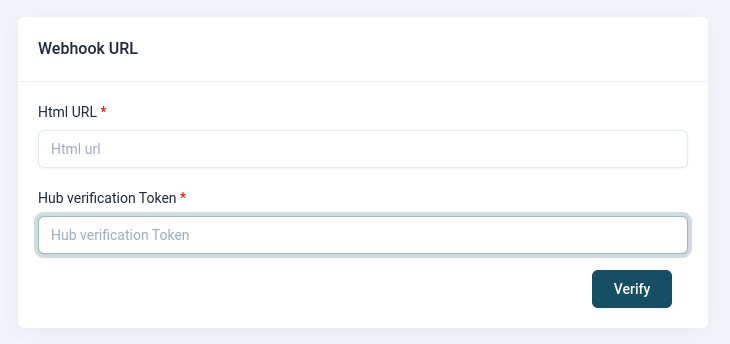
Navigate to:Settings ->API ->Webhook.
Create an HTML URL for the webhook.
Enter your Hub Verification Token in the designated field on the webhook form.
When an event occurs, we will send the hub verify token along with the hub challenge to the provided URL.
For verification, the customer must return the same hub challenge to confirm receipt.
This ensures successful integration and validation of webhook events.
A session message in WhatsApp refers to any message exchanged between a business and a customer within a 24-hour messaging window that starts when the customer sends a message to the business. These messages are not pre-approved by WhatsApp and can include free-form text, media, or interactive content.
messaging_product: (string) The messaging product used. Always whatsapp.
contacts: (array) Contains information about the recipient.
input: (string) The phone number you provided in the request.
wa_id: (string) The WhatsApp ID associated with the provided phone number.
messages: (array) Contains information about the sent message.
id: (string) The unique identifier for the sent message.
Notes
Domain and Credentials: Replace {{your_domain}}, {{phone_number_id}}, and {{key}} with your API domain, phone number ID, and API key respectively.
Rate Limits: Ensure your API calls comply with the rate limits set by WhatsApp to avoid being throttled.
Session Window: Text messages can only be sent within a 24-hour window of the last user interaction.
Template Pre-Approval: For template messages, ensure they are approved in the WhatsApp Business Manager before use.
Language Code Matching: Language codes in templates must match the approved template language.
Sample codes
1.1.5 Whatsapp
In PinToChat, we provide three distinct categories of messages, each with its own supported types and functionalities
Categories:
Authentication:
Supports only the Body component for message templates.
Primarily used for identity verification and authentication purposes, such as sending OTPs or login confirmations.
Marketing:
Supports all types of messaging, including text and media.
Ideal for promotional campaigns and engaging with users through rich media content.
Utility:
Supports all types of messaging, including text and media.
Designed for sending notifications, alerts, and other informative content.
Message Types:
Messages are available in two main types:
Text:
Simple text-based messages for quick and clear communication.
Media:
Includes rich content for enhanced engagement, categorized into:
Image: Sending photos or images.
Video: Sharing video clips.
Document: Sending files like PDFs, Word documents, or spreadsheets
Message Types:
Messages are available in two main types:
Text:
Simple text-based messages for quick and clear communication.
Media:
Includes rich content for enhanced engagement, categorized into:
Image: Sending photos or images.
Video: Sharing video clips.
Document: Sending files like PDFs, Word documents, or spreadsheets.
Button Types:
Interactive buttons can be added to messages for better user engagement. The available button types are:
Quick Reply Button:
Enables users to respond quickly with predefined options.
Visit Website Button:
Directs users to a specific webpage.
URL Button:
Opens a designated URL in the browser.
Phone Number Button:
Allows users to call a predefined phone number directly.
WhatsApp Number Button (Call on WhatsApp):
Initiates a call directly on WhatsApp to a given contact.
Copy Offer Code Button:
Provides an option to copy a promo or offer code to the clipboard.
1.1.6 Authentication Template Message API
Authentication templates are specialized message formats used by businesses to verify user identities through one-time passcodes (OTPs) delivered via messaging platforms like WhatsApp. These templates ensure secure and efficient user authentication during processes such as account verification, recovery, and integrity challenges.
Key Features of Authentication Templates:
Preset Message Content: The templates include fixed text, such as “<VERIFICATION_CODE> is your verification code,” along with optional security disclaimers and expiration warnings.
Interactive Buttons: They feature buttons like “COPY_CODE,” which allows users to copy the OTP to their clipboard, and “ONE_TAP,” enabling automatic code autofill within the app.
Zero-Tap Authentication Templates
Zero-tap authentication templates allow your users to receive one-time passwords or codes via WhatsApp without having to leave your app.’
One-Tap Autofill Authentication Templates
One-tap autofill authentication templates allow you to send a one-time password or code along with an one-tap autofill button to your users. When a WhatsApp user taps the autofill button, the WhatsApp client triggers an activity which opens your app and delivers it the password or code.
Copy Code Authentication Templates
Copy code authentication templates allow you to send a one-time password or code along with a copy code button to your users. When a WhatsApp user taps the copy code button, the WhatsApp client copies the password or code to the device’s clipboard. The user can then switch to your app and paste the password or code into your app.
1.1.7 Marketing Template Message API
Overview
Marketing templates on WhatsApp are designed to send promotional messages, share information about products or services, or communicate business-related updates. These templates are pre-approved by WhatsApp and must comply with the platform’s policies to ensure they provide value to users without being spammy or intrusive. Below is the detailed documentation on marketing templates, their structure, and best practices.
Key Characteristics of Marketing Templates
Purpose:
To promote products, services, or offers.
To share informational updates about the business.
To engage users with campaigns, announcements, or events.
Use Cases:
Sending special offers or discounts.
Announcing a new product or service.
Inviting users to events or webinars.
Sharing business updates, such as holiday hours or relocations.
Compliance:
Must adhere to WhatsApp’s Business Policy.
Requires explicit user opt-in for promotional content.
Components of a Marketing Template
Marketing templates can consist of the following elements:
1. Header (Optional)
Type: Text, Image, Video, or Document.
Purpose: To grab attention with a visually appealing or textual header.
Example: Including a product image or a “Special Offer” banner.
2. Body (Required)
Type: Text.
Purpose: Contains the primary message content, such as promotional text or product details.
Example:
“Get 20% off on your next purchase! Use code SAVE20. Offer valid till Jan 31, 2025.”
“Introducing our latest collection! Check it out now and enjoy exclusive discounts.”
3. Footer (Optional)
Type: Text.
Purpose: Provides additional context, disclaimers, or contact information.
Example: “Terms and conditions apply. Visit our website for more details.”
4. Buttons (Optional)
Types: Quick Reply , URL ,Phone Number and Copy Code
Purpose: To encourage user interaction and provide actionable options.
Phone: Contact number or Company Phone number (e.f., +919xxxxxxxxx).
Copy Code : Use the code for any offers (e,g.,”12345axw”).
1.1.8 Utility Template Message API
Overview
Utility templates on WhatsApp are specifically designed to provide functional and transactional support for existing orders or accounts. These templates are pre-approved by WhatsApp to ensure they meet compliance guidelines and are not used for promotional or marketing purposes. Below is the documentation detailing their usage, structure, and limitations.
Key Characteristics of Utility Templates
Purpose:
To provide updates related to a customer’s existing order or account.
Includes transactional messages such as:
Order confirmations.
Shipping updates.
Account notifications (e.g., password reset).
Restrictions:
Cannot be used for marketing or promotional purposes.
Only supports transactional and service-related use cases.
Compliance:
Must comply with WhatsApp’s Business Policy.
Requires prior approval in WhatsApp Business Manager.
Components of a Utility Template
Utility templates can consist of the following dynamic and static elements:
1. Header (Optional)
Type: Text, Image, Video, or Document.
Purpose: To highlight the primary content of the message.
Example: Including an order invoice or a delivery tracking image.
2. Body (Required)
Type: Text.
Purpose: Contains the main content of the message.
Example:
“Your order #12345 has been shipped. Track your delivery here: [tracking link].”
“Your account password was successfully changed.”
3. Footer (Optional)
Type: Text.
Purpose: Adds additional context, disclaimers, or legal information.
Example: “For assistance, reply HELP or contact our support.”
4. Buttons (Optional)
Types: Quick Reply ,URL and Phone Number.
Purpose: To enhance interactivity by providing actionable options.
Quick Reply: For user responses (e.g., “Need Assistance”).
URL: Redirect to a webpage (e.g., “Track Your Order”).
Phone: Contact number or Company Phone number (e.f., +919xxxxxxxxx).
1.1.9 Authentication Template Creation API
1.1.10 Marketing Template Creation API
1.1.11 Utility Template Creation API
1.1.12 Edit Templates API
1.1.13 Edit Authentication Template API
1.1.14 Template Library
1.1.15 Template status check
Overview
The Template Status Check API allows users to retrieve the approval status of a specific WhatsApp Business API message template. This API is useful for monitoring template approvals and ensuring that a template is available for use in messaging.
Description: Indicates whether the API request was successful.
id
Type: string
Example: "353335"
Description: A unique identifier assigned to the template.
name
Type: string
Example: "edit_al"
Description: The name of the WhatsApp template.
category
Type: string
Example: "marketing"
Description: Specifies the category of the template (e.g., "marketing", "utility", "authentication").
status
Type: string
Values: "APPROVED", "PENDING", "REJECTED"
Description: The current approval status of the template.
1.1.16 Postman
1.1.17 Supported File Formats
This document outlines the supported file types that can be sent as attachments in a session message. Attachments are categorized by media type: Image, Video, Audio, and Documents.
1. 📷 Image Attachments
Image files can be shared to visually communicate content such as photos, screenshots, infographics, or promotional materials.
Format
Description
.jpg
JPEG image format. Widely used for photos and web graphics.
.png
Portable Network Graphics. Supports transparency, ideal for UI elements and screenshots.
2. 🎥 Video Attachments
Video files allow for sending motion content, tutorials, clips, and marketing videos.
Format
Description
.3gp
3GPP multimedia format, optimized for mobile use.
.mp4
MPEG-4 format. Commonly used for high-quality video and audio compression.
3. 📄 Document Attachments
Documents can be shared to convey textual, tabular, or presentation-based information.
Format
Description
.txt
Plain text file. Lightweight format for notes or code.
.xls
Microsoft Excel (Legacy). Spreadsheet format for tabular data.
.xlsx
Microsoft Excel (Modern). Supports advanced Excel features.
.doc
Microsoft Word (Legacy). Used for formatted text documents.
.docx
Microsoft Word (Modern). Common word processing format.
.ppt
Microsoft PowerPoint (Legacy). Used for slide presentations.
.pptx
Microsoft PowerPoint (Modern). Supports multimedia presentations.
.pdf
Portable Document Format. Preserves layout and formatting across devices.
1.1.18 Error Types
Pingtochat uses conventional HTTP response codes to indicate the success or failure of an API request.Below, we provide some common error codes:
API Verification Code
Error code
Description
300
Your token not valid.
301
Your key is Invalid.
303
Your current key phrase is expired. Please regenerate token.
304
User is not valid.
305
phone_number_id is incorrect.
306
waba sender id data not found.
307
WabaConfiguration not found.
308
SupplierConfiguration Token is Required.
309
Api Service Not Activated.
310
Domain not valid.
311
User Supplier Configuration Not Activated. Contact to Support.
312
WhatsApp API Setting URL and Token Required.
313
Supplier Operator not providing service.
314
missing whatsapp service packages table data
Template Creation Code
Error Code
Description
400
Required whatsapp number or contact group or contact upload.
401
Creadits Not Sufficient to send message.
403
There is already content for this template. You can create a new template and try again.
404
Template Not Found for You.
Default Rate Limits
Category
Limit
Time Window
General Requests
1000 requests
Per Hour
High-Volume APIs
200 requests
Per Minute
Bulk Operations
5000 requests (e.g., message sends)
Per Day
1.1.19 Flow Template Creation
1.1.20 Sandbox
1.1.21 Marketting Lite API
Overview
The Marketing Lite API allows businesses to send WhatsApp marketing template messages such as promotions, offers, announcements, and campaign notifications. These messages must use pre-approved templates and comply with WhatsApp business messaging policies
Marketing templates are typically used for:
Promotional campaigns
Product announcements
Offers and discounts
Event invitations
Business updates
Pre-approved templates ensure non-spam communication and require user opt-in before sending promotional messages.
Endpoint
POST https://app.pingtochat.com/api/v1.0/{phone_number_id}/{api_key}/marketing_messages
An International API (Application Programming Interface) enables software applications to interact across borders by providing access to global services, data, or platforms. These APIs are designed to support multi-language, multi-currency, and multi-regional operations, making them essential for businesses that operate in multiple countries or serve international users.
International APIs can be found in various domains such as:
Payments and Banking (e.g., Stripe, PayPal, Wise)
Shipping and Logistics (e.g., FedEx, DHL, EasyPost)
Travel and Booking (e.g., Skyscanner, Amadeus, Booking.com)
Localization and Translation (e.g., Google Translate, Microsoft Translator)
Social Media and Communication (e.g., WhatsApp Business API, Facebook Graph API)
These APIs help developers:
Standardize integration with international services.
Handle global compliance and localization.
Enable real-time communication and data exchange across countries.
As globalization increases, international APIs play a key role in connecting businesses, services, and users worldwide.
1.2.2 Create Token
First, you need to create an API key and token for WhatsApp configuration. To create these, click on the Pingtochat Register link to register, or the Pingtochat Login link to log in to Pingtochat. After successfully registering or logging in, you will find an option to add an API key and token on the left side of the dashboard.
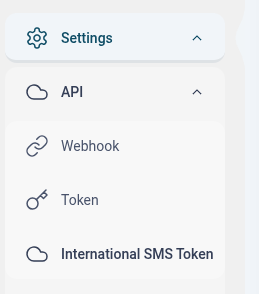
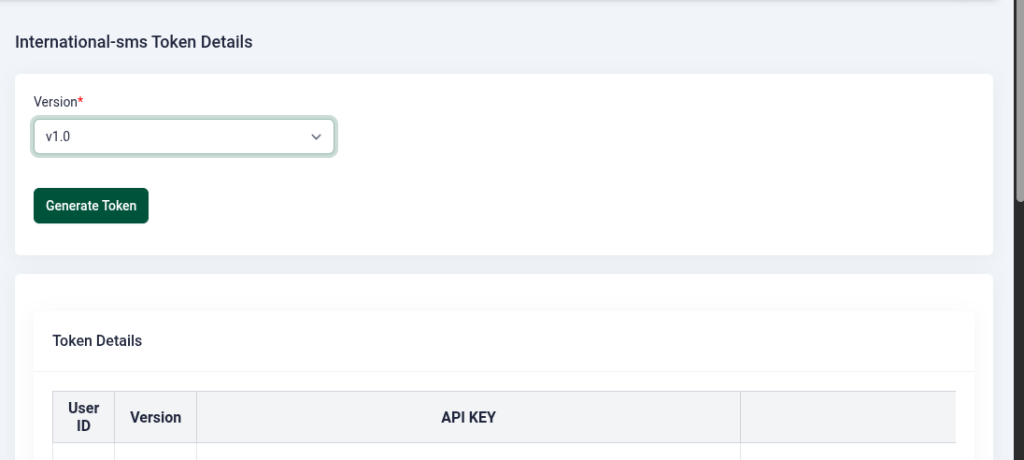
To Generate Token Navigate to: Settings ->API ->Internationak SMSToken.
Select your WABA ID and Sender ID, then choose the version. Finally, click the “Generate Token” button to create your Token
Generate the Whatsapp Sender
If you don’t have a WhatsApp sender number, click the “Register” link for Sender ID to create one. Follow the steps provided to complete the registration process. Once registered, ensure the sender number is verified and linked to your account before proceeding with token generation.
1.2.3 Send SMS API
Overview
This API allows you to send international SMS messages via the Your Domain (pingtochat.com) service. It is useful for businesses looking to reach users across different countries with messages such as alerts, notifications, OTPs, or promotional content.
RCS stands for Rich Communication Services. It’s a protocol designed to enhance traditional SMS (Short Message Service) and MMS (Multimedia Messaging Service) by offering a richer, more interactive messaging experience. While SMS is limited to basic text messages, RCS supports multimedia content, group chats, read receipts, typing indicators, and many other advanced features.
1.3.1 Introduction
RCS (Rich Communication Services) is a modern messaging protocol designed to upgrade traditional SMS and MMS. It provides a richer, more interactive messaging experience—similar to popular messaging apps—while still working through your mobile carrier’s network.
Key Features of RCS
Read receipts – See when your message has been read
Typing indicators – Know when someone is replying
High-resolution media sharing – Send large photos and videos without heavy compression
Group chats – Better group management and naming
Wi-Fi & mobile data support – Works over internet, not just cellular SMS
Enhanced security – Many implementations include end-to-end encryption
How RCS Works
Unlike traditional SMS, which relies solely on cellular networks, RCS uses mobile data or Wi-Fi to send messages. If both sender and receiver have RCS enabled and supported by their carrier or messaging app, messages are sent via RCS. Otherwise, they automatically fall back to SMS/MMS.
1.3.2 Create Token
First, you need to create an API key and token for RCS configuration. To create these, click on the Pingtochat Register link to register, or the Pingtochat Login link to log in to Pingtochat. After successfully registering or logging in, you will find an option to add an API key and token on the left side of the dashboard.
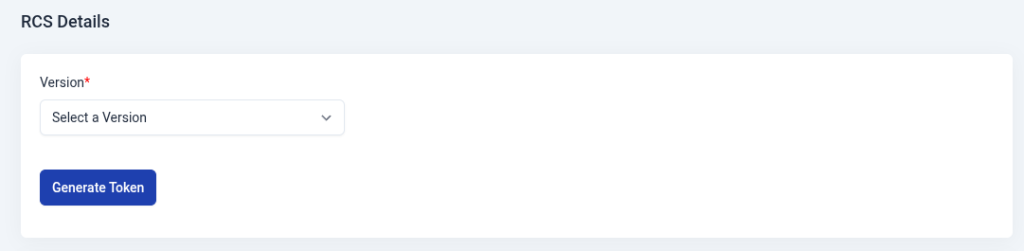
To Generate Token Navigate to: Settings ->API ->Rcs Token.
Choose the version. Finally, click the “Generate Token” button to create your Token
1.3.3 Basic Template Create
Overview
This API allows you to create a basic RCS template with a text type. A basic template is a simpler form of RCS message that contains text-based content only, making it ideal for simple notifications, greetings, or alerts.
API Endpoint
POST https://{{your_domain}}/api/v1.0/{{key}}/rcs_templates
URL Parameters:
{{key}}: The account key in the URL should be replaced with your actual account key. .
HTTP Method
POST: This method is used to send the data to create a new RCS template.
Headers
Content-Type: application/json
Authorization: Bearer <your_access_token> Replace <your_access_token> with your actual Bearer token for authentication.
Request Payload
The request body should be a JSON object containing the RCS template details. Below is an example of the JSON payload for creating a new RCS template:
This API allows you to create RCS templates for rich communication services. These templates can contain multiple cards, each with a title, description, media content, and buttons. The API is helpful for businesses that want to send rich, interactive messages to users via platforms that support RCS.
API Endpoint
POST https://{{your_domain}}/api/v1.0/{{key}}/rcs_templates
URL Parameters:
{{key}}: The account key in the URL should be replaced with your actual account key. .
HTTP Method
POST: This method is used to send the data to create a new RCS template.
Headers
Content-Type: application/json
Authorization: Bearer <your_access_token> Replace <your_access_token> with your actual Bearer token for authentication.
Request Payload
The request body should be a JSON object containing the RCS template details. Below is an example of the JSON payload for creating a new RCS template:
This API allows you to create multiple RCS templates with a slider configuration. The slider type template lets you add multiple cards to the message, where each card can contain different content such as images, text, and interactive buttons. These types of templates are ideal for promotional offers, product galleries, or multiple steps in an onboarding process.
API Endpoint
POST https://{{your_domain}}/api/v1.0/{{key}}/rcs_templates
URL Parameters:
{{key}}: The account key in the URL should be replaced with your actual account key. .
HTTP Method
POST: This method is used to send the data to create a new RCS template.
Headers
Content-Type: application/json
Authorization: Bearer <your_access_token> Replace <your_access_token> with your actual Bearer token for authentication.
Request Payload
The request body should be a JSON object containing the RCS template details. Below is an example of the JSON payload for creating a new RCS template:
This API allows you to send an RCS message to an individual recipient, using an advance card template. The message can contain a single card with media, buttons, title, and description. It’s ideal for sending rich content, such as promotional offers, product updates, or alerts, to a user’s device.
API Endpoint
POST https://{{your_domain}}/api/v1.0/{{key}}/rcs_message
{{your_domain}}: Replace this with your actual domain (e.g., pingtochat.com).
{{key}}: Replace this with your API key.
HTTP Method
POST: Used to send a message using the provided template.
Headers
Content-Type: application/json
Authorization: Bearer <your_access_token> Replace <your_access_token> with your actual Bearer token for authentication.
Request Payload
This is the JSON structure used to send the RCS message with a single card template:
This API allows you to send a basic RCS message to an individual recipient. In this case, no media, buttons, or advanced components are included, just a simple text message using a basic template.
API Endpoint
POST https://{{your_domain}}/api/v1.0/{{key}}/rcs_message
{{your_domain}}: Replace this with your actual domain (e.g., pingtochat.com).
{{key}}: Replace this with your API key.
HTTP Method
POST: Used to send the basic message.
Headers
Content-Type: application/json
Authorization: Bearer <your_access_token> Replace <your_access_token> with your actual Bearer token for authentication.
Request Payload
This is the JSON structure used to send the basic RCS message with no advanced components:
This API allows you to create and send advanced RCS templates with carousel configuration. The carousel template enables you to display multiple cards that users can swipe through. Each card can contain different content such as images, text, and interactive buttons. This template is ideal for showcasing multiple products, offers, or steps in a process.
API Endpoint
POST https://{{your_domain}}/api/v1.0/{{key}}/rcs_message
{{your_domain}}: Replace this with your actual domain (e.g., pingtochat.com).
{{key}}: Replace this with your API key.
HTTP Method
POST: Used to send the basic message.
Headers
Content-Type: application/json
Authorization: Bearer <your_access_token> Replace <your_access_token> with your actual Bearer token for authentication.
Request Payload
This is the JSON structure used to send the basic RCS message with no advanced components:
DLT SMS stands for Distributed Ledger Technology – Short Message Service. It is a regulatory framework that uses distributed ledger technology (similar to blockchain) to make business and promotional SMS communication more secure, transparent, and spam-free.
DLT SMS systems are widely implemented in countries like India under telecom regulations issued by Telecom Regulatory Authority of India (TRAI).
Why DLT SMS Was Introduced
DLT SMS was introduced to:
Reduce spam and fraudulent messages
Prevent SMS phishing (smishing)
Protect consumers from scams
Ensure transparency between businesses and telecom operators
Before DLT, businesses could send bulk SMS without strict verification, leading to misuse.
How DLT SMS Works
DLT SMS uses a distributed ledger system where all SMS-related information is recorded and verified.
Key Components:
Principal Entity (PE) Registration Businesses must register on a DLT portal to send SMS.
Sender ID (Header) Registration The business registers its SMS sender ID (e.g., AX-BANK).
Template Registration
Promotional templates
Transactional templates
OTP templates All message formats must be pre-approved.
Consent Management Customer consent is recorded and verified on the DLT platform.
Scrubbing & Verification Before sending, SMS content is matched with approved templates and checked against consent records.
Types of DLT SMS
Transactional SMS – OTPs, banking alerts, order confirmations
DLT SMS is a secure, regulation-driven messaging system designed to eliminate spam and protect consumers. By requiring business registration, template approval, and consent verification, it ensures that SMS communication is transparent, authorized, and trustworthy.
If you’d like, I can also provide a short version, technical explanation, or business-focused description.
1.4.1 Introduction
Introduction to Local SMS API
A Local SMS API is a software interface that enables businesses and applications to send and receive SMS messages through local telecommunications networks within a specific country or region. It acts as a bridge between applications (such as websites, mobile apps, or enterprise systems) and local mobile carriers, allowing automated, real-time text message communication.
Unlike international SMS gateways, a local SMS API routes messages directly through domestic telecom providers. This ensures faster delivery, higher reliability, better compliance with local regulations, and often lower messaging costs.
Local SMS APIs are commonly used for:
One-Time Passwords (OTP) and verification codes
Transactional alerts (banking notifications, order confirmations)
Marketing campaigns and promotions
Appointment reminders
Customer service communications
Two-way messaging and feedback collection
Most Local SMS APIs offer features such as:
RESTful API integration
Delivery reports
Sender ID customization
Bulk messaging support
Two-way messaging capability
Rate limiting and security controls
By integrating a Local SMS API, businesses can enhance customer engagement, improve communication efficiency, and ensure timely message delivery within their target region.
1.4.2 Create Token
First, you need to create an API key and token for WhatsApp configuration. To create these, click on the Pingtochat Register link to register, or the Pingtochat Login link to log in to Pingtochat. After successfully registering or logging in, you will find an option to add an API key and token on the left side of the dashboard.
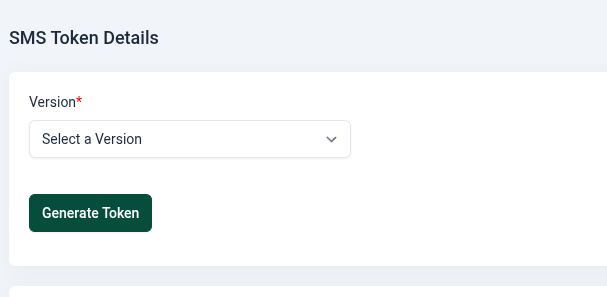
To Generate Token Navigate to: Settings ->API ->SMS Token.
Select your WABA ID and Sender ID, then choose the version. Finally, click the “Generate Token” button to create your Token
Generate the Whatsapp Sender
If you don’t have a WhatsApp sender number, click the “Register” link for Sender ID to create one. Follow the steps provided to complete the registration process. Once registered, ensure the sender number is verified and linked to your account before proceeding with token generation.
1.4.3 Send SMS
Overview
This API allows you to send international SMS messages via the Your Domain (pingtochat.com) service. It is useful for businesses looking to reach users across different countries with messages such as alerts, notifications, OTPs, or promotional content.
URL
https://{{your_domain}}/api/v1.0/{{key}}/sms
Method
POST
Headers
Content-Type: application/json
Authorization: Bearer <your_access_token>
Request PayloadsYour Domain (pingtochat.com)
Sending a Text Message
The payload for sending a plain text message via the WhatsApp API is structured as follows:
Eazy OTP Services provides fast, secure, and reliable OTP delivery solutions for WhatsApp, Global SMS, and Local SMS, helping businesses verify users seamlessly across the world.
With WhatsApp OTP, Eazy OTP ensures high delivery rates and instant verification using one of the most trusted messaging platforms. This method improves user experience while reducing message failures and delays.
Our Global SMS OTP service enables businesses to reach users in multiple countries with consistent performance and dependable routing, making it ideal for international platforms and global customer bases.
For region-specific needs, Local SMS OTP offers optimized delivery through local telecom routes, ensuring faster message delivery, higher success rates, and cost-effective verification within specific countries.
Eazy OTP Services is designed for scalability, security, and simplicity—making user authentication easy, reliable, and accessible worldwide.
1.5.1 WhatsApp Eazy OTP
With WhatsApp OTP, Eazy OTP ensures high delivery rates and instant verification using one of the most trusted messaging platforms. This method improves user experience while reducing message failures and delays.
1.5.2 SMS Global Eazy OTP
Our Global SMS OTP service enables businesses to reach users in multiple countries with consistent performance and dependable routing, making it ideal for international platforms and global customer bases.
1.5.3 SMS Dlt Eazy OTP
For region-specific needs, Local SMS OTP offers optimized delivery through local telecom routes, ensuring faster message delivery, higher success rates, and cost-effective verification within specific countries.
2. WhatsApp Api
The WhatsApp API enables businesses to integrate WhatsApp messaging into their customer communication workflows, providing a reliable, secure, and scalable way to interact with customers. It supports sending notifications, automated messages, and real-time customer interactions.
Features of the WhatsApp API in Pingtochat
Rich Messaging
Supports text, images, videos and documents.
Interactive messages like buttons and list messages.
Notification Messaging
Send alerts, order updates, and reminders to customers.
Business Profile
Display company information, contact details, and catalogs.
Multi-Agent Access
Support multiple agents interacting through one WhatsApp number.
Signing Up
To use Pingtochat Messaging APIs with WhatsApp, you will need a WhatsApp-enabled phone number, also referred to as a WhatsApp Sender.
Once you have an approved WhatsApp Sender, continue on below to get started with a WhatsApp Create Token in the language of your choice!
2.1 API Overview
The REST API allows developers to interact programmatically with our platform to access and manage resources such as users, messages, and configurations. It follows standard RESTful principles, ensuring a stateless, secure, and scalable design.
With the REST API, you can:
Send messages
Fetch , list and delete messages
Fetch , list and delete media messages
We have three categories of messaging, which are
Marketing
Utility
Authentication
We provide simple messages and template messages. Template messages also support media messages.
Authentication
To add authentication, you need to register on our platform Pingtochat and log in to your account. Then, create the API key and access token. Click here on Add Token to learn more about creating the token.
2.2 Create Token
First, you need to create an API key and token for WhatsApp configuration. To create these, click on the Pingtochat Register link to register, or the Pingtochat Login link to log in to Pingtochat. After successfully registering or logging in, you will find an option to add an API key and token on the left side of the dashboard.
To Generate Token Navigate to: Settings ->API ->Token.
Select your WABA ID and Sender ID, then choose the version. Finally, click the “Generate Token” button to create your Token
Generate the Whatsapp Sender
If you don’t have a WhatsApp sender number, click the “Register” link for Sender ID to create one. Follow the steps provided to complete the registration process. Once registered, ensure the sender number is verified and linked to your account before proceeding with token generation.
2.3 Webhook
Pingtochat supports webhooks that can alert you of the following via callback URLs.
Messages received
Messages sent (Template & Session)
Status of the messages sent (Sent/Delivered/read)
How to add a Webhook to Pingtochat?
Navigate to:Settings ->API ->Webhook.
Create an HTML URL for the webhook.
Enter your Hub Verification Token in the designated field on the webhook form.
When an event occurs, we will send the hub verify token along with the hub challenge to the provided URL.
For verification, the customer must return the same hub challenge to confirm receipt.
This ensures successful integration and validation of webhook events.
A session message in WhatsApp refers to any message exchanged between a business and a customer within a 24-hour messaging window that starts when the customer sends a message to the business. These messages are not pre-approved by WhatsApp and can include free-form text, media, or interactive content.
messaging_product: (string) The messaging product used. Always whatsapp.
contacts: (array) Contains information about the recipient.
input: (string) The phone number you provided in the request.
wa_id: (string) The WhatsApp ID associated with the provided phone number.
messages: (array) Contains information about the sent message.
id: (string) The unique identifier for the sent message.
Notes
Domain and Credentials: Replace {{your_domain}}, {{phone_number_id}}, and {{key}} with your API domain, phone number ID, and API key respectively.
Rate Limits: Ensure your API calls comply with the rate limits set by WhatsApp to avoid being throttled.
Session Window: Text messages can only be sent within a 24-hour window of the last user interaction.
Template Pre-Approval: For template messages, ensure they are approved in the WhatsApp Business Manager before use.
Language Code Matching: Language codes in templates must match the approved template language.
Sample codes
2.5 Whatsapp
In PinToChat, we provide three distinct categories of messages, each with its own supported types and functionalities
Categories:
Authentication:
Supports only the Body component for message templates.
Primarily used for identity verification and authentication purposes, such as sending OTPs or login confirmations.
Marketing:
Supports all types of messaging, including text and media.
Ideal for promotional campaigns and engaging with users through rich media content.
Utility:
Supports all types of messaging, including text and media.
Designed for sending notifications, alerts, and other informative content.
Message Types:
Messages are available in two main types:
Text:
Simple text-based messages for quick and clear communication.
Media:
Includes rich content for enhanced engagement, categorized into:
Image: Sending photos or images.
Video: Sharing video clips.
Document: Sending files like PDFs, Word documents, or spreadsheets
Message Types:
Messages are available in two main types:
Text:
Simple text-based messages for quick and clear communication.
Media:
Includes rich content for enhanced engagement, categorized into:
Image: Sending photos or images.
Video: Sharing video clips.
Document: Sending files like PDFs, Word documents, or spreadsheets.
Button Types:
Interactive buttons can be added to messages for better user engagement. The available button types are:
Quick Reply Button:
Enables users to respond quickly with predefined options.
Visit Website Button:
Directs users to a specific webpage.
URL Button:
Opens a designated URL in the browser.
Phone Number Button:
Allows users to call a predefined phone number directly.
WhatsApp Number Button (Call on WhatsApp):
Initiates a call directly on WhatsApp to a given contact.
Copy Offer Code Button:
Provides an option to copy a promo or offer code to the clipboard.
2.6 Authentication Template Message API
Authentication templates are specialized message formats used by businesses to verify user identities through one-time passcodes (OTPs) delivered via messaging platforms like WhatsApp. These templates ensure secure and efficient user authentication during processes such as account verification, recovery, and integrity challenges.
Key Features of Authentication Templates:
Preset Message Content: The templates include fixed text, such as “<VERIFICATION_CODE> is your verification code,” along with optional security disclaimers and expiration warnings.
Interactive Buttons: They feature buttons like “COPY_CODE,” which allows users to copy the OTP to their clipboard, and “ONE_TAP,” enabling automatic code autofill within the app.
Zero-Tap Authentication Templates
Zero-tap authentication templates allow your users to receive one-time passwords or codes via WhatsApp without having to leave your app.’
One-Tap Autofill Authentication Templates
One-tap autofill authentication templates allow you to send a one-time password or code along with an one-tap autofill button to your users. When a WhatsApp user taps the autofill button, the WhatsApp client triggers an activity which opens your app and delivers it the password or code.
Copy Code Authentication Templates
Copy code authentication templates allow you to send a one-time password or code along with a copy code button to your users. When a WhatsApp user taps the copy code button, the WhatsApp client copies the password or code to the device’s clipboard. The user can then switch to your app and paste the password or code into your app.
2.6.1 Parameter with button
This API enables you to send WhatsAppauthentication template messages using the provided template configuration. The messages are sent to individual recipients using a specific template ID, phone number ID, and API key.
958625 is your verification code. For your security, do not share this code.
Field Descriptions
Root-Level Fields
Field
Type
Description
messaging_product
string
Must be whatsapp. Identifies the messaging platform being used.
recipient_type
string
Must be individual. Specifies the type of recipient.
to
string
The recipient’s phone number in E.164 format (e.g., 91xxxxxxxxxx).
type
string
Must be template. Specifies the type of message being sent.
Template-Level Fields
Field
Type
Description
name
String
Name of the template. For example, "otp_message".
language
Object
Specifies the language of the template.
components
Array
Contains the components of the message (body, buttons).
Notes
Ensure the template name matches an approved template in your WhatsApp Business Account.
The phone number must be in E.164 format (e.g., 91xxxxxxxxxx for Indian numbers).
Language codes must follow ISO 639-1 standards.
Sample codes
2.7 Marketing Template Message API
Overview
Marketing templates on WhatsApp are designed to send promotional messages, share information about products or services, or communicate business-related updates. These templates are pre-approved by WhatsApp and must comply with the platform’s policies to ensure they provide value to users without being spammy or intrusive. Below is the detailed documentation on marketing templates, their structure, and best practices.
Key Characteristics of Marketing Templates
Purpose:
To promote products, services, or offers.
To share informational updates about the business.
To engage users with campaigns, announcements, or events.
Use Cases:
Sending special offers or discounts.
Announcing a new product or service.
Inviting users to events or webinars.
Sharing business updates, such as holiday hours or relocations.
Compliance:
Must adhere to WhatsApp’s Business Policy.
Requires explicit user opt-in for promotional content.
Components of a Marketing Template
Marketing templates can consist of the following elements:
1. Header (Optional)
Type: Text, Image, Video, or Document.
Purpose: To grab attention with a visually appealing or textual header.
Example: Including a product image or a “Special Offer” banner.
2. Body (Required)
Type: Text.
Purpose: Contains the primary message content, such as promotional text or product details.
Example:
“Get 20% off on your next purchase! Use code SAVE20. Offer valid till Jan 31, 2025.”
“Introducing our latest collection! Check it out now and enjoy exclusive discounts.”
3. Footer (Optional)
Type: Text.
Purpose: Provides additional context, disclaimers, or contact information.
Example: “Terms and conditions apply. Visit our website for more details.”
4. Buttons (Optional)
Types: Quick Reply , URL ,Phone Number and Copy Code
Purpose: To encourage user interaction and provide actionable options.
messaging_product: Specifies the messaging product, always "whatsapp".
recipient_type: "individual" for single-user messages.
to: The recipient’s phone number in E.164 format (e.g., 91xxxxxxxxxx).
type: "template" for sending a template message.
template:
name: The name of the pre-approved template (marketing_newyear_va in this case).
language:
code: The language code of the template (e.g., en for English).
components:
type: Specifies the part of the template being populated. Use "body" for main content placeholders.
parameters: Contains dynamic data to replace placeholders in the template:
type: The type of data (e.g., "text").
text: The value that replaces the placeholder in the template.
Dynamic Parameters and Placeholders
Templates can include dynamic placeholders represented as variables like {{1}}, {{2}}, etc. Each placeholder is replaced by the corresponding value in the parameters array.
Description: Indicates the messaging platform. Always returns whatsapp for messages sent via the WhatsApp Business API.
contacts:
Type: Array
Description: Contains information about the message recipient(s).
Fields:
input:
Type: String
Description: The phone number input used in the API request (e.g., 91xxxxxxxxxx).
wa_id:
Type: String
Description: The WhatsApp ID associated with the input phone number.
status_id:
Type: String
Description: A unique identifier for the status of the message.
messages:
Type: Array
Description: Contains details about the seMessages Without Buttonsnt message.
Fields:
id:
Type: String
Description: A unique identifier for the message sent (e.g., M2s4da2y4P).
message_status:
Type: String
Description: The status of the message at the time of the response. Example values include:
accepted: The message was successfully accepted by the system.
Sample codes
2.7.7 Message with parameters,header ,body ,footer and with buttons
PingtoChat’s Marketing Category enables businesses to send pre-approved WhatsApp template messages through the WhatsApp Business API. The supported message types include:
Messages Without Parameters
Messages With Parameters
Messages With Parameters and Attachments
Messages With Buttons (Quick Reply, URL, Phone Number, Copy Code)
For URL and Phone Number buttons, they do not need to be included in the response.
Description:
A basic template message without dynamic parameters.
Description: Indicates the messaging platform. Always returns "whatsapp" for messages sent via the WhatsApp Business API.
contacts:
Type: Array
Description: Contains information about the message recipient(s).
Fields:
input:
Type: String
Description: The phone number input used in the API request (e.g., 91xxxxxxxxxx).
wa_id:
Type: String
Description: The WhatsApp ID associated with the input phone number.
status_id:
Type: String
Description: A unique identifier for the status of the message.
messages:
Type: Array
Description: Contains details about the sent message.
Fields:
id:
Type: String
Description: A unique identifier for the message sent (e.g., "M2s4da2y4P").
message_status:
Type: String
Description: The status of the message at the time of the response. Example values include:
“accepted” – The message was successfully accepted by the system.
Sample codes
2.7.8 No parameter with header-text and body and button quick-replay
PingtoChat’s Marketing Category enables businesses to send pre-approved WhatsApp template messages through the WhatsApp Business API. The supported message types include:
Messages Without Parameters
Messages With Parameters
Messages With Parameters and Attachments
Messages With Buttons (Quick Reply)
For URL and Phone Number buttons, they do not need to be included in the response.
Description:
A basic template message without dynamic parameters.
status_id: A unique identifier for message status.
messages
Type:Array
Description: Contains details about the sent message.
Fields within messages:
id: A unique message identifier.
message_status: Indicates the message processing status.
"accepted": The message was successfully processed.
Sample codes
2.7.9 No parameter with body and button quick-replay
PingtoChat’s Marketing Category enables businesses to send pre-approved WhatsApp template messages through the WhatsApp Business API. The supported message types include:
Messages Without Parameters
Messages With Parameters
Messages With Parameters and Attachments
Messages With Buttons (Quick Reply)
Description:
A basic template message without dynamic parameters.
status_id: A unique identifier for message status.
messages
Type: `Array**
Description: Contains details about the sent message.
Fields within messages:
id: A unique message identifier.
message_status: Indicates the message processing status.
"accepted": The message was successfully processed.
Sample codes
2.7.10 No parameter with body , footer and button quick-replay , visit-website and phone-number and copy code
PingtoChat’s Marketing Category enables businesses to send pre-approved WhatsApp template messages through the WhatsApp Business API. The supported message types include:
Messages Without Parameters
Messages With Parameters
Messages With Parameters and Attachments
Messages With Buttons (Quick Reply, URL, Phone Number, Copy Code)
For URL and Phone Number buttons, they do not need to be included in the response.
Description:
A basic template message without dynamic parameters.
status_id: A unique identifier for message status.
messages
Type: `Array**
Description: Contains details about the sent message.
Fields within messages:
id: A unique message identifier.
message_status: Indicates the message processing status.
"accepted": The message was successfully processed.
Sample codes
2.7.11 No parameter with header-text and body and button quick-replay and visit-website
PingtoChat’s Marketing Category enables businesses to send pre-approved WhatsApp template messages through the WhatsApp Business API. The supported message types include:
Messages Without Parameters
Messages With Parameters
Messages With Parameters and Attachments
Messages With Buttons (Quick Reply, URL)
For URL buttons, they do not need to be included in the example payload request.
Description:
A basic template message without dynamic parameters.
status_id: A unique identifier for message status.
messages
Type:Array
Description: Contains details about the sent message.
Fields within messages:
id: A unique message identifier.
message_status: Indicates the message processing status.
"accepted": The message was successfully processed.
Sample codes
2.7.12 No parameter with body and button with quick-replay and visit-website
PingtoChat’s Marketing Category enables businesses to send pre-approved WhatsApp template messages through the WhatsApp Business API. The supported message types include:
Messages Without Parameters
Messages With Parameters
Messages With Parameters and Attachments
Messages With Buttons (Quick Reply, URL)
For URL buttons, they do not need to be included in the response.
Description:
A basic template message without dynamic parameters.
status_id: A unique identifier for message status.
messages
Type: `Array**
Description: Contains details about the sent message.
Fields within messages:
id: A unique message identifier.
message_status: Indicates the message processing status.
"accepted": The message was successfully processed.
Sample codes
2.7.13 No parameter with body and button with quick-replay , visit-website , phone-number
PingtoChat’s Marketing Category enables businesses to send pre-approved WhatsApp template messages through the WhatsApp Business API. The supported message types include:
Messages Without Parameters
Messages With Parameters
Messages With Parameters and Attachments
Messages With Buttons (Quick Reply, URL, Phone Number)
For URL and Phone Number buttons, they do not need to be included in the Example code.
Description:
A basic template message without dynamic parameters.
status_id: A unique identifier for message status.
messages
Type: `Array**
Description: Contains details about the sent message.
Fields within messages:
id: A unique message identifier.
message_status: Indicates the message processing status.
"accepted": The message was successfully processed.
Sample codes
2.7.14 No parameter with header-text , body ,button quick-replay , visit-website and phone-number
PingtoChat’s Marketing Category enables businesses to send pre-approved WhatsApp template messages through the WhatsApp Business API. The supported message types include:
Messages Without Parameters
Messages With Parameters
Messages With Parameters and Attachments
Messages With Buttons (Quick Reply, URL, Phone Number)
For URL and Phone Number buttons, they do not need to be included in the response.
Description:
A basic template message without dynamic parameters.
status_id: A unique identifier for message status.
messages
Type: `Array**
Description: Contains details about the sent message.
Fields within messages:
id: A unique message identifier.
message_status: Indicates the message processing status.
"accepted": The message was successfully processed.
Sample codes
2.7.15 No parameter with body and button with quick-replay , visit-website , phone-number and copy-code
PingtoChat’s Marketing Category enables businesses to send pre-approved WhatsApp template messages through the WhatsApp Business API. The supported message types include:
Messages Without Parameters
Messages With Parameters
Messages With Parameters and Attachments
Messages With Buttons (Quick Reply, URL, Phone Number, Copy Code)
For URL and Phone Number buttons, they do not need to be included in the Example payload.
Description:
A basic template message without dynamic parameters.
status_id: A unique identifier for message status.
messages
Type: `Array**
Description: Contains details about the sent message.
Fields within messages:
id: A unique message identifier.
message_status: Indicates the message processing status.
"accepted": The message was successfully processed.
Sample codes
2.7.16 No parameter with header-text , body ,button quick-replay , visit-website , phone-number and copy-code
PingtoChat’s Marketing Category enables businesses to send pre-approved WhatsApp template messages through the WhatsApp Business API. The supported message types include:
Messages Without Parameters
Messages With Parameters
Messages With Parameters and Attachments
Messages With Buttons (Quick Reply, URL, Phone Number, Copy Code)
For URL and Phone Number buttons, they do not need to be included in the response.
Description:
A basic template message without dynamic parameters.
status_id: A unique identifier for message status.
messages
Type: Array
Description: Contains details about the sent message.
Fields within messages:
id: A unique message identifier.
message_status: Indicates the message processing status.
"accepted": The message was successfully processed.
Sample codes
2.7.18 No parameter with body , footer and button quick-replay
PingtoChat’s Marketing Category enables businesses to send pre-approved WhatsApp template messages through the WhatsApp Business API. The supported message types include:
Messages Without Parameters
Messages With Parameters
Messages With Parameters and Attachments
Messages With Buttons (Quick Reply)
For URL and Phone Number buttons, they do not need to be included in the response.
Description:
A basic template message without dynamic parameters.
status_id: A unique identifier for message status.
messages
Type: `Array**
Description: Contains details about the sent message.
Fields within messages:
id: A unique message identifier.
message_status: Indicates the message processing status.
"accepted": The message was successfully processed.
Sample codes
2.7.19 Parameter with header body footer
Overview
A header that dynamically personalizes the message with text.
A body that provides additional message content with placeholders for dynamic text.
The footer example payload does not need to be included in the example payload, as it is already in the template; it will function correctly on its own.
This template is used for sending marketing-related messages.
A header that dynamically personalizes the message with text.
A body that provides additional message content with placeholders for dynamic text.
A Quick Reply Button that allows users to opt out of promotional messages.
The footer example payload does not need to be included in the example payload, as it is already in the template; it will function correctly on its own.
This template is used for sending marketing-related messages with an easy opt-out option.
status_id: A unique identifier for message status.
messages
Type: Array
Description: Contains details about the sent message.
Fields within messages:
id: A unique message identifier.
message_status: Indicates the message processing status.
"accepted": The message was successfully processed.
Sample codes
2.7.21 No parameter with body , footer and button quick-replay and visit-website
PingtoChat’s Marketing Category enables businesses to send pre-approved WhatsApp template messages through the WhatsApp Business API. The supported message types include:
Messages Without Parameters
Messages With Parameters
Messages With Parameters and Attachments
Messages With Buttons (Quick Reply, URL)
For URL buttons, they do not need to be included in the response.
Description:
A basic template message without dynamic parameters.
status_id: A unique identifier for message status.
messages
Type: `Array**
Description: Contains details about the sent message.
Fields within messages:
id: A unique message identifier.
message_status: Indicates the message processing status.
"accepted": The message was successfully processed.
Sample codes
2.7.22 No parameter with body , footer and button quick-replay , visit-website and phone-number
PingtoChat’s Marketing Category enables businesses to send pre-approved WhatsApp template messages through the WhatsApp Business API. The supported message types include:
Messages Without Parameters
Messages With Parameters
Messages With Parameters and Attachments
Messages With Buttons (Quick Reply, URL, Phone Number, Copy Code)
For URL and Phone Number buttons, they do not need to be included in the response.
Description:
A basic template message without dynamic parameters.
status_id: A unique identifier for message status.
messages
Type: `Array**
Description: Contains details about the sent message.
Fields within messages:
id: A unique message identifier.
message_status: Indicates the message processing status.
"accepted": The message was successfully processed.
Sample codes
2.7.23 Parameter with header-body-footer , buttons - quick-replay,visit-website,phone-number
Overview
A header with dynamic text personalization.
A body containing the main message text with placeholders for dynamic content.
A Quick Reply Button that enables users to opt out of promotional messages.
The footer example payload does not need to be included in the example payload, as it is already in the template; it will function correctly on its own.
This template is suitable for sending marketing messages while providing an easy opt-out option.
status_id: A unique identifier for message status.
messages
Type: Array
Description: Contains details about the sent message.
Fields within messages:
id: A unique message identifier.
message_status: Indicates the message processing status.
"accepted": The message was successfully processed.
Sample codes
2.7.24 Parameter with header , body , footer and buttons - quick-replay ,visit website
ingtoChat’s Marketing Category enables businesses to send pre-approved WhatsApp template messages through the WhatsApp Business API. The supported message types include:
Messages Without Parameters
Messages With Parameters
Messages With Parameters and Attachments
Messages With Buttons (Quick Reply, URL)
For URL buttons, they do not need to be included in the example payload request.
status_id: A unique identifier for message status.
messages
Type:Array
Description: Contains details about the sent message.
Fields within messages:
id: A unique message identifier.
message_status: Indicates the message processing status.
"accepted": The message was successfully processed.
Sample codes
2.7.25 Parameter with header-body-footer , buttons - quick-replay,visit-website,phone-number,copy-code
Overview
A header with a personalized text greeting.
A body containing the main message text.
A Quick Reply Button that allows users to opt out of promotional messages.
A Copy Code Button that enables users to copy a predefined code.
The footer example payload does not need to be included in the example payload, as it is already in the template; it will function correctly on its own.
This template is ideal for marketing campaigns while giving users an easy way to opt out and use a promotional code.
status_id: A unique identifier for message status.
messages
Type: Array
Description: Contains details about the sent message.
Fields within messages:
id: A unique message identifier.
message_status: Indicates the message processing status.
"accepted": The message was successfully processed.
Sample codes
2.7.26 Parameter with body footer button - quick replay
Overview
A body containing the main message text.
A Quick Reply Button that allows users to opt out of promotional messages.
For URL and Phone Number buttons, they do not need to be included in the Example payload.
The footer example payload does not need to be included in the example payload, as it is already in the template; it will function correctly on its own.
This template is ideal for marketing campaigns while giving users an easy way to opt out.
status_id: A unique identifier for message status.
messages
Type: Array
Description: Contains details about the sent message.
Fields within messages:
id: A unique message identifier.
message_status: Indicates the message processing status.
"accepted": The message was successfully processed.
Sample codes
2.7.27 Parameter with body footer button - quick-replay ,visit-website and phone-number
Overview
The marketing_aa template is a WhatsApp Business API message template that includes:
A body containing the main message text.
A Quick Reply Button that allows users to opt out of promotional messages.
Phone Number Used for contact information
For URL and Phone Number buttons, they do not need to be included in the Example payload.
The footer example payload does not need to be included in the example payload, as it is already in the template; it will function correctly on its own.
This template is useful for marketing messages while providing users with an easy way to opt out.
status_id: A unique identifier for message status.
messages
Type: Array
Description: Contains details about the sent message.
Fields within messages:
id: A unique message identifier.
message_status: Indicates the message processing status.
"accepted": The message was successfully processed.
Sample codes
2.7.28 Parameter with body footer button - quick-replay ,visit-website, phone-number and copy-code
Overview
A body containing the main message text.
A Quick Reply Button that allows users to opt out of promotional messages.
A Phone Number Used for contact information
A Copy Code Button that enables users to copy a predefined code (WRETTT).
For URL and Phone Number buttons, they do not need to be included in the Example payload.
The footer example payload does not need to be included in the example payload, as it is already in the template; it will function correctly on its own.
This template is useful for marketing messages while providing users with interactive options.
status_id: A unique identifier for message status.
messages
Type: `Array**
Description: Contains details about the sent message.
Fields within messages:
id: A unique message identifier.
message_status: Indicates the message processing status.
"accepted": The message was successfully processed.
Sample codes
2.8 Utility Template Message API
Overview
Utility templates on WhatsApp are specifically designed to provide functional and transactional support for existing orders or accounts. These templates are pre-approved by WhatsApp to ensure they meet compliance guidelines and are not used for promotional or marketing purposes. Below is the documentation detailing their usage, structure, and limitations.
Key Characteristics of Utility Templates
Purpose:
To provide updates related to a customer’s existing order or account.
Includes transactional messages such as:
Order confirmations.
Shipping updates.
Account notifications (e.g., password reset).
Restrictions:
Cannot be used for marketing or promotional purposes.
Only supports transactional and service-related use cases.
Compliance:
Must comply with WhatsApp’s Business Policy.
Requires prior approval in WhatsApp Business Manager.
Components of a Utility Template
Utility templates can consist of the following dynamic and static elements:
1. Header (Optional)
Type: Text, Image, Video, or Document.
Purpose: To highlight the primary content of the message.
Example: Including an order invoice or a delivery tracking image.
2. Body (Required)
Type: Text.
Purpose: Contains the main content of the message.
Example:
“Your order #12345 has been shipped. Track your delivery here: [tracking link].”
“Your account password was successfully changed.”
3. Footer (Optional)
Type: Text.
Purpose: Adds additional context, disclaimers, or legal information.
Example: “For assistance, reply HELP or contact our support.”
4. Buttons (Optional)
Types: Quick Reply ,URL and Phone Number.
Purpose: To enhance interactivity by providing actionable options.
Quick Reply: For user responses (e.g., “Need Assistance”).
URL: Redirect to a webpage (e.g., “Track Your Order”).
Phone: Contact number or Company Phone number (e.f., +919xxxxxxxxx).
2.8.1 Message without parameter
Description:
Send a basic template message without any parameters.
messaging_product: Specifies the messaging product, always "whatsapp".
recipient_type: "individual" for single-user messages.
to: The recipient’s phone number in E.164 format (e.g., 91xxxxxxxxxx).
type: "template" for sending a template message.
template:
name: The name of the pre-approved template (marketing_newyear_va in this case).
language:
code: The language code of the template (e.g., en for English).
components:
type: Specifies the part of the template being populated. Use "body" for main content placeholders.
parameters: Contains dynamic data to replace placeholders in the template:
type: The type of data (e.g., "text").
text: The value that replaces the placeholder in the template.
Dynamic Parameters and Placeholders
Templates can include dynamic placeholders represented as variables like {{1}}, {{2}}, etc. Each placeholder is replaced by the corresponding value in the parameters array.
Description: Always returns "whatsapp" to indicate the platform.
contacts
Type:Array
Description: Contains recipient details.
Fields within contacts:
input: The phone number used in the API request.
wa_id: WhatsApp ID linked to the phone number.
status_id: A unique identifier representing the status of the message.
messages
Type:Array
Description: Contains information about the sent message.
Fields within messages:
id: A unique message identifier.
message_status: Indicates the status of the message processing.
"accepted" – The message was successfully processed.
Sample codes
2.8.9 Message with parameters header body footer and with buttons
PingtoChat’s Utility Category enables businesses to send pre-approved WhatsApp template messages through the WhatsApp Business API. The supported message types include:
Messages Without Parameters
Messages With Parameters
Messages With Parameters and Attachments
Messages With Buttons (Quick Reply, URL, Phone Number)
For URL and Phone Number buttons, they do not need to be included in the response.
Endpoint:
POST http://{{your_domain}}/api/v1.0/{{phone_number_id}}/{{key}}/messages
Description: Specifies the messaging platform. Always set to "whatsapp".
recipient_type
Type: String
Description: Defines the recipient type. Use "individual" for one-on-one messaging.
to
Type: String
Description: The recipient’s WhatsApp number in international format (e.g., "91xxxxxxxxxx").
type
Type: String
Description: Defines the type of message. Always set to "template".
template.name
Type: String
Description: Specifies the pre-approved WhatsApp template name. In this case, it is "utility_qqq".
template.language.code
Type: String
Description: Language code for the template. Must match the approved template settings.
Example: "en_us" for English (United States).
components
Type: Array
Description: Defines the interactive elements in the template. In this case, the array is empty ([]), meaning there are no additional components such as headers, body text, or buttons.
Response
If the request is successful, the API returns a 200 OK response with the following JSON structure:
status_id: A unique identifier for message status.
messages
Type: Array
Description: Contains details about the sent message.
Fields within messages:
id: A unique message identifier.
message_status: Indicates the message processing status.
"accepted": The message was successfully processed.
Sample codes
2.8.22 Parameter with header,body,footer
Overview
A header with dynamic text.
A body containing the main message text with placeholders for dynamic content.
A Footer
The footer example payload does not need to be included in the example payload, as it is already in the template; it will function correctly on its own.
This template is suitable for transactional messages, order confirmations, or customer updates.
status_id: A unique identifier for message status.
messages
Type: Array
Description: Contains details about the sent message.
Fields within messages:
id: A unique message identifier.
message_status: Indicates the message processing status.
"accepted": The message was successfully processed.
Sample codes
2.8.23 Parameter with header,body,footer buttons - quick-replay
Overview
A header with dynamic text.
A body containing the main message text with placeholders for dynamic content.
A Quick Reply Button allowing users to opt out of promotional messages.
The footer example payload does not need to be included in the example payload, as it is already in the template; it will function correctly on its own.
This template is suitable for transactional updates with an easy opt-out option.
status_id: A unique identifier for message status.
messages
Type: Array
Description: Contains details about the sent message.
Fields within messages:
id: A unique message identifier.
message_status: Indicates the message processing status.
"accepted": The message was successfully processed.
Sample codes
2.8.24 Parameter with header,body,footer buttons - quick-replay,visit-website
Overview
A header with dynamic text.
A body containing the main message text with placeholders for dynamic content.
A Quick Reply Button allowing users to opt out of promotional messages.
A URL for visiting their website
For URL and Phone Number buttons, they do not need to be included in the Example payload.
The footer example payload does not need to be included in the example payload, as it is already in the template; it will function correctly on its own.
This template is suitable for transactional updates with an easy opt-out option.
status_id: A unique identifier for message status.
messages
Type: `Array**
Description: Contains details about the sent message.
Fields within messages:
id: A unique message identifier.
message_status: Indicates the message processing status.
"accepted": The message was successfully processed.
Sample codes
2.8.25 Parameter with header,body,footer buttons - quick-replay,visit-website,phone-number
Overview
A header with dynamic text.
A body containing the main message text with placeholders for dynamic content.
A Quick Reply Button allowing users to opt out of promotional messages.
A URL for visiting their website
A Phone Number
For URL and Phone Number buttons, they do not need to be included in the Example payload.
The footer example payload does not need to be included in the example payload, as it is already in the template; it will function correctly on its own.
This template is suitable for transactional updates with an easy opt-out option.
status_id: A unique identifier for message status.
messages
Type: `Array**
Description: Contains details about the sent message.
Fields within messages:
id: A unique message identifier.
message_status: Indicates the message processing status.
"accepted": The message was successfully processed.
Sample codes
2.8.27 Parameter with body,footer buttons - quick-replay,visit-website
Overview
A header with dynamic text.
A body containing the main message text with placeholders for dynamic content.
A Quick Reply Button allowing users to opt out of promotional messages.
A URL for visiting their website
For URL and Phone Number buttons, they do not need to be included in the Example payload.
The footer example payload does not need to be included in the example payload, as it is already in the template; it will function correctly on its own.
This template is suitable for transactional updates with an easy opt-out option.
status_id: A unique identifier for message status.
messages
Type: `Array**
Description: Contains details about the sent message.
Fields within messages:
id: A unique message identifier.
message_status: Indicates the message processing status.
"accepted": The message was successfully processed.
Sample codes
2.8.28 Parameter with body,footer buttons - quick-replay,visit-website,phone-number
Overview
A header with dynamic text.
A body containing the main message text with placeholders for dynamic content.
A Quick Reply Button allowing users to opt out of promotional messages.
A URL for visiting their website
A Phone Number for calling
For URL and Phone Number buttons, they do not need to be included in the Example payload.
The footer example payload does not need to be included in the example payload, as it is already in the template; it will function correctly on its own.
This template is suitable for transactional updates with an easy opt-out option.
status_id: A unique identifier for message status.
messages
Type: `Array**
Description: Contains details about the sent message.
Fields within messages:
id: A unique message identifier.
message_status: Indicates the message processing status.
"accepted": The message was successfully processed.
Sample codes
2.8.29 Parameter with body,footer buttons - phone-number
Overview
A body containing the main message text with placeholders for dynamic content.
A URL for visiting their website
For Phone Number buttons, they do not need to be included in the Example payload.
The footer example payload does not need to be included in the example payload, as it is already in the template; it will function correctly on its own.
This template is suitable for transactional updates with an easy opt-out option.
status_id: A unique identifier for message status.
messages
Type: `Array**
Description: Contains details about the sent message.
Fields within messages:
id: A unique message identifier.
message_status: Indicates the message processing status.
"accepted": The message was successfully processed.
Sample codes
2.9 Authentication Template Creation API
2.9.1 Zero-Tap Template
This document provides detailed information about the Authentication Template used for secure verification purposes. These templates allow businesses to send structured messages to users for authentication via one-time passcodes (OTPs).
This template is designed specifically for authentication purposes, including account verification and secure access.
The Zero-Tap Autofill feature enhances user experience by reducing manual entry.
The Copy Code button provides an alternative for users who need to manually enter their OTP.
The message format supports variable placeholders, making it adaptable for multiple authentication scenarios.
2.9.2 Auto-Fill Template
This document provides detailed information about the Authentication Template used for secure verification purposes. These templates allow businesses to send structured messages to users for authentication via one-time passcodes (OTPs).
This template is designed specifically for authentication purposes, including account verification and secure access.
The One-Tap Autofill feature enhances user experience by allowing quick OTP entry.
The Copy Code button provides an alternative for users who need to manually enter their OTP.
The message format supports variable placeholders, making it adaptable for multiple authentication scenarios.
2.9.3 Copy-Code Template
This document provides detailed information about the Authentication Template used for secure verification purposes. These templates allow businesses to send structured messages to users for authentication via one-time passcodes (OTPs).
This template is designed specifically for authentication purposes, including account verification and secure access.
The Copy Code button provides an easy way for users to manually copy and paste the OTP.
The message format supports variable placeholders, making it adaptable for multiple authentication scenarios.
2.10 Marketing Template Creation API
2.10.1 No parameter
The Template Creation API allows users to create marketing templates that can be used for various communication purposes. Each template consists of a name, language, category, and content components, such as the body text.
Ensure that the name is unique across all templates.
The language field must follow ISO 639-1 format (e.g., en_US).
The API requires an authorization token for security.
If allow_category_change is set to false, the category cannot be modified later.
2.10.2 No parameter with header-text and body
The Template Creation API allows users to create marketing templates that can be used for various communication purposes. Each template consists of a name, language, category, and content components, such as the header and body text.
name (string, required): Unique identifier for the template.
language (string, required): Language code in ISO 639-1 format (e.g., en_US).
category (string, required): Template category, such as MARKETING.
allow_category_change (boolean, required): Determines if the category can be changed after creation.
components (array, required): List of template components.
Components
Each component in the components array should have the following properties:
type (string, required): Type of component (e.g., HEADER, BODY).
format (string, required for HEADER type): Specifies the format of the header (e.g., TEXT).
text (string, required): The actual content of the template component.
Request Body
{
"name": "markting_f",
"language": "en_US",
"category": "MARKETING",
"allow_category_change": true,
"components": [
{
"type": "HEADER",
"format": "TEXT",
"text": "Our summer sale is on!"
},
{
"type": "BODY",
"text": "Shop now and use code CR7000 to get more offer"
}
]
}
Ensure that the name is unique across all templates.
The language field must follow ISO 639-1 format (e.g., en_US).
The API requires an authorization token for security.
If allow_category_change is set to false, the category cannot be modified later.
The HEADER component requires a format field (e.g., TEXT).
2.10.3 No parameter with header-text and body and footer
The Template Creation API allows users to create marketing templates that can be used for various communication purposes. Each template consists of a name, language, category, and content components, such as the body text.
name (string, required): Unique identifier for the template.
language (string, required): Language code in ISO 639-1 format (e.g., en_US).
category (string, required): Template category, such as MARKETING.
allow_category_change (boolean, required): Determines if the category can be changed after creation.
components (array, required): List of template components.
Components
Each component in the components array should have the following properties:
type (string, required): Type of component (e.g., HEADER, BODY, FOOTER).
format (string, required for HEADER type): Specifies the format of the header (e.g., TEXT).
text (string, required): The actual content of the template component.
Request Body
{
"name": "markting_g",
"language": "en_US",
"category": "MARKETING",
"allow_category_change": true,
"components": [
{
"type": "HEADER",
"format": "TEXT",
"text": "Our summer sale is on!"
},
{
"type": "BODY",
"text": "Shop now and use code CR7000 to get more offer"
},
{
"type": "FOOTER",
"text": "Thank you for choosing us!"
}
]
}
Ensure that the name is unique across all templates.
The language field must follow ISO 639-1 format (e.g., en_US).
The API requires an authorization token for security.
If allow_category_change is set to false, the category cannot be modified later.
The HEADER component requires a format field (e.g., TEXT).
The FOOTER component is an optional text field that typically contains closing remarks.
2.10.4 No parameter with header-text and body and button quick-replay
The Template Creation API allows users to create marketing templates that can be used for various communication purposes. Each template consists of a name, language, category, and content components, such as the body text.
Ensure that the name is unique across all templates.
The language field must follow ISO 639-1 format (e.g., en_US).
The API requires an authorization token for security.
If allow_category_change is set to false, the category cannot be modified later.
The HEADER component requires a format field (e.g., TEXT).
The FOOTER component is an optional text field that typically contains closing remarks.
The BUTTONS component allows adding interactive buttons, such as QUICK_REPLY options.
2.10.5 No parameter with header-text and body and button quick-replay,visit-website
The Template Creation API allows users to create marketing templates that can be used for various communication purposes. Each template consists of a name, language, category, and content components, such as the body text.
Ensure that the name is unique across all templates.
The language field must follow ISO 639-1 format (e.g., en_US).
The API requires an authorization token for security.
If allow_category_change is set to false, the category cannot be modified later.
The HEADER component requires a format field (e.g., TEXT).
The FOOTER component is an optional text field that typically contains closing remarks.
The BUTTONS component allows adding interactive buttons, such as QUICK_REPLY options.
2.10.6 No parameter with header-text and body and button quick-replay,visit-website, phone number
The Template Creation API allows users to create marketing templates that can be used for various communication purposes. Each template consists of a name, language, category, and content components, such as the body text.
Ensure that the name is unique across all templates.
The language field must follow ISO 639-1 format (e.g., en_US).
The API requires an authorization token for security.
If allow_category_change is set to false, the category cannot be modified later.
The HEADER component requires a format field (e.g., TEXT).
The FOOTER component is an optional text field that typically contains closing remarks.
The BUTTONS component allows adding interactive buttons, such as QUICK_REPLY options, URL buttons for external links, and PHONE_NUMBER buttons for direct calling.
2.10.7 No parameter with header-text and body and button quick-replay,visit-website, phone number and copy-code
The Template Creation API allows users to create marketing templates that can be used for various communication purposes. Each template consists of a name, language, category, and content components, such as the body text.
Ensure that the name is unique across all templates.
The language field must follow ISO 639-1 format (e.g., en_US).
The API requires an authorization token for security.
If allow_category_change is set to false, the category cannot be modified later.
The HEADER component requires a format field (e.g., TEXT).
The FOOTER component is an optional text field that typically contains closing remarks.
The BUTTONS component allows adding interactive buttons, such as QUICK_REPLY options, URL buttons for external links, PHONE_NUMBER buttons for direct calling, and COPY_CODE buttons for copying promo codes.
2.10.8 No parameter body , footer and button quick-replay
The Template Creation API allows users to create marketing templates that can be used for various communication purposes. Each template consists of a name, language, category, and content components, such as the body text.
Ensure that the name is unique across all templates.
The language field must follow ISO 639-1 format (e.g., en_US).
The API requires an authorization token for security.
If allow_category_change is set to false, the category cannot be modified later.
The BODY component contains the main message text.
The FOOTER component is an optional text field that typically contains closing remarks.
The BUTTONS component allows adding interactive buttons, such as QUICK_REPLY options for user interaction.
2.10.9 No parameter body , footer and button quick-replay and visit-website
The Template Creation API allows users to create marketing templates that can be used for various communication purposes. Each template consists of a name, language, category, and content components, such as the body text.
Ensure that the name is unique across all templates.
The language field must follow ISO 639-1 format (e.g., en_US).
The API requires an authorization token for security.
If allow_category_change is set to false, the category cannot be modified later.
The BODY component contains the main message text.
The FOOTER component is an optional text field that typically contains closing remarks.
The BUTTONS component allows adding interactive buttons, such as QUICK_REPLY options for user interaction.
2.10.10 No parameter body , footer and button quick-replay , visit-website and phone-number
The Template Creation API allows users to create marketing templates that can be used for various communication purposes. Each template consists of a name, language, category, and content components, such as the body text.
Ensure that the name is unique across all templates.
The language field must follow ISO 639-1 format (e.g., en_US).
The API requires an authorization token for security.
If allow_category_change is set to false, the category cannot be modified later.
The BODY component contains the main message text.
The FOOTER component is an optional text field that typically contains closing remarks.
The BUTTONS component allows adding interactive buttons, such as QUICK_REPLY, URL, and PHONE_NUMBER buttons for user interaction.
2.10.11 No parameter body , footer and button quick-replay , visit-website , phone-number and copy-code
The Template Creation API allows users to create marketing templates that can be used for various communication purposes. Each template consists of a name, language, category, and content components, such as the body text.
Ensure that the name is unique across all templates.
The language field must follow ISO 639-1 format (e.g., en_US).
The API requires an authorization token for security.
If allow_category_change is set to false, the category cannot be modified later.
The BODY component contains the main message text.
The FOOTER component is an optional text field that typically contains closing remarks.
The BUTTONS component allows adding interactive buttons, such as QUICK_REPLY, URL, PHONE_NUMBER, and COPY_CODE buttons for user interaction.
2.10.12 No parameter with body , button quick-replay
The Template Creation API allows users to create marketing templates that can be used for various communication purposes. Each template consists of a name, language, category, and content components, such as the body text.
Ensure that the name is unique across all templates.
The language field must follow ISO 639-1 format (e.g., en_US).
The API requires an authorization token for security.
If allow_category_change is set to false, the category cannot be modified later.
The BODY component contains the main message text.
The BUTTONS component allows adding interactive buttons, such as QUICK_REPLY.
2.10.13 No parameter body , button quick-replay and visit-website
The Template Creation API allows users to create marketing templates that can be used for various communication purposes. Each template consists of a name, language, category, and content components, such as the body text.
Ensure that the name is unique across all templates.
The language field must follow ISO 639-1 format (e.g., en_US).
The API requires an authorization token for security.
If allow_category_change is set to false, the category cannot be modified later.
The BODY component contains the main message text.
The BUTTONS component allows adding interactive buttons, such as QUICK_REPLY and URL.
2.10.14 No parameter body , button quick-replay , visit-website , phone-number
The Template Creation API allows users to create marketing templates that can be used for various communication purposes. Each template consists of a name, language, category, and content components, such as the body text.
Ensure that the name is unique across all templates.
The language field must follow ISO 639-1 format (e.g., en_US).
The API requires an authorization token for security.
If allow_category_change is set to false, the category cannot be modified later.
The BODY component contains the main message text.
The BUTTONS component allows adding interactive buttons, such as QUICK_REPLY, URL, and PHONE_NUMBER.
2.10.15 No parameter body , button quick-replay , visit-website , phone-number and copy-code
The Template Creation API allows users to create marketing templates that can be used for various communication purposes. Each template consists of a name, language, category, and content components, such as the body text.
Ensure that the name is unique across all templates.
The language field must follow ISO 639-1 format (e.g., en_US).
The API requires an authorization token for security.
If allow_category_change is set to false, the category cannot be modified later.
The BODY component contains the main message text.
The FOOTER component is an optional text field that typically contains closing remarks.
The BUTTONS component allows adding interactive buttons, such as QUICK_REPLY, URL, PHONE_NUMBER, and COPY_CODE buttons for user interaction.
2.10.16 Parameter with header and body
This document provides detailed information about the Marketing Template (marketing_t). It is designed for marketing purposes, allowing businesses to send customizable messages to users. The template supports placeholders for dynamic content, enabling personalized communication.
The template allows changes to the category since allow_category_change is set to true.
Proper spelling and grammar should be maintained in the placeholders to ensure a professional message.
Avoid hardcoding values and always use dynamic placeholders for flexibility.
2.10.17 Parameter with header , body and footer
This document provides detailed information about the Marketing Template (marketing_u). It is designed for marketing purposes, allowing businesses to send customizable messages to users. The template supports placeholders for dynamic content, enabling personalized communication.
The template allows changes to the category since allow_category_change is set to true.
Proper spelling and grammar should be maintained in the placeholders to ensure a professional message.
Avoid hardcoding values and always use dynamic placeholders for flexibility.
2.10.18 Parameter with header-body-footer , buttons - quick-replay
This document provides detailed information about the Marketing Template (marketing_v). It is designed for marketing purposes, allowing businesses to send customizable messages to users. The template supports placeholders for dynamic content, enabling personalized communication.
The template allows changes to the category since allow_category_change is set to true.
Proper spelling and grammar should be maintained in the placeholders to ensure a professional message.
Avoid hardcoding values and always use dynamic placeholders for flexibility.
The Unsubscribe from Promos button helps provide an easy opt-out option for users, ensuring compliance with marketing regulations.
2.10.19 Parameter with header-body-footer , buttons - quick-replay,visit website
This document provides detailed information about the Marketing Template (marketing_w). It is designed for marketing purposes, allowing businesses to send customizable messages to users. The template supports placeholders for dynamic content, enabling personalized communication.
The template allows changes to the category since allow_category_change is set to true.
Proper spelling and grammar should be maintained in the placeholders to ensure a professional message.
Avoid hardcoding values and always use dynamic placeholders for flexibility.
The Unsubscribe from Promos button helps provide an easy opt-out option for users, ensuring compliance with marketing regulations.
The Go to link button enables users to navigate to external pages for more details or additional actions.
2.10.20 Parameter with header-body-footer , buttons - quick-replay,visit-website,phone-number
This document provides detailed information about the Marketing Template (marketing_x). It is designed for marketing purposes, allowing businesses to send customizable messages to users. The template supports placeholders for dynamic content, enabling personalized communication.
The template allows changes to the category since allow_category_change is set to true.
Proper spelling and grammar should be maintained in the placeholders to ensure a professional message.
Avoid hardcoding values and always use dynamic placeholders for flexibility.
The Unsubscribe from Promos button helps provide an easy opt-out option for users, ensuring compliance with marketing regulations.
The Go to link button enables users to navigate to external pages for more details or additional actions.
The Call button provides direct contact with customer support or sales teams, improving customer engagement.
2.10.21 Parameter with header-body-footer , buttons - quick-replay,visit-website,phone-number,copy-code
This document provides detailed information about the Marketing Template (marketing_y). It is designed for marketing purposes, allowing businesses to send customizable messages to users. The template supports placeholders for dynamic content, enabling personalized communication.
The template allows changes to the category since allow_category_change is set to true.
Proper spelling and grammar should be maintained in the placeholders to ensure a professional message.
Avoid hardcoding values and always use dynamic placeholders for flexibility.
The Unsubscribe from Promos button helps provide an easy opt-out option for users, ensuring compliance with marketing regulations.
The Go to link button enables users to navigate to external pages for more details or additional actions.
The Call button provides direct contact with customer support or sales teams, improving customer engagement.
The Copy Code button allows users to easily copy a promotional or discount code for later use.
2.10.22 Parameter with body footer button - quick replay
This document provides detailed information about the Marketing Template (marketing_z). It is designed for marketing purposes, allowing businesses to send customizable messages to users. The template supports placeholders for dynamic content, enabling personalized communication.
The template allows changes to the category since allow_category_change is set to true.
Proper spelling and grammar should be maintained in the placeholders to ensure a professional message.
Avoid hardcoding values and always use dynamic placeholders for flexibility.
The Unsubscribe from Promos button helps provide an easy opt-out option for users, ensuring compliance with marketing regulations.
2.10.23 Parameter with body footer button - quick-replay ,visit-website and phone-number
This document provides detailed information about the Marketing Templates used for marketing purposes. These templates allow businesses to send customizable messages to users with dynamic placeholders, enabling personalized communication.
The template allows changes to the category since allow_category_change is set to true.
Proper spelling and grammar should be maintained in the placeholders to ensure a professional message.
Avoid hardcoding values and always use dynamic placeholders for flexibility.
The Unsubscribe from Promos button helps provide an easy opt-out option for users, ensuring compliance with marketing regulations.
The Go to link button helps direct users to external resources, while the Call button facilitates direct communication.
2.10.24 Parameter with body footer button - quick-replay ,visit-website, phone-number and copy-code
This document provides detailed information about the Marketing Templates used for marketing purposes. These templates allow businesses to send customizable messages to users with dynamic placeholders, enabling personalized communication.
The template allows changes to the category since allow_category_change is set to true.
Proper spelling and grammar should be maintained in the placeholders to ensure a professional message.
Avoid hardcoding values and always use dynamic placeholders for flexibility.
The Unsubscribe from Promos button helps provide an easy opt-out option for users, ensuring compliance with marketing regulations.
The Go to link button helps direct users to external resources, while the Call button facilitates direct communication.
The Copy Code button allows users to quickly copy promotional or discount codes for convenience.
2.10.25 Parameter with body , button - quick-replay
This document provides detailed information about the Marketing Templates used for marketing purposes. These templates allow businesses to send customizable messages to users with dynamic placeholders, enabling personalized communication.
The template allows changes to the category since allow_category_change is set to true.
Proper spelling and grammar should be maintained in the placeholders to ensure a professional message.
Avoid hardcoding values and always use dynamic placeholders for flexibility.
The Unsubscribe from Promos button helps provide an easy opt-out option for users, ensuring compliance with marketing regulations.
2.10.26 Parameter with body , button - quick-replay, visit-website
This document provides detailed information about the Marketing Templates used for marketing purposes. These templates allow businesses to send customizable messages to users with dynamic placeholders, enabling personalized communication.
This is a Marketing Template, meaning it is designed to promote and advertise new products.
Dynamic placeholders ({{1}} and {{2}}) allow customization for different products and topics.
Quick Reply Button enables users to opt out of promotional messages.
URL Button provides direct access to the product or promotional landing page.
There is no header or footer, keeping the message concise and action-oriented.
2.10.27 Parameter with body , button - quick-replay, visit-website, phone-number
This document provides detailed information about the Marketing Templates used for marketing purposes. These templates allow businesses to send customizable messages to users with dynamic placeholders, enabling personalized communication.
This is a Marketing Template, meaning it is designed to promote and advertise new products.
Dynamic placeholders ({{1}} and {{2}}) allow customization for different products and topics.
Quick Reply Button enables users to opt out of promotional messages.
URL Button provides direct access to the product or promotional landing page.
Phone Number Button allows users to contact support/sales directly.
There is no header or footer, keeping the message concise and action-oriented.
2.10.28 Parameter with body , button - quick-replay, visit-website, phone-number, copy-code
This document provides detailed information about the Marketing Templates used for marketing purposes. These templates allow businesses to send customizable messages to users with dynamic placeholders, enabling personalized communication.
This is a Marketing Template, meaning it is designed to promote and advertise new products.
Dynamic placeholders ({{1}} and {{2}}) allow customization for different products and topics.
Quick Reply Button enables users to opt out of promotional messages.
URL Button provides direct access to the product or promotional landing page.
Phone Number Button allows users to contact support/sales directly.
Copy Code Button is useful for sharing discount codes, promo codes, or reference codes.
There is no header or footer, keeping the message concise and action-oriented.
2.10.29 Template with header-image body and button quick replay
The Template Creation API allows users to create marketing templates that can be used for various communication purposes. Each template consists of a name, language, category, and content components, such as the body text.
Ensure that the name is unique across all templates.
The language field must follow ISO 639-1 format (e.g., en_US).
The API requires an authorization token for security.
If allow_category_change is set to false, the category cannot be modified later.
2.10.30 No parameter with header-image body and button quick replay phone number and copy code
The Template Creation API allows users to create marketing templates that can be used for various communication purposes. Each template consists of a name, language, category, and content components, such as body text, headers, footers, and interactive buttons.
Ensure that the template name is unique across all templates.
The language field must follow ISO 639-1 format (e.g., en_US).
The API requires an authorization token for security.
If allow_category_change is set to false, the category cannot be modified later.
The HEADER component supports media attachments via a valid media URL.
The BUTTONS component provides interactive elements such as quick replies, URLs, phone numbers, and copy codes for user engagement.
2.10.31 No Parameter with header-video body footer and buttons - quick-replay,visit-website,phone-number,copy-code
Template Creation API Documentation
The Template Creation API allows users to create marketing templates that can be used for various communication purposes. Each template consists of a name, language, category, and content components, such as body text, headers, footers, and interactive buttons.
Ensure that the template name is unique across all templates.
The language field must follow ISO 639-1 format (e.g., en_US).
The API requires an authorization token for security.
If allow_category_change is set to false, the category cannot be modified later.
The HEADER component supports media attachments via a valid media URL.
The BUTTONS component provides interactive elements such as quick replies, URLs, phone numbers, and copy codes for user engagement.
2.10.32 No parameter with header-pdf body footer and buttons - quick-replay,visit-website,phone-number,copy-code
Template Creation API Documentation
The Template Creation API allows users to create marketing templates that can be used for various communication purposes. Each template consists of a name, language, category, and content components, such as body text, headers, footers, and interactive buttons.
Ensure that the template name is unique across all templates.
The language field must follow ISO 639-1 format (e.g., en_US).
The API requires an authorization token for security.
If allow_category_change is set to false, the category cannot be modified later.
The HEADER component supports media attachments via a valid media URL.
The BUTTONS component provides interactive elements such as quick replies, URLs, phone numbers, and copy codes for user engagement.
2.10.33 Parameter with header-image body footer and buttons - quick-replay,visit-website,phone-number,copy-code
The Template Creation API allows users to create marketing templates that can be used for various communication purposes. Each template consists of a name, language, category, and content components, such as body text, headers, footers, and interactive buttons.
name (string, required): Unique identifier for the template.
language (string, required): Language code in ISO 639-1 format (e.g., en_US).
category (string, required): Template category, such as MARKETING.
allow_category_change (boolean, required): Determines if the category can be changed after creation.
components (array, required): List of template components.
Components
Each component in the components array should have the following properties:
type (string, required): Type of component (e.g., HEADER, BODY, FOOTER, BUTTONS).
text (string, required for BODY and FOOTER): The actual content of the template component.
format (string, required for HEADER when media is used): The format type (e.g., MEDIA).
example (object, required for HEADER with media, BODY with placeholders, and copy_code button): Example data such as media URL, placeholder values, or promo code.
buttons (array, required for BUTTONS component): List of interactive buttons.
type (string, required): Type of button (e.g., QUICK_REPLY, URL, PHONE_NUMBER, COPY_CODE).
text (string, required for QUICK_REPLY, URL, PHONE_NUMBER): The button label text.
url (string, required for URL button): The destination link.
phone_number (string, required for PHONE_NUMBER button): Contact number.
example (string, required for COPY_CODE button): Example promo code.
Ensure that the template name is unique across all templates.
The language field must follow ISO 639-1 format (e.g., en_US).
The API requires an authorization token for security.
If allow_category_change is set to false, the category cannot be modified later.
The HEADER component supports media attachments via a valid media URL.
The BODY component supports placeholders for dynamic content.
The BUTTONS component provides interactive elements such as quick replies, URLs, phone numbers, and copy codes for user engagement.
2.10.34 Parameter with header-video body footer and buttons - quick-replay,visit-website,phone-number,copy-code
The Template Creation API allows users to create marketing templates that can be used for various communication purposes. Each template consists of a name, language, category, and content components, such as body text, headers, footers, and interactive buttons.
Ensure that the template name is unique across all templates.
The language field must follow ISO 639-1 format (e.g., en_US).
The API requires an authorization token for security.
If allow_category_change is set to false, the category cannot be modified later.
The HEADER component supports media attachments via a valid media URL.
The BODY component supports parameters for dynamic content insertion.
The BUTTONS component provides interactive elements such as quick replies, URLs, phone numbers, and copy codes for user engagement.
2.10.35 Parameter with header-pdf body footer and buttons - quick-replay,visit-website,phone-number,copy-code
The Template Creation API allows users to create marketing templates that can be used for various communication purposes. Each template consists of a name, language, category, and content components, such as body text, headers, footers, and interactive buttons.
Ensure that the template name is unique across all templates.
The language field must follow ISO 639-1 format (e.g., en_US).
The API requires an authorization token for security.
If allow_category_change is set to false, the category cannot be modified later.
The HEADER component supports media attachments via a valid media URL.
The BODY component supports parameters for dynamic content insertion.
The BUTTONS component provides interactive elements such as quick replies, URLs, phone numbers, and copy codes for user engagement.
2.11 Utility Template Creation API
2.11.1 No parameter
This document provides detailed information about the Utility Templates used for communication purposes. These templates allow businesses to send structured messages to users for transactional or informational purposes.
The template allows changes to the category since allow_category_change is set to true.
This template is intended for utility purposes, such as order confirmations, service updates, or other transactional messages.
The message format is fixed and does not include dynamic placeholders, making it suitable for standard notifications.
2.11.2 No parameter head and body
This document provides detailed information about the Utility Templates used for communication purposes. These templates allow businesses to send structured messages to users for transactional or informational purposes.
The template allows changes to the category since allow_category_change is set to true.
This template is intended for utility purposes, such as order confirmations, service updates, or other transactional messages.
The message format is mostly fixed and does not include dynamic placeholders, making it suitable for standard notifications.
2.11.3 No parameter head , body and footer
This document provides detailed information about the Utility Templates used for communication purposes. These templates allow businesses to send structured messages to users for transactional or informational purposes.
The template allows changes to the category since allow_category_change is set to true.
This template is intended for utility purposes, such as order confirmations, service updates, or other transactional messages.
The message format is mostly fixed and does not include dynamic placeholders, making it suitable for standard notifications.
2.11.4 No parameter header , body , footer and buttons - quick replay
This document provides detailed information about the Utility Templates used for communication purposes. These templates allow businesses to send structured messages to users for transactional or informational purposes.
The template allows changes to the category since allow_category_change is set to true.
This template is intended for utility purposes, such as order confirmations, service updates, or other transactional messages.
The inclusion of a Quick Reply Button allows recipients to opt out of promotional content easily.
The message format is mostly fixed and does not include dynamic placeholders, making it suitable for standard notifications.
2.11.5 No parameter header , body , footer and buttons - quick-replay visit website
This document provides detailed information about the Utility Templates used for communication purposes. These templates allow businesses to send structured messages to users for transactional or informational purposes.
The template allows changes to the category since allow_category_change is set to true.
This template is intended for utility purposes, such as order confirmations, service updates, or other transactional messages.
The inclusion of Quick Reply and URL Buttons allows recipients to opt out of promotions or take further actions easily.
The message format is mostly fixed and does not include dynamic placeholders, making it suitable for standard notifications.
2.11.6 No parameter body,footer and buttons - quick-replay
This document provides detailed information about the Utility Templates used for communication purposes. These templates allow businesses to send structured messages to users for transactional or informational purposes.
The template allows changes to the category since allow_category_change is set to true.
This template is intended for utility purposes, such as order confirmations, service updates, or other transactional messages.
The inclusion of a Quick Reply Button allows recipients to opt out of promotions easily.
The message format is mostly fixed and does not include dynamic placeholders, making it suitable for standard notifications.
2.11.7 No parameter body,footer and buttons - quick-replay,visit-website
This document provides detailed information about the Utility Templates used for communication purposes. These templates allow businesses to send structured messages to users for transactional or informational purposes.
The template allows changes to the category since allow_category_change is set to true.
This template is intended for utility purposes, such as order confirmations, service updates, or other transactional messages.
The inclusion of Quick Reply and URL Button allows recipients to opt out of promotions or access additional resources easily.
The message format is mostly fixed and does not include dynamic placeholders, making it suitable for standard notifications.
2.11.8 No parameter body,footer and buttons - quick-replay,visit-website,phone-number
This document provides detailed information about the Utility Templates used for communication purposes. These templates allow businesses to send structured messages to users for transactional or informational purposes.
The template allows changes to the category since allow_category_change is set to true.
This template is intended for utility purposes, such as order confirmations, service updates, or other transactional messages.
The inclusion of Quick Reply, URL Button, and Phone Number Button allows recipients to opt out of promotions, access resources, or make direct calls conveniently.
The message format is mostly fixed and does not include dynamic placeholders, making it suitable for standard notifications.
2.11.9 No parameter body,footer and buttons - quick-replay,visit-website
This document provides detailed information about the Utility Templates used for communication purposes. These templates allow businesses to send structured messages to users for transactional or informational purposes.
The template allows changes to the category since allow_category_change is set to true.
This template is intended for utility purposes, such as order confirmations, service updates, or other transactional messages.
The inclusion of Quick Reply and URL Button allows recipients to opt out of promotions or access additional resources conveniently.
The message format is mostly fixed and does not include dynamic placeholders, making it suitable for standard notifications.
2.11.10 No parameter body,footer and buttons - phone number
This document provides detailed information about the Utility Templates used for communication purposes. These templates allow businesses to send structured messages to users for transactional or informational purposes.
The template allows changes to the category since allow_category_change is set to true.
This template is intended for utility purposes, such as order confirmations, service updates, or other transactional messages.
The Phone Number Button allows recipients to directly contact the sender for support or inquiries.
The message format is mostly fixed and does not include dynamic placeholders, making it suitable for standard notifications.
2.11.11 No parameter body,buttons - quick-replay
This document provides detailed information about the Utility Templates used for communication purposes. These templates allow businesses to send structured messages to users for transactional or informational purposes.
The template allows changes to the category since allow_category_change is set to true.
This template is intended for utility purposes, such as order confirmations, service updates, or other transactional messages.
The Quick Reply Button allows recipients to quickly opt out of promotions.
The message format is mostly fixed and does not include dynamic placeholders, making it suitable for standard notifications.
2.11.12 No parameter body,buttons - quick-replay,visit-website
This document provides detailed information about the Utility Templates used for communication purposes. These templates allow businesses to send structured messages to users for transactional or informational purposes.
The template allows changes to the category since allow_category_change is set to true.
This template is intended for utility purposes, such as order confirmations, service updates, or other transactional messages.
The Quick Reply Button allows recipients to quickly opt out of promotions.
The URL Button provides direct access to an external link for additional actions.
The message format is mostly fixed and does not include dynamic placeholders, making it suitable for standard notifications.
2.11.13 No parameter body,buttons - quick-replay,visit-website,phone-number
This document provides detailed information about the Utility Templates used for communication purposes. These templates allow businesses to send structured messages to users for transactional or informational purposes.
The template allows changes to the category since allow_category_change is set to true.
It is designed for utility purposes, such as order confirmations, service updates, or other transactional messages.
The Quick Reply Button enables recipients to opt out of promotions.
The URL Button directs users to an external link for further actions.
The Phone Number Button allows recipients to initiate a call for assistance.
The message format is fixed and does not include dynamic placeholders, making it suitable for standard notifications.
2.11.14 Parameter with header and body
This document provides detailed information about the Utility Templates used for communication purposes. These templates allow businesses to send structured messages to users for transactional or informational purposes.
The template allows changes to the category since allow_category_change is set to true.
It is designed for utility purposes, such as order confirmations, service updates, or other transactional messages.
The Header is dynamic, allowing customization of the sender name or company.
The Body is also dynamic, enabling personalization of item numbers for better clarity.
The message format supports variable placeholders, making it adaptable for multiple use cases.
2.11.15 Parameter with header,body,footer
This document provides detailed information about the Utility Templates used for communication purposes. These templates allow businesses to send structured messages to users for transactional or informational purposes
The template allows changes to the category since allow_category_change is set to true.
It is designed for utility purposes, such as order confirmations, service updates, or other transactional messages.
The Header is dynamic, allowing customization of the sender name or company.
The Body is also dynamic, enabling personalization of item numbers for better clarity.
The Footer provides a standard thank-you message, enhancing user engagement.
The message format supports variable placeholders, making it adaptable for multiple use cases.
2.11.16 Parameter with header,body,footer buttons - quick-replay
This document provides detailed information about the Utility Templates used for communication purposes. These templates allow businesses to send structured messages to users for transactional or informational purposes
The template allows changes to the category since allow_category_change is set to true.
It is designed for utility purposes, such as order confirmations, service updates, or other transactional messages.
The Header and Body are dynamic, allowing personalization for a more user-specific experience.
The Footer provides a thank-you message to improve customer engagement.
The Quick Reply Button enables users to opt out of promotional messages easily.
2.11.17 Parameter with header,body,footer buttons - quick-replay,visit-website
This document provides detailed information about the Utility Templates used for communication purposes. These templates allow businesses to send structured messages to users for transactional or informational purposes
The template allows changes to the category since allow_category_change is set to true.
It is designed for utility purposes, such as order confirmations, service updates, or other transactional messages.
The Header and Body are dynamic, allowing personalization for a more user-specific experience.
The Footer provides a thank-you message to improve customer engagement.
The Quick Reply Button enables users to opt out of promotional messages easily.
The URL Button provides direct access to an external link for additional actions.
2.11.18 No parameter header , body , footer and buttons - quick-replay ,visit-website,phone-number
This document provides detailed information about the Utility Templates used for communication purposes. These templates allow businesses to send structured messages to users for transactional or informational purposes.
The template allows changes to the category since allow_category_change is set to true.
This template is intended for utility purposes, such as order confirmations, service updates, or other transactional messages.
The inclusion of Quick Reply, URL, and Phone Number Buttons allows recipients to opt out of promotions, access additional resources, or directly call for support.
The message format is mostly fixed and does not include dynamic placeholders, making it suitable for standard notifications.
2.11.19 arameter with header,body,footer buttons - quick-replay,visit-website,phone-number
This document provides detailed information about the Utility Templates used for communication purposes. These templates allow businesses to send structured messages to users for transactional or informational purposes
The template allows changes to the category since allow_category_change is set to true.
It is designed for utility purposes, such as order confirmations, service updates, or other transactional messages.
The Header and Body are dynamic, allowing personalization for a more user-specific experience.
The Footer provides a thank-you message to improve customer engagement.
The Quick Reply Button enables users to opt out of promotional messages easily.
The URL Button provides direct access to an external link for additional actions.
The Phone Number Button allows recipients to initiate a call for further assistance.
2.11.20 Parameter with body,footer buttons - quick-replay
This document provides detailed information about the Utility Templates used for communication purposes. These templates allow businesses to send structured messages to users for transactional or informational purposes
The template allows changes to the category since allow_category_change is set to true.
It is designed for utility purposes, such as order confirmations, service updates, or other transactional messages.
The Footer provides a thank-you message to improve customer engagement.
The Quick Reply Button enables users to opt out of promotional messages easily.
2.11.21 Parameter with body,footer buttons - quick-replay,visit-website
This document provides detailed information about the Utility Templates used for communication purposes. These templates allow businesses to send structured messages to users for transactional or informational purposes
The template allows changes to the category since allow_category_change is set to true.
It is designed for utility purposes, such as order confirmations, service updates, or other transactional messages.
The Footer provides a thank-you message to improve customer engagement.
The Quick Reply Button enables users to opt out of promotional messages easily.
The URL Button allows users to access an external link for additional actions.
2.11.22 Parameter with body,footer buttons - quick-replay,visit-website,phone-number
This document provides detailed information about the Utility Templates used for communication purposes. These templates allow businesses to send structured messages to users for transactional or informational purposes
The template allows changes to the category since allow_category_change is set to true.
It is designed for utility purposes, such as order confirmations, service updates, or other transactional messages.
The Footer provides a thank-you message to enhance customer experience.
The Quick Reply Button enables users to opt out of promotional messages easily.
The URL Button allows users to access an external link for additional actions.
The Phone Number Button lets users directly call customer support for assistance.
2.11.23 Parameter with body buttons - quick-replay
This document provides detailed information about the Utility Templates used for communication purposes. These templates allow businesses to send structured messages to users for transactional or informational purposes
The template allows changes to the category since allow_category_change is set to true.
It is designed for transactional confirmation messages with a simple opt-out feature.
The Quick Reply Button enables users to opt out of promotional messages easily.
There is no Footer or Header in this template, keeping it minimal and focused.
2.11.24 Parameter with body buttons - quick-replay,visit-website
This document provides detailed information about the Utility Templates used for communication purposes. These templates allow businesses to send structured messages to users for transactional or informational purposes
The template allows changes to the category since allow_category_change is set to true.
It is designed for transactional confirmation messages with options for opting out of promotions and redirecting users to an external link.
The Quick Reply Button enables users to opt out of promotional messages easily.
The URL Button provides direct access to an external link for additional actions.
There is no Footer or Header, keeping the template minimal and functional.
2.11.25 Parameter with body buttons - quick-replay,visit-website,phone-number
This document provides detailed information about the Utility Templates used for communication purposes. These templates allow businesses to send structured messages to users for transactional or informational purposes
The template allows changes to the category since allow_category_change is set to true.
It is designed for transactional confirmation messages with options for opting out of promotions, redirecting users to an external link, and calling a support number.
The Quick Reply Button enables users to opt out of promotional messages easily.
The URL Button provides direct access to an external link for additional actions.
The Phone Number Button allows recipients to call customer support instantly.
There is no Footer or Header, keeping the template minimal and functional.
2.11.26 No parameter with header-image and body and button quick-replay,visit-website, phone number
The utility_attachment_no_parameter template is a Utility Template designed for transactional or informational messaging. This template includes an image attachment, a confirmation message, and interactive buttons to engage users.
This template is intended for transactional confirmations.
The Quick Reply button allows users to opt out of promotional messages.
The URL button directs users to an external website for further actions.
The Phone Number button lets users call support directly.
The image attachment enhances engagement by providing a visual confirmation.
2.11.27 No parameter with header-pdf and body and button quick-replay,visit-website, phone number
The Utility Attachment (No Parameter) Template allows businesses to send structured messages containing a PDF attachment for transactional or informational purposes. This template ensures clear communication with users regarding confirmed items or transactions.
The template is designed for sending confirmation messages with an attached PDF document.
The allow_category_change flag is set to true, enabling flexibility in category selection.
The Quick Reply button helps users opt out of promotional messages.
The URL button allows users to access additional details via an external link.
The Phone Number button provides quick access to customer support.
2.11.28 No parameter with header-video and body and button quick-replay,visit-website, phone number
This document provides detailed information about the Utility Templates used for communication purposes. These templates allow businesses to send structured messages to users for transactional or informational purposes.
The template allows changes to the category since allow_category_change is set to true.
It is designed for transactional confirmation messages with options for:
Opting out of promotions
Redirecting users to an external link
Calling a support number
The Quick Reply Button enables users to opt out of promotional messages easily.
The URL Button provides direct access to an external link for additional actions.
The Phone Number Button allows recipients to call customer support instantly.
The Header includes a video attachment, making it a rich media template.
2.11.29 Parameter with header-video and body and button quick-replay,visit-website, phone number
This document provides detailed information about the Utility Parameter Attachment template, which is used for marketing communications that include media attachments and dynamic parameters.
This template is designed for marketing communications involving product introductions.
The Body section allows dynamic placeholders for product customization.
The Quick Reply button lets users opt out of future promotional messages.
The URL Button provides a direct link to additional information or a product page.
The Phone Number Button facilitates instant customer support.
2.11.30 Parameter with header-pdf and body and button quick-replay,visit-website, phone number
This document provides detailed information about the Utility Template with Parameter used for communication purposes. This template allows businesses to send structured messages to users for transactional or informational purposes.
The template allows changes to the category, as allow_category_change is set to true.
The template is designed for marketing messages, introducing new products and providing a call-to-action with multiple buttons for user interaction (Unsubscribe, Go to Link, and Call).
The Quick Reply Button allows recipients to easily opt out of promotional messages.
The URL Button redirects users to an external link.
The Phone Number Button enables direct calling to customer support.
2.11.31 Parameter with header-image and body and button quick-replay,visit-website, phone number
The Utility Attachment (Parameter) Template is designed for sending structured messages with media attachments. This template allows businesses to send confirmation messages with dynamic item numbers, along with interactive buttons for user actions.
{
"name": "header_text_to_pdf",
"language": "en_US",
"category": "MARKETING",
"allow_category_change": true,
"components": [
{
"type": "HEADER",
"format": "TEXT",
"text": "Our summer sale is on!"
},
{
"type": "BODY",
"text": "Shop now and use code CR7000 to get more offer"
},
{
"type": "FOOTER",
"text": "Thank you for choosing us!"
}
]
}
Components
Header
Type:TEXT
Text:"Our summer sale is on!"
Body
Text:"Shop now and use code CR7000 to get more offer"
{
"name": "header_text_to_img",
"language": "en_US",
"category": "MARKETING",
"allow_category_change": true,
"components": [
{
"type": "HEADER",
"format": "TEXT",
"text": "Our summer sale is on!"
},
{
"type": "BODY",
"text": "Shop now and use code CR7000 to get more offer"
},
{
"type": "FOOTER",
"text": "Thank you for choosing us!"
}
]
}
Components
Header
Type:TEXT
Text:"Our summer sale is on!"
Body
Text:"Shop now and use code CR7000 to get more offer"
{
"name": "header_text_to_video",
"language": "en_US",
"category": "MARKETING",
"allow_category_change": true,
"components": [
{
"type": "HEADER",
"format": "TEXT",
"text": "Our summer sale is on!"
},
{
"type": "BODY",
"text": "Shop now and use code CR7000 to get more offer"
},
{
"type": "FOOTER",
"text": "Thank you for choosing us!"
}
]
}
Components
Header
Type:TEXT
Text:"Our summer sale is on!"
Body
Text:"Shop now and use code CR7000 to get more offer"
{
"name": "edit_c",
"language": "en_US",
"category": "MARKETING",
"allow_category_change": true,
"components": [
{
"type": "HEADER",
"format": "TEXT",
"text": "Our summer sale is on!"
},
{
"type": "BODY",
"text": "Shop now and use code CR7000 to get more offer"
}
]
}
Parameters
name(string, required) – The name of the template.
language(string, required) – Language code of the template (e.g., “en_US”).
category(string, required) – The category of the template (e.g., “MARKETING”).
allow_category_change(boolean, optional) – Determines whether the category can be changed.
components(array, required) – List of components in the template.
type(string, required) – Type of component (e.g., “HEADER”, “BODY”).
format(string, optional) – Format type for the HEADER component (e.g., “TEXT”).
text(string, required) – The actual text content of the template.
{
"components": [
{
"type": "HEADER",
"format": "TEXT",
"text": "Our summer sale is on in Urwallet!"
},
{
"type": "BODY",
"text": "We are introducing our new product in Urwallet!"
}
]
}
Parameters
template_id(string, required) – The ID of the template to be updated.
components(array, required) – Updated list of components in the template.
type(string, required) – Type of component (e.g., “HEADER”, “BODY”).
format(string, optional) – Format type for the HEADER component (e.g., “TEXT”).
text(string, required) – The updated text content of the template.
{
"name": "edit_d",
"language": "en_US",
"category": "MARKETING",
"allow_category_change": true,
"components": [
{
"type": "HEADER",
"format": "TEXT",
"text": "Our summer sale is on!"
},
{
"type": "BODY",
"text": "Shop now and use code CR7000 to get more offer"
},
{
"type": "FOOTER",
"text": "Thank you for choosing us!"
}
]
}
Parameters
name(string, required) – The name of the template.
language(string, required) – Language code of the template (e.g., “en_US”).
category(string, required) – The category of the template (e.g., “MARKETING”).
allow_category_change(boolean, optional) – Determines whether the category can be changed.
components(array, required) – List of components in the template.
type(string, required) – Type of component (e.g., “HEADER”, “BODY”, “FOOTER”).
format(string, optional) – Format type for the HEADER component (e.g., “TEXT”).
text(string, required) – The actual text content of the template.
{
"components": [
{
"type": "HEADER",
"format": "TEXT",
"text": "Our summer sale is on in Urwallet!"
},
{
"type": "BODY",
"text": "We are introducing our new product in Urwallet!"
},
{
"type": "FOOTER",
"text": "Thank you for choosing Urwallet!"
}
]
}
Parameters
template_id(string, required) – The ID of the template to be updated.
components(array, required) – Updated list of components in the template.
type(string, required) – Type of component (e.g., “HEADER”, “BODY”, “FOOTER”).
format(string, optional) – Format type for the HEADER component (e.g., “TEXT”).
text(string, required) – The updated text content of the template.
{
"name": "edit_i",
"language": "en_US",
"category": "MARKETING",
"allow_category_change": true,
"components": [
{
"type": "HEADER",
"format": "TEXT",
"text": "Our summer sale is on!"
},
{
"type": "BODY",
"text": "Shop now and use code CR7000 to get more offer"
},
{
"type": "FOOTER",
"text": "Thank you for choosing us!"
}
]
}
Parameters
name (string, required) – The name of the template.
language (string, required) – Language code of the template (e.g., “en_US”).
category (string, required) – The category of the template (e.g., “MARKETING”).
allow_category_change (boolean, optional) – Determines whether the category can be changed.
components (array, required) – List of components in the template.
type (string, required) – Type of component (e.g., “HEADER”, “BODY”, “FOOTER”).
format (string, optional) – Format of the component, required for “HEADER” type.
text (string, required) – The actual text content of the template.
Your order is arriving soon. {{code}} is your verification code. Please show this to the delivery associate.
6:52 AM
Your order is on its way and scheduled to arrive at {{date}}. Please show verification code {{code}} to receive your order.
6:52 AM
Please share code {{code}} with the delivery agent after verifying the package.
6:52 AM
Your order of {{number}} items (Order ID: {{text}}) is out for delivery today.
Please provide the code {{code}} to the delivery agent to receive your order.
6:52 AM
{{code}} is your verification code.
6:52 AM
{{code}} is your password recovery code.
6:52 AM
Use code {{code}} to authorize your transaction.
6:52 AM
Use code {{code}} to verify your transaction of {{amount}}.
6:52 AM
Use code {{code}} to verify your transaction of {{amount}} on your card ending in {{card number}}.
6:52 AM
Use code {{code}} to verify your transaction of {{amount}} on your account ending in {{number}}.
6:52 AM
{{code}} is your verification code for transfer of {{amount}}.
6:52 AM
2.15 Template status check
Overview
The Template Status Check API allows users to retrieve the approval status of a specific WhatsApp Business API message template. This API is useful for monitoring template approvals and ensuring that a template is available for use in messaging.
Description: Indicates whether the API request was successful.
id
Type: string
Example: "353335"
Description: A unique identifier assigned to the template.
name
Type: string
Example: "edit_al"
Description: The name of the WhatsApp template.
category
Type: string
Example: "marketing"
Description: Specifies the category of the template (e.g., "marketing", "utility", "authentication").
status
Type: string
Values: "APPROVED", "PENDING", "REJECTED"
Description: The current approval status of the template.
2.16 Postman
2.17 Supported File Formats
This document outlines the supported file types that can be sent as attachments in a session message. Attachments are categorized by media type: Image, Video, Audio, and Documents.
1. 📷 Image Attachments
Image files can be shared to visually communicate content such as photos, screenshots, infographics, or promotional materials.
Format
Description
.jpg
JPEG image format. Widely used for photos and web graphics.
.png
Portable Network Graphics. Supports transparency, ideal for UI elements and screenshots.
2. 🎥 Video Attachments
Video files allow for sending motion content, tutorials, clips, and marketing videos.
Format
Description
.3gp
3GPP multimedia format, optimized for mobile use.
.mp4
MPEG-4 format. Commonly used for high-quality video and audio compression.
3. 📄 Document Attachments
Documents can be shared to convey textual, tabular, or presentation-based information.
Format
Description
.txt
Plain text file. Lightweight format for notes or code.
.xls
Microsoft Excel (Legacy). Spreadsheet format for tabular data.
.xlsx
Microsoft Excel (Modern). Supports advanced Excel features.
.doc
Microsoft Word (Legacy). Used for formatted text documents.
.docx
Microsoft Word (Modern). Common word processing format.
.ppt
Microsoft PowerPoint (Legacy). Used for slide presentations.
.pptx
Microsoft PowerPoint (Modern). Supports multimedia presentations.
.pdf
Portable Document Format. Preserves layout and formatting across devices.
2.18 Error Types
Pingtochat uses conventional HTTP response codes to indicate the success or failure of an API request.Below, we provide some common error codes:
API Verification Code
Error code
Description
300
Your token not valid.
301
Your key is Invalid.
303
Your current key phrase is expired. Please regenerate token.
304
User is not valid.
305
phone_number_id is incorrect.
306
waba sender id data not found.
307
WabaConfiguration not found.
308
SupplierConfiguration Token is Required.
309
Api Service Not Activated.
310
Domain not valid.
311
User Supplier Configuration Not Activated. Contact to Support.
312
WhatsApp API Setting URL and Token Required.
313
Supplier Operator not providing service.
314
missing whatsapp service packages table data
Template Creation Code
Error Code
Description
400
Required whatsapp number or contact group or contact upload.
401
Creadits Not Sufficient to send message.
403
There is already content for this template. You can create a new template and try again.
404
Template Not Found for You.
Default Rate Limits
Category
Limit
Time Window
General Requests
1000 requests
Per Hour
High-Volume APIs
200 requests
Per Minute
Bulk Operations
5000 requests (e.g., message sends)
Per Day
2.19 Flow Template Creation
2.19.1 Introduction
A flow template provides a structured, reusable framework for building automated processes—such as marketing journeys, or workflow systems. Instead of starting from scratch, teams can use a template to save time, ensure consistency, and reduce errors.
By using a flow template, you benefit from:
Faster setup and deployment
Standardized logic and messaging
Improved collaboration and scalability
Easier testing and optimization
Whether you’re designing customer interactions, automating tasks, or guiding users through a process, a flow template serves as a reliable starting point—helping you work smarter and deliver a consistent experience every time.
2.19.2 Create template
Overview
The Flow Template Creation feature allows users to design and save custom flow templates consisting of interactive screens. These templates can be used in various workflows to guide users through a predefined sequence of content and actions.
🔘 Create Template – Main Sections
When creating a flow template, the interface is divided into three main sections:
1. Screen Section
This section allows users to add and manage up to 8 screens.
Each screen represents a step or page in the flow.
Users can add, remove, or navigate between screens using this section.
The selected screen’s content will be editable in the Edit Content section.
2. Edit Content Section
Displays the content of the currently selected screen.
Users can edit text, images, inputs, or other interactive elements.
All changes made here are reflected in the corresponding screen.
3. Preview Section
Provides a real-time preview of the selected screen as it will appear in the final template.
Allows users to visualize the layout and flow before saving.
✅ Save Template
After editing all desired screens, the user can click the “Save” button.
Upon clicking Save:
All screen data and configurations are stored as a complete flow template.
The template becomes available for use in other modules or workflows.
📌 Additional Notes
A minimum of 1 screen and a maximum of 8 screens are allowed per flow template.
Templates can be edited later if changes are needed.
Ensure that all required fields in the Edit Content section are filled before saving.
🧩 Use Cases
Onboarding flows
Survey or feedback forms
Guided tutorials or walkthroughs
Lead generation sequences
2.20 Sandbox
2.20.1 Introduction
WhatsApp Sandbox A WhatsApp Sandbox is a test environment that allows developers to simulate WhatsApp Business messaging without needing full approval or a live WhatsApp Business number. It enables sending and receiving messages, testing templates, configuring webhooks, and building conversational workflows in a controlled setting—ideal for development and early-stage prototyping.
2.20.2 WhatsApp Sandbox
A WhatsApp Sandbox is a testing environment that simulates real WhatsApp Business interactions without requiring a live or verified WhatsApp Business account. It is primarily used by developers and businesses to prototype, test, and validate WhatsApp messaging workflows, templates, webhooks, and integrations before going live.
Core Features
Safe Testing Environment Interact with WhatsApp messaging APIs in a risk-free environment, without affecting real customers or production data.
Message Simulation Send and receive messages (text, templates, media) between a test number and sandbox-enabled service.
Webhook Testing Simulate callbacks for message delivery, read receipts, or inbound messages using public URLs (e.g., via ngrok or PostBin).
Pre-Approved Templates Most sandboxes support a limited number of pre-approved message templates for testing transactional or marketing content.
Limited Audience Only authorized test numbers can interact in the sandbox environment—often limited to the developer’s own phone number(s).
Common Limitations
Restricted Recipients Messages can typically only be sent to registered test numbers (often just one or a few) to prevent abuse.
Session Timeouts Test sessions often expire after a few hours or days; users may need to re-authorize or re-join the sandbox.
Rate Limits Message sending frequency is capped (e.g., 1 message every 3 seconds in some platforms).
Limited Templates & Features Custom templates may not be allowed; you may be limited to built-in examples for testing.
No Production Messaging Sandboxes do not support actual user communications—only for development or QA purposes.
How to Access a WhatsApp Sandbox
Register with a WhatsApp API provider (e.g., Pingtochat, 360dialog, Zoho, etc.).
Obtain a test API key and/or sandbox number.
Add your phone number as an authorized tester.
Use API endpoints or dashboards to send/receive messages.
Configure webhooks to receive events like inbound messages or delivery updates.
Go toService → Sandbox This will open the Sandbox configuration page.
To access the Sandbox:
Option 1: Scan the QR code using your WhatsApp app.
Option 2: Manually copy the phone number and send the provided message code via WhatsApp to join the sandbox.
After joining the sandbox:
➡️ You will be automatically redirected to the next page where you can test message sending.
On this page, you can:
Enter a phone number to send a test message.
Select a template to use for the message.
View the output of the message delivery in real time.
Access sample code in multiple languages such as:
PHP
cURL
Python
Node.js, and more.
This allows you to test message delivery and understand how to integrate the API into your application.
The WhatsApp Sandbox environment provides a safe and efficient way to test message delivery, template functionality, and API integration—all without needing a live WhatsApp Business account. From joining via QR code or message code, to sending test messages and viewing sample code, the sandbox equips you with everything needed to build and validate your messaging flow before going live.
Whether you’re testing authentication templates, marketing messages, or webhook responses, the sandbox is an essential step in your WhatsApp development journey.
💬 Live Chat is available in the dashboard for real-time assistance.
2.21 Marketting Lite API
Overview
The Marketing Lite API allows businesses to send WhatsApp marketing template messages such as promotions, offers, announcements, and campaign notifications. These messages must use pre-approved templates and comply with WhatsApp business messaging policies
Marketing templates are typically used for:
Promotional campaigns
Product announcements
Offers and discounts
Event invitations
Business updates
Pre-approved templates ensure non-spam communication and require user opt-in before sending promotional messages.
Endpoint
POST https://app.pingtochat.com/api/v1.0/{phone_number_id}/{api_key}/marketing_messages
The REST API allows developers to interact programmatically with our platform to access and manage resources such as users, messages, and configurations. It follows standard RESTful principles, ensuring a stateless, secure, and scalable design.
With the REST API, you can:
Send messages
Fetch , list and delete messages
Fetch , list and delete media messages
We have three categories of messaging, which are
Marketing
Utility
Authentication
We provide simple messages and template messages. Template messages also support media messages.
Authentication
To add authentication, you need to register on our platform Pingtochat and log in to your account. Then, create the API key and access token. Click here on Add Token to learn more about creating the token.
4. Parameter with button
This API enables you to send WhatsAppauthentication template messages using the provided template configuration. The messages are sent to individual recipients using a specific template ID, phone number ID, and API key.
958625 is your verification code. For your security, do not share this code.
Field Descriptions
Root-Level Fields
Field
Type
Description
messaging_product
string
Must be whatsapp. Identifies the messaging platform being used.
recipient_type
string
Must be individual. Specifies the type of recipient.
to
string
The recipient’s phone number in E.164 format (e.g., 91xxxxxxxxxx).
type
string
Must be template. Specifies the type of message being sent.
Template-Level Fields
Field
Type
Description
name
String
Name of the template. For example, "otp_message".
language
Object
Specifies the language of the template.
components
Array
Contains the components of the message (body, buttons).
Notes
Ensure the template name matches an approved template in your WhatsApp Business Account.
The phone number must be in E.164 format (e.g., 91xxxxxxxxxx for Indian numbers).
Language codes must follow ISO 639-1 standards.
Sample codes
5. Panel Documentation
5.1 Introduction
Ping To Chat is a powerful omnichannel CPaaS (Communications Platform as a Service) solution designed to simplify and enhance customer engagement. It brings together all major messaging channels — SMS, WhatsApp, RCS, and Email — into a single, unified platform, allowing businesses to manage and automate customer interactions seamlessly. With Ping To Chat, you can create personalized customer journeys, automate responses, and track engagement across channels in real-time. Whether you’re sending transactional alerts, marketing campaigns, or customer support messages, Ping To Chat ensures reliable delivery and meaningful engagement at scale.
On the Login Page, click on the “Forgot Password?” link below the login form.
Image
Enter your registered email address.
Click “Send Link”.
Check your email inbox for a password reset link.
Click the link in the email and set your new password.
Once your new password is set, return to the login page and log in with your updated credentials.
Image
5.6 Template Creation
Step-by-Step Instructions
Navigate to the “Templates” section from the dashboard.
Click on “Templates”, then select “WhatsApp”.
Click on “Add WhatsApp Template” to begin creating a new template.
Template Categories in Pingtochat
Pingtochat supports three main template categories, each designed for specific types of communication:
1. Authentication
Used for identity verification, such as:
OTPs (One-Time Passwords)
Login confirmations
2. Marketing
Supports both text and media formats.
Ideal for promotional campaigns and user engagement using:
Rich content
Offers
Announcements
3. Utility
Also supports text and media formats.
Best suited for sending:
Notifications
Reminders
Transactional alerts
✉️ Message Types
Templates can be created in two main message types:
1. Text
Simple, clear, text-only messages for quick communication.
2. Media
Rich content messages that can include:
Image – Share photos or visuals.
Video – Send short video clips.
Document – Attach PDFs, Word files, Excel sheets, etc.
Button Types
Enhance user interaction by adding buttons to your messages. Available types include:
Quick Reply Button ▪ Offers predefined responses for fast replies.
Visit Website Button ▪ Directs users to a specific webpage.
URL Button ▪ Opens a designated URL in the browser.
Phone Number Button ▪ Enables users to make a direct phone call.
WhatsApp Number Button (Call on WhatsApp) ▪ Initiates a call directly on WhatsApp to a selected contact.
Copy Offer Code Button ▪ Lets users copy a promotional or offer code to their clipboard.
Whatsapp Template list view
image
Only templates with Active status can be used to send messages. We also provide options to edit or delete templates. If a template is edited, it will be resubmitted for approval, and the status may take some time to update accordingly.
5.6.1 Authentication Message Template
In Authentication template 3 types are there
Zero Tap
One Tap
Copy Code
ZERO TAP
Zero-tap authentication templates allow your users to receive one-time passwords or codes via WhatsApp without having to leave your app.’
SAMPLE ZERO TAP TEMPLATE CREATION PAGE
image
image
ONE TAP
One-tap autofill authentication templates allow you to send a one-time password or code along with an one-tap autofill button to your users. When a WhatsApp user taps the autofill button, the WhatsApp client triggers an activity which opens your app and delivers it the password or code.
SAMPLE ONE TAP TEMPLATE CREATION PAGE
image
image
COPY CODE
Copy code authentication templates allow you to send a one-time password or code along with a copy code button to your users. When a WhatsApp user taps the copy code button, the WhatsApp client copies the password or code to the device’s clipboard. The user can then switch to your app and paste the password or code into your app.
SAMPLE ONE TAP TEMPLATE CREATION PAGE
image
image
5.6.2 Marketing Message Template
In marketing template creation, you can create templates with either a text header or a media header. For text headers, you can include one dynamic parameter.
image
image
with button
image
5.6.3 Utility MessageTemplate
In utility template creation, you can create templates with either a text header or a media header. For text headers, you can include one dynamic parameter.
image
image
with button
image
After completing your template creation, you will be redirected to the Template List page, where all the templates you have created will be displayed. If you encounter any issues, you can raise a support ticket to the admin for assistance.
5.7 Raise a Support Ticket
If you’re experiencing issues or need assistance, you can raise a support ticket by following these steps:
Navigate to the “Support” section in the dashboard.
Click on “Raise a Ticket”.
Select the issue type from the dropdown list.
Enter a detailed message describing your issue or request.
Click the “Raise a Ticket” button to submit your support request.
Once submitted, you can track and view all your tickets, along with responses, directly from the same section.
Image
Ticket List and Chat View
All your submitted tickets will be listed on the Ticket List page.
Click the “View” button next to any ticket to open it.
You can see the full conversation and messages in a chat-style interface for easy tracking and replies.
image
We also provide a Sales Enquiry form for users interested in our services. Users can fill out the form with their details and submit it. Once submitted, our team will review the enquiry and provide further updates or assistance accordingly.
5.8 Sales Enquiry
If you’re interested in our services, you can easily submit a Sales Enquiry through the dashboard.
📝 Steps to Submit a Sales Enquiry:
Navigate to the “Sales Enquiry” section in the dashboard.
Click on “Sales”.
Fill in the required details in the Sales Enquiry Form.
Click “Save” to submit your enquiry.
Our team will review your request and get back to you with the necessary updates and information.
image
Once submitted, our team will review your request and get back to you with the necessary information or next steps.
5.9 Create Group
To send bulk messages efficiently, you can create a Contact Group by following these steps:
Steps to Create a Contact Group:
Navigate to the “Contacts” section in the dashboard.
Click on the “Groups” tab to open the group list page.
Click the “Add New Group” button.
A popup will appear — enter the Group Name and any other required details.
Click “Save Group” to create and store the new contact group.
Once saved, your group will be available for use in campaigns and message broadcasts.
Image
5.10 Create Contact
To send bulk messages efficiently, you can create a Contact Group by following these steps:
Steps to Create a Contact Group:
Navigate to the “Contacts” section in the dashboard.
Click on the “Groups” tab to open the group list page.
Click the “Add New Group” button.
A popup will appear — enter the Group Name and any other required details.
Click “Save Group” to create and store the new contact group.
Once saved, your group will be available for use in campaigns and message broadcasts.
enter one by one page
image
import from doc page
image
After creating your group and completing all the necessary WhatsApp configurations, you can proceed to send WhatsApp messages.
5.11 Send WhatsApp Message
You can easily send WhatsApp messages through Pingtochat by following these steps:
Steps to Send a WhatsApp Message:
Navigate to the “Services” section in the dashboard.
Click on “WhatsApp”.
Select “Create Campaign”.
You will be redirected to the Send Message form.
Fill in the required details:
Select Sender Number
Choose a Template
Add Recipients via:
Manual Number Entry
Selecting a Group
Uploading a File
Review the message preview, then click “Send” to initiate your WhatsApp campaign.
image
Once sent, you can monitor the campaign status and delivery reports are shown in delevery report page.
5.12 Delivery Report
You can track the status and performance of your sent WhatsApp messages through the Delivery Report.
Steps to View the Delivery Report:
Navigate to the “Services” section in the dashboard.
Click on “WhatsApp”.
Select “Delivery Report”.
You will be redirected to the Report Page, which displays your message activity in a calendar-like format.
🕒 Report Features:
View message status and delivery details based on date and time.
Filter reports by phone number or credit usage.
Monitor the effectiveness of your campaigns in one place.
image
This section allows you to track message delivery, failures, and overall campaign performance.
image
when clicking the count you will be redirect to detailed devivery report page there you can find all details
image
When you click on the count, you will be redirected to the Detailed Delivery Report page, where you can view all message-specific details.
detailed view image
view image
report image
5.13 WhatsApp Chat
Pingtochat also provides a Chat feature. After a message is successfully sent, the conversation will appear on the Chat page, where you can view and continue the conversation directly with the recipient.
Easily manage your WhatsApp conversations through the Pingtochat chat interface.
How to Access WhatsApp Chat:
Go to the “Services” section in the dashboard.
Click on “WhatsApp”.
Select “WhatsApp Chat” from the menu.
You’ll be redirected to the Chat Page, where you can:
View all active WhatsApp conversations
Respond to messages in real time
Continue ongoing chats or initiate new replies
image
5.14 MIS
Pingtochat provides a built-in MIS feature to help you monitor and analyze your platform usage effectively.
How to Access MIS:
Navigate to the “Services” section in the dashboard.
Click on “WhatsApp”.
Select “MIS” from the options.
MIS Dashboard Features:
Transaction Graphs – Visualize WhatsApp message activity over time.
Credit Usage Graphs – Track how credits are consumed in campaigns.
Advanced Filters – Analyze data by time range, sender ID, or template.
Use the MIS section to monitor your message delivery trends, optimize credit usage, and improve overall performance.
image
5.15 WhatsApp SandBox
The Sandbox environment in Pingtochat allows you to test WhatsApp messaging features before going live.
How to Access and Activate the Sandbox:
Navigate to “Services” in the dashboard.
Click on “WhatsApp”, then select “Sandbox”.
Scan the QR Code displayed on the screen using your WhatsApp mobile app.
A default message will be sent automatically to activate the sandbox.
If you are not activated the sandbox you can raise a ticket for this option then our team will be activate your sandbox
Once Activated:
You can test sending and receiving messages in a safe environment.
Sample code snippets in various programming languages are available, including:
cURL
PHP
Python
Java
C#
NodeJS
Ruby
This is ideal for developers to integrate and test the API before using the live environment.
5.16 Transaction Logs
Pingtochat provides a comprehensive Transaction Log History, which is divided into two main sections: Credit Log and Wallet Log. The Credit Log records all credit purchases made by the user, displaying complete details such as the amount, date of purchase, and payment status. This helps users easily track their credit top-ups. On the other hand, the Wallet Log contains all transaction details related to WhatsApp payments and other associated activities within the platform. Together, these logs offer clear visibility into your financial activity and ensure better control over your account usage.
5.16.1 Credit Logs
This section displays all records related to credit purchases. Whenever you buy credits, the complete transaction details — including the amount, date, and status — will be shown here.
How to Access Credit Logs:
Go to the Dashboard
Navigate to “Transaction Logs”
Click on “Credit Logs”
This helps you keep track of your credit top-ups with full transparency.
image
5.16.2 Wallet Logs
How to Access Wallet Logs:
Go to the Dashboard
Navigate to “Transaction Logs”
Click on “Wallet Logs”
This section contains all transaction details related to WhatsApp usage, including:
Message sending costs
Template charges
Other payment-related activities
The Wallet Log helps you monitor how your credits are being used across various WhatsApp-related services.
image
5.17 Profile
You can easily update your personal information through the profile settings in the dashboard.
👤 How to Edit Your Profile:
Go to the Dashboard
Navigate to “Settings”
Click on “Profile Settings”
Update your details such as:
Name
Email Address
Designation
Phone Number
Password (if needed)
After making the changes, click “Save” to update your profile.
This section helps you keep your account information accurate and up to date.
⚙️ Available Settings Profile
🔒 Change Password
💳 Wallet Details
🛠️ Configuration Settings
📶 Service Status
🔔 Notifications
📧 Email Settings
Each section allows you to customize and manage specific aspects of your Pingtochat account for better control and functionality.
5.18 Admin
6. Introduction
Ping To Chat is a powerful omnichannel CPaaS (Communications Platform as a Service) solution designed to simplify and enhance customer engagement. It brings together all major messaging channels — SMS, WhatsApp, RCS, and Email — into a single, unified platform, allowing businesses to manage and automate customer interactions seamlessly. With Ping To Chat, you can create personalized customer journeys, automate responses, and track engagement across channels in real-time. Whether you’re sending transactional alerts, marketing campaigns, or customer support messages, Ping To Chat ensures reliable delivery and meaningful engagement at scale.
7. Panel Documentation
7.1 Introduction
Ping To Chat is a powerful omnichannel CPaaS (Communications Platform as a Service) solution designed to simplify and enhance customer engagement. It brings together all major messaging channels — SMS, WhatsApp, RCS, and Email — into a single, unified platform, allowing businesses to manage and automate customer interactions seamlessly. With Ping To Chat, you can create personalized customer journeys, automate responses, and track engagement across channels in real-time. Whether you’re sending transactional alerts, marketing campaigns, or customer support messages, Ping To Chat ensures reliable delivery and meaningful engagement at scale.
On the Login Page, click on the “Forgot Password?” link below the login form.
Image
Enter your registered email address.
Click “Send Link”.
Check your email inbox for a password reset link.
Click the link in the email and set your new password.
Once your new password is set, return to the login page and log in with your updated credentials.
Image
7.6 Template Creation
Step-by-Step Instructions
Navigate to the “Templates” section from the dashboard.
Click on “Templates”, then select “WhatsApp”.
Click on “Add WhatsApp Template” to begin creating a new template.
Template Categories in Pingtochat
Pingtochat supports three main template categories, each designed for specific types of communication:
1. Authentication
Used for identity verification, such as:
OTPs (One-Time Passwords)
Login confirmations
2. Marketing
Supports both text and media formats.
Ideal for promotional campaigns and user engagement using:
Rich content
Offers
Announcements
3. Utility
Also supports text and media formats.
Best suited for sending:
Notifications
Reminders
Transactional alerts
✉️ Message Types
Templates can be created in two main message types:
1. Text
Simple, clear, text-only messages for quick communication.
2. Media
Rich content messages that can include:
Image – Share photos or visuals.
Video – Send short video clips.
Document – Attach PDFs, Word files, Excel sheets, etc.
Button Types
Enhance user interaction by adding buttons to your messages. Available types include:
Quick Reply Button ▪ Offers predefined responses for fast replies.
Visit Website Button ▪ Directs users to a specific webpage.
URL Button ▪ Opens a designated URL in the browser.
Phone Number Button ▪ Enables users to make a direct phone call.
WhatsApp Number Button (Call on WhatsApp) ▪ Initiates a call directly on WhatsApp to a selected contact.
Copy Offer Code Button ▪ Lets users copy a promotional or offer code to their clipboard.
Whatsapp Template list view
image
Only templates with Active status can be used to send messages. We also provide options to edit or delete templates. If a template is edited, it will be resubmitted for approval, and the status may take some time to update accordingly.
7.6.1 Authentication Message Template
In Authentication template 3 types are there
Zero Tap
One Tap
Copy Code
ZERO TAP
Zero-tap authentication templates allow your users to receive one-time passwords or codes via WhatsApp without having to leave your app.’
SAMPLE ZERO TAP TEMPLATE CREATION PAGE
image
image
ONE TAP
One-tap autofill authentication templates allow you to send a one-time password or code along with an one-tap autofill button to your users. When a WhatsApp user taps the autofill button, the WhatsApp client triggers an activity which opens your app and delivers it the password or code.
SAMPLE ONE TAP TEMPLATE CREATION PAGE
image
image
COPY CODE
Copy code authentication templates allow you to send a one-time password or code along with a copy code button to your users. When a WhatsApp user taps the copy code button, the WhatsApp client copies the password or code to the device’s clipboard. The user can then switch to your app and paste the password or code into your app.
SAMPLE ONE TAP TEMPLATE CREATION PAGE
image
image
7.6.2 Marketing Message Template
In marketing template creation, you can create templates with either a text header or a media header. For text headers, you can include one dynamic parameter.
image
image
with button
image
7.6.3 Utility MessageTemplate
In utility template creation, you can create templates with either a text header or a media header. For text headers, you can include one dynamic parameter.
image
image
with button
image
After completing your template creation, you will be redirected to the Template List page, where all the templates you have created will be displayed. If you encounter any issues, you can raise a support ticket to the admin for assistance.
7.7 Raise a Support Ticket
If you’re experiencing issues or need assistance, you can raise a support ticket by following these steps:
Navigate to the “Support” section in the dashboard.
Click on “Raise a Ticket”.
Select the issue type from the dropdown list.
Enter a detailed message describing your issue or request.
Click the “Raise a Ticket” button to submit your support request.
Once submitted, you can track and view all your tickets, along with responses, directly from the same section.
Image
Ticket List and Chat View
All your submitted tickets will be listed on the Ticket List page.
Click the “View” button next to any ticket to open it.
You can see the full conversation and messages in a chat-style interface for easy tracking and replies.
image
We also provide a Sales Enquiry form for users interested in our services. Users can fill out the form with their details and submit it. Once submitted, our team will review the enquiry and provide further updates or assistance accordingly.
7.8 Sales Enquiry
If you’re interested in our services, you can easily submit a Sales Enquiry through the dashboard.
📝 Steps to Submit a Sales Enquiry:
Navigate to the “Sales Enquiry” section in the dashboard.
Click on “Sales”.
Fill in the required details in the Sales Enquiry Form.
Click “Save” to submit your enquiry.
Our team will review your request and get back to you with the necessary updates and information.
image
Once submitted, our team will review your request and get back to you with the necessary information or next steps.
7.9 Create Group
To send bulk messages efficiently, you can create a Contact Group by following these steps:
Steps to Create a Contact Group:
Navigate to the “Contacts” section in the dashboard.
Click on the “Groups” tab to open the group list page.
Click the “Add New Group” button.
A popup will appear — enter the Group Name and any other required details.
Click “Save Group” to create and store the new contact group.
Once saved, your group will be available for use in campaigns and message broadcasts.
Image
7.10 Create Contact
To send bulk messages efficiently, you can create a Contact Group by following these steps:
Steps to Create a Contact Group:
Navigate to the “Contacts” section in the dashboard.
Click on the “Groups” tab to open the group list page.
Click the “Add New Group” button.
A popup will appear — enter the Group Name and any other required details.
Click “Save Group” to create and store the new contact group.
Once saved, your group will be available for use in campaigns and message broadcasts.
enter one by one page
image
import from doc page
image
After creating your group and completing all the necessary WhatsApp configurations, you can proceed to send WhatsApp messages.
7.11 Send WhatsApp Message
You can easily send WhatsApp messages through Pingtochat by following these steps:
Steps to Send a WhatsApp Message:
Navigate to the “Services” section in the dashboard.
Click on “WhatsApp”.
Select “Create Campaign”.
You will be redirected to the Send Message form.
Fill in the required details:
Select Sender Number
Choose a Template
Add Recipients via:
Manual Number Entry
Selecting a Group
Uploading a File
Review the message preview, then click “Send” to initiate your WhatsApp campaign.
image
Once sent, you can monitor the campaign status and delivery reports are shown in delevery report page.
7.12 Delivery Report
You can track the status and performance of your sent WhatsApp messages through the Delivery Report.
Steps to View the Delivery Report:
Navigate to the “Services” section in the dashboard.
Click on “WhatsApp”.
Select “Delivery Report”.
You will be redirected to the Report Page, which displays your message activity in a calendar-like format.
🕒 Report Features:
View message status and delivery details based on date and time.
Filter reports by phone number or credit usage.
Monitor the effectiveness of your campaigns in one place.
image
This section allows you to track message delivery, failures, and overall campaign performance.
image
when clicking the count you will be redirect to detailed devivery report page there you can find all details
image
When you click on the count, you will be redirected to the Detailed Delivery Report page, where you can view all message-specific details.
detailed view image
view image
report image
7.13 WhatsApp Chat
Pingtochat also provides a Chat feature. After a message is successfully sent, the conversation will appear on the Chat page, where you can view and continue the conversation directly with the recipient.
Easily manage your WhatsApp conversations through the Pingtochat chat interface.
How to Access WhatsApp Chat:
Go to the “Services” section in the dashboard.
Click on “WhatsApp”.
Select “WhatsApp Chat” from the menu.
You’ll be redirected to the Chat Page, where you can:
View all active WhatsApp conversations
Respond to messages in real time
Continue ongoing chats or initiate new replies
image
7.14 MIS
Pingtochat provides a built-in MIS feature to help you monitor and analyze your platform usage effectively.
How to Access MIS:
Navigate to the “Services” section in the dashboard.
Click on “WhatsApp”.
Select “MIS” from the options.
MIS Dashboard Features:
Transaction Graphs – Visualize WhatsApp message activity over time.
Credit Usage Graphs – Track how credits are consumed in campaigns.
Advanced Filters – Analyze data by time range, sender ID, or template.
Use the MIS section to monitor your message delivery trends, optimize credit usage, and improve overall performance.
image
7.15 WhatsApp SandBox
The Sandbox environment in Pingtochat allows you to test WhatsApp messaging features before going live.
How to Access and Activate the Sandbox:
Navigate to “Services” in the dashboard.
Click on “WhatsApp”, then select “Sandbox”.
Scan the QR Code displayed on the screen using your WhatsApp mobile app.
A default message will be sent automatically to activate the sandbox.
If you are not activated the sandbox you can raise a ticket for this option then our team will be activate your sandbox
Once Activated:
You can test sending and receiving messages in a safe environment.
Sample code snippets in various programming languages are available, including:
cURL
PHP
Python
Java
C#
NodeJS
Ruby
This is ideal for developers to integrate and test the API before using the live environment.
7.16 Transaction Logs
Pingtochat provides a comprehensive Transaction Log History, which is divided into two main sections: Credit Log and Wallet Log. The Credit Log records all credit purchases made by the user, displaying complete details such as the amount, date of purchase, and payment status. This helps users easily track their credit top-ups. On the other hand, the Wallet Log contains all transaction details related to WhatsApp payments and other associated activities within the platform. Together, these logs offer clear visibility into your financial activity and ensure better control over your account usage.
7.16.1 Credit Logs
This section displays all records related to credit purchases. Whenever you buy credits, the complete transaction details — including the amount, date, and status — will be shown here.
How to Access Credit Logs:
Go to the Dashboard
Navigate to “Transaction Logs”
Click on “Credit Logs”
This helps you keep track of your credit top-ups with full transparency.
image
7.16.2 Wallet Logs
How to Access Wallet Logs:
Go to the Dashboard
Navigate to “Transaction Logs”
Click on “Wallet Logs”
This section contains all transaction details related to WhatsApp usage, including:
Message sending costs
Template charges
Other payment-related activities
The Wallet Log helps you monitor how your credits are being used across various WhatsApp-related services.
image
7.17 Profile
You can easily update your personal information through the profile settings in the dashboard.
👤 How to Edit Your Profile:
Go to the Dashboard
Navigate to “Settings”
Click on “Profile Settings”
Update your details such as:
Name
Email Address
Designation
Phone Number
Password (if needed)
After making the changes, click “Save” to update your profile.
This section helps you keep your account information accurate and up to date.
⚙️ Available Settings Profile
🔒 Change Password
💳 Wallet Details
🛠️ Configuration Settings
📶 Service Status
🔔 Notifications
📧 Email Settings
Each section allows you to customize and manage specific aspects of your Pingtochat account for better control and functionality.
7.18 Admin
In the Admin section, under Users, Pingtochat allows you to manage user accounts efficiently. As an admin, you can create new users, promote users to roles such as Support User or Sales User, and manage existing users. You can also view detailed user information and access user activity reports, giving you full control over user management within the platform.
7.18.1 Email Configuratoin
Admin SMTP Configuration?
Admin SMTP Configuration refers to the setup process performed by system administrators to enable email sending from a server, web application, or platform. This configuration ensures the system can send essential emails reliably and securely.
How to Set Up SMTP
Go to Admin in dashboard
Click on Email.
Select SMTP.
Click Create to add a new SMTP configuration.
Fill in the required SMTP details (e.g., server, port, username, password, etc.).
Save the configuration.
Use the Send Test Email option to verify the setup.
Confirm that the test email is received to ensure everything is working correctly.
SMTP configuration is crucial for:
🔑 Sending password reset emails
📢 Delivering system notifications or alerts
💬 Facilitating communication with users or administrators
We provide a user-friendly form to help you easily create an SMTP configuration. Additionally, you can use this form to test and verify that your email setup is working correctly by sending a test email. This ensures your email settings are properly configured before going live.
image
Email Templates
You can manage and customize email templates in the Admin
How to setup
Navigate to Admin in dashboard
Click to Email
Select Email Template
We provide built-in templates for the following email types:
Welcome Email – Sent to users when they register or join.
Forgot Password Email – Sent to users who request a password reset.
Subscription Email – Sent to users for subscription confirmations or updates.
You can edit these templates to match your brand and messaging style before they are used in live emails.
7.18.2 SEO Configuration
You can manage your site’s SEO settings from Admin
How to setup
Navigate to Admin in dashboard
Go to SEO
Click to Add SEO
This section allows you to optimize your website for search engines by configuring the following:
Meta Title – Set the title that appears in browser tabs and search engine results.
Meta Description – Add a short summary that describes your page content for search engines.
Keywords – Define relevant keywords to improve search visibility.
Make sure to regularly update these settings to improve your website’s search engine ranking and visibility.
7.18.3 WhatsApp Package
An admin can create a package only if the main admin has already been assigned a package. Admins can create packages for sending WhatsApp messages.
We also provide a default package for admins, where you can add a surcharge for each message category—such as Authentication, Utility, and Marketing—based on the country name and country code.
How to create package
Navigate to WhatsApp Package in dashboard
Select Package Create
image
Set Package to User
Admins need to assign a package to their users in order to enable message sending. To do this, select the user, choose a package, and assign it accordingly.
How to assign package to user
Navigate to WhatsApp Package in dashboard
Select SetPackage
If the selected user already has a package assigned, it will be displayed in the list. Otherwise, no package will be shown. You can also assign or update a new package for the same user.
Package Listing
When selecting a package, the full details of that package will be displayed.
Navigate to WhatsApp Package in dashboard
Select Package List
7.18.4 Create User
In the admin section, the admin can directly create users, add services, and assign packages.
How to create user
Navigate to Admin in Dashboard
Select Customer
Click the Create User
image
While adding a user, the admin can promote the user to a support role, such as Sales Support or IT Support.
Select one or more users from the user selection list, choose a user type (e.g., IT Support or Sales Support), and click ‘Update’ to apply the changes.
Image
7.18.5 Manage User
How to Manage user
Navigate to Admin in Dashboard
Select Customer
Click to Manage User
1. User Management
View list of all users
Add / Edit / users
Activate / Deactivate user accounts
Search and filter users
Assign roles or permissions (if role-based access)
2. User Profile Management
View and update user profile details
Change user password
View login history / security logs
3. Pre-Login User Actions
Admin can login to their own users account
4. Service Management
View list of all services
Add new services
Update service details
Enable / Disable services
5. Wallet Management
View all user wallets
Add funds to a user’s wallet
Deduct funds manually
View wallet transaction history
Image
7.18.6 Admin Settings
WhatsApp Configuration
Navigate to the Admin in Dashboard.
In the Admin panel, go to Admin Settings.
Click on WhatsApp Configuration.
You will see the default WhatsApp package displayed in the table.
All available WhatsApp packages are listed below.
You can select only one package from the list to set as the default.
Once selected, click to set it as the default package.
This will replace the existing default with the newly selected package.
image
Menu Settings
Navigate to the Admin panel.
In the Admin panel, go to Admin Settings.
Click on Menu Settings.
Here, the admin can add menus for their users.
The admin can assign different menus or any combination of menus to each user.
A reset menu option is also available to restore default menu settings.
image
7.18.7 Template Request
In the Admin panel, go to the Template Request menu.
This section lists all templates created by users.
The admin can approve or reject each template request.
The admin can also view each template in detail before making a decision.
image
7.18.8 Theme Settings
Color Settings
1.Navigate to the Admin in Dashboard.
2.Go to Theme Settings
3.Select Color Settings.
4.In the Color Settings section, the admin can customize the appearance of the admin panel, including:
Theme Color: Choose a primary color for the panel’s theme to match your brand or preference.
Dark Mode: Toggle between light mode and dark mode for better visual comfort.
Menu Layout: Select from available menu layout styles (e.g., vertical, horizontal, collapsed).
5.Additionally, the admin can upload or update the panel logo to personalize the branding of the admin interface.
image
Default Menu
Navigate to the Admin in Dashboard.
Go to Theme Settings
Click on Menu Settings.
In this section, the admin can set the default home page that users will see after logging in.
A list of available pages will be displayed.
The admin can select any page from the list and set it as the default home page.
Once set, users will be redirected to this selected page immediately after login.
image
7.18.9 Payments
User Payment Credits
Navigate to the Admin panel.
Go to the Payments section.
In this section, you will find the User Payment Credits List.
This list displays all users’ credit details, including:
Credit amounts
Payment status (e.g., Paid or Unpaid)
If a user has already made a payment, the admin can manually update the payment status to reflect this.
This feature allows the admin to correct or confirm payment records as needed.
image
User Wallet Logs
Navigate to the Admin panel.
Go to the Payments section.
Click on the User Wallet Logs menu.
This section displays detailed wallet transaction logs for each user.
It includes information such as:
Wallet balance updates
Credit or debit history
Usage details (e.g., credits used for sending messages)
Timestamps and descriptions of each transaction
This allows the admin to monitor and audit wallet activity for all users effectively.
image
7.18.10 Support Menu
Manage Tickets
Navigate to the Admin in Dashboard.
Go to the Support menu
Select Manage Tickets.
This section displays all support tickets submitted by users.
The admin can communicate with users by sending messages in a chat-like interface.
The admin has the ability to:
Cancel a ticket
Close a ticket
Reopen a ticket if it was previously canceled or closed
If a ticket is canceled, the admin can still open it again to continue addressing the issue.
image
Sales Enquiry
Navigate to the Admin in Dashboard.
Go to Support
Select Sales Enquiry menu.
This section displays all sales-related issues submitted by users.
The admin can assign each sales enquiry to a sales support user.
A list of all sales support users associated with the admin is available for selection.
The admin selects a sales support user and assigns the enquiry to them.
The status of each assigned enquiry is also shown, such as Completed or Processing or Review
image
7.18.11 Report
WhatsApp Report
Navigate to the Admin panel.
Go to the Reports section
Click on WhatsApp Report.
This section displays a calendar view.
In the calendar, you will see the daily count of WhatsApp messages sent.
When you click on a specific date, a detailed view opens showing:
A breakdown of message activity for that day
Data for all users, including message counts and relevant details
This helps the admin monitor and analyze WhatsApp usage across all users in a calendar-based format.
image
7.18.12 Notification
Add Notifications
Navigate to the Admin in Dashboard.
Go to the Notification section.
Select Add Notifications
In this section, the admin can create and send notifications to:
Regular users
Support users
While creating a notification, the admin can:
Set a title for the notification
Choose a priority level (e.g., High, Medium, Low)
Write a custom message
The admin also has the option to send the notification via email to the selected users.
This allows effective communication of important updates, alerts, or announcements.
image
List of Notifications
Navigate to the Admin in Dashboard.
Go to the Notification section.
Select Notifications
This section displays all notifications created by the admin.
For each notification, the admin can view:
The list of recipients
The read/unread status for each user
This allows the admin to track who has seen the notification and take further action if needed.
image
8. Introduction
Ping To Chat is a powerful omnichannel CPaaS (Communications Platform as a Service) solution designed to simplify and enhance customer engagement. It brings together all major messaging channels — SMS, WhatsApp, RCS, and Email — into a single, unified platform, allowing businesses to manage and automate customer interactions seamlessly. With Ping To Chat, you can create personalized customer journeys, automate responses, and track engagement across channels in real-time. Whether you’re sending transactional alerts, marketing campaigns, or customer support messages, Ping To Chat ensures reliable delivery and meaningful engagement at scale.
9. Authentication Message Template
In Authentication template 3 types are there
Zero Tap
One Tap
Copy Code
ZERO TAP
Zero-tap authentication templates allow your users to receive one-time passwords or codes via WhatsApp without having to leave your app.’
SAMPLE ZERO TAP TEMPLATE CREATION PAGE
image
image
ONE TAP
One-tap autofill authentication templates allow you to send a one-time password or code along with an one-tap autofill button to your users. When a WhatsApp user taps the autofill button, the WhatsApp client triggers an activity which opens your app and delivers it the password or code.
SAMPLE ONE TAP TEMPLATE CREATION PAGE
image
image
COPY CODE
Copy code authentication templates allow you to send a one-time password or code along with a copy code button to your users. When a WhatsApp user taps the copy code button, the WhatsApp client copies the password or code to the device’s clipboard. The user can then switch to your app and paste the password or code into your app.
SAMPLE ONE TAP TEMPLATE CREATION PAGE
image
image
10. Create Token
First, you need to create an API key and token for WhatsApp configuration. To create these, click on the Pingtochat Register link to register, or the Pingtochat Login link to log in to Pingtochat. After successfully registering or logging in, you will find an option to add an API key and token on the left side of the dashboard.
To Generate Token Navigate to: Settings ->API ->Token.
Select your WABA ID and Sender ID, then choose the version. Finally, click the “Generate Token” button to create your Token
Generate the Whatsapp Sender
If you don’t have a WhatsApp sender number, click the “Register” link for Sender ID to create one. Follow the steps provided to complete the registration process. Once registered, ensure the sender number is verified and linked to your account before proceeding with token generation.
11. Message without parameter
Description:
Send a basic template message without any parameters.
Zero-tap authentication templates allow your users to receive one-time passwords or codes via WhatsApp without having to leave your app.’
SAMPLE ZERO TAP TEMPLATE CREATION PAGE
image
image
ONE TAP
One-tap autofill authentication templates allow you to send a one-time password or code along with an one-tap autofill button to your users. When a WhatsApp user taps the autofill button, the WhatsApp client triggers an activity which opens your app and delivers it the password or code.
SAMPLE ONE TAP TEMPLATE CREATION PAGE
image
image
COPY CODE
Copy code authentication templates allow you to send a one-time password or code along with a copy code button to your users. When a WhatsApp user taps the copy code button, the WhatsApp client copies the password or code to the device’s clipboard. The user can then switch to your app and paste the password or code into your app.
SAMPLE ONE TAP TEMPLATE CREATION PAGE
image
image
14. Credit Logs
This section displays all records related to credit purchases. Whenever you buy credits, the complete transaction details — including the amount, date, and status — will be shown here.
How to Access Credit Logs:
Go to the Dashboard
Navigate to “Transaction Logs”
Click on “Credit Logs”
This helps you keep track of your credit top-ups with full transparency.
In marketing template creation, you can create templates with either a text header or a media header. For text headers, you can include one dynamic parameter.
image
image
with button
image
17. International SMS API
17.1 Introduction
Introduction to International APIs
An International API (Application Programming Interface) enables software applications to interact across borders by providing access to global services, data, or platforms. These APIs are designed to support multi-language, multi-currency, and multi-regional operations, making them essential for businesses that operate in multiple countries or serve international users.
International APIs can be found in various domains such as:
Payments and Banking (e.g., Stripe, PayPal, Wise)
Shipping and Logistics (e.g., FedEx, DHL, EasyPost)
Travel and Booking (e.g., Skyscanner, Amadeus, Booking.com)
Localization and Translation (e.g., Google Translate, Microsoft Translator)
Social Media and Communication (e.g., WhatsApp Business API, Facebook Graph API)
These APIs help developers:
Standardize integration with international services.
Handle global compliance and localization.
Enable real-time communication and data exchange across countries.
As globalization increases, international APIs play a key role in connecting businesses, services, and users worldwide.
17.2 Create Token
First, you need to create an API key and token for WhatsApp configuration. To create these, click on the Pingtochat Register link to register, or the Pingtochat Login link to log in to Pingtochat. After successfully registering or logging in, you will find an option to add an API key and token on the left side of the dashboard.
To Generate Token Navigate to: Settings ->API ->Internationak SMSToken.
Select your WABA ID and Sender ID, then choose the version. Finally, click the “Generate Token” button to create your Token
Generate the Whatsapp Sender
If you don’t have a WhatsApp sender number, click the “Register” link for Sender ID to create one. Follow the steps provided to complete the registration process. Once registered, ensure the sender number is verified and linked to your account before proceeding with token generation.
17.3 Send SMS API
Overview
This API allows you to send international SMS messages via the Your Domain (pingtochat.com) service. It is useful for businesses looking to reach users across different countries with messages such as alerts, notifications, OTPs, or promotional content.
messaging_product: Specifies the messaging product, always "whatsapp".
recipient_type: "individual" for single-user messages.
to: The recipient’s phone number in E.164 format (e.g., 91xxxxxxxxxx).
type: "template" for sending a template message.
template:
name: The name of the pre-approved template (marketing_newyear_va in this case).
language:
code: The language code of the template (e.g., en for English).
components:
type: Specifies the part of the template being populated. Use "body" for main content placeholders.
parameters: Contains dynamic data to replace placeholders in the template:
type: The type of data (e.g., "text").
text: The value that replaces the placeholder in the template.
Dynamic Parameters and Placeholders
Templates can include dynamic placeholders represented as variables like {{1}}, {{2}}, etc. Each placeholder is replaced by the corresponding value in the parameters array.
Ping To Chat is a powerful omnichannel CPaaS (Communications Platform as a Service) solution designed to simplify and enhance customer engagement. It brings together all major messaging channels — SMS, WhatsApp, RCS, and Email — into a single, unified platform, allowing businesses to manage and automate customer interactions seamlessly. With Ping To Chat, you can create personalized customer journeys, automate responses, and track engagement across channels in real-time. Whether you’re sending transactional alerts, marketing campaigns, or customer support messages, Ping To Chat ensures reliable delivery and meaningful engagement at scale.
On the Login Page, click on the “Forgot Password?” link below the login form.
Image
Enter your registered email address.
Click “Send Link”.
Check your email inbox for a password reset link.
Click the link in the email and set your new password.
Once your new password is set, return to the login page and log in with your updated credentials.
Image
20.1.6 Template Creation
Step-by-Step Instructions
Navigate to the “Templates” section from the dashboard.
Click on “Templates”, then select “WhatsApp”.
Click on “Add WhatsApp Template” to begin creating a new template.
Template Categories in Pingtochat
Pingtochat supports three main template categories, each designed for specific types of communication:
1. Authentication
Used for identity verification, such as:
OTPs (One-Time Passwords)
Login confirmations
2. Marketing
Supports both text and media formats.
Ideal for promotional campaigns and user engagement using:
Rich content
Offers
Announcements
3. Utility
Also supports text and media formats.
Best suited for sending:
Notifications
Reminders
Transactional alerts
✉️ Message Types
Templates can be created in two main message types:
1. Text
Simple, clear, text-only messages for quick communication.
2. Media
Rich content messages that can include:
Image – Share photos or visuals.
Video – Send short video clips.
Document – Attach PDFs, Word files, Excel sheets, etc.
Button Types
Enhance user interaction by adding buttons to your messages. Available types include:
Quick Reply Button ▪ Offers predefined responses for fast replies.
Visit Website Button ▪ Directs users to a specific webpage.
URL Button ▪ Opens a designated URL in the browser.
Phone Number Button ▪ Enables users to make a direct phone call.
WhatsApp Number Button (Call on WhatsApp) ▪ Initiates a call directly on WhatsApp to a selected contact.
Copy Offer Code Button ▪ Lets users copy a promotional or offer code to their clipboard.
Whatsapp Template list view
image
Only templates with Active status can be used to send messages. We also provide options to edit or delete templates. If a template is edited, it will be resubmitted for approval, and the status may take some time to update accordingly.
20.1.7 Raise a Support Ticket
If you’re experiencing issues or need assistance, you can raise a support ticket by following these steps:
Navigate to the “Support” section in the dashboard.
Click on “Raise a Ticket”.
Select the issue type from the dropdown list.
Enter a detailed message describing your issue or request.
Click the “Raise a Ticket” button to submit your support request.
Once submitted, you can track and view all your tickets, along with responses, directly from the same section.
Image
Ticket List and Chat View
All your submitted tickets will be listed on the Ticket List page.
Click the “View” button next to any ticket to open it.
You can see the full conversation and messages in a chat-style interface for easy tracking and replies.
image
We also provide a Sales Enquiry form for users interested in our services. Users can fill out the form with their details and submit it. Once submitted, our team will review the enquiry and provide further updates or assistance accordingly.
20.1.8 Sales Enquiry
If you’re interested in our services, you can easily submit a Sales Enquiry through the dashboard.
📝 Steps to Submit a Sales Enquiry:
Navigate to the “Sales Enquiry” section in the dashboard.
Click on “Sales”.
Fill in the required details in the Sales Enquiry Form.
Click “Save” to submit your enquiry.
Our team will review your request and get back to you with the necessary updates and information.
image
Once submitted, our team will review your request and get back to you with the necessary information or next steps.
20.1.9 Create Group
To send bulk messages efficiently, you can create a Contact Group by following these steps:
Steps to Create a Contact Group:
Navigate to the “Contacts” section in the dashboard.
Click on the “Groups” tab to open the group list page.
Click the “Add New Group” button.
A popup will appear — enter the Group Name and any other required details.
Click “Save Group” to create and store the new contact group.
Once saved, your group will be available for use in campaigns and message broadcasts.
Image
20.1.10 Create Contact
To send bulk messages efficiently, you can create a Contact Group by following these steps:
Steps to Create a Contact Group:
Navigate to the “Contacts” section in the dashboard.
Click on the “Groups” tab to open the group list page.
Click the “Add New Group” button.
A popup will appear — enter the Group Name and any other required details.
Click “Save Group” to create and store the new contact group.
Once saved, your group will be available for use in campaigns and message broadcasts.
enter one by one page
image
import from doc page
image
After creating your group and completing all the necessary WhatsApp configurations, you can proceed to send WhatsApp messages.
20.1.11 Send WhatsApp Message
You can easily send WhatsApp messages through Pingtochat by following these steps:
Steps to Send a WhatsApp Message:
Navigate to the “Services” section in the dashboard.
Click on “WhatsApp”.
Select “Create Campaign”.
You will be redirected to the Send Message form.
Fill in the required details:
Select Sender Number
Choose a Template
Add Recipients via:
Manual Number Entry
Selecting a Group
Uploading a File
Review the message preview, then click “Send” to initiate your WhatsApp campaign.
image
Once sent, you can monitor the campaign status and delivery reports are shown in delevery report page.
20.1.12 Delivery Report
You can track the status and performance of your sent WhatsApp messages through the Delivery Report.
Steps to View the Delivery Report:
Navigate to the “Services” section in the dashboard.
Click on “WhatsApp”.
Select “Delivery Report”.
You will be redirected to the Report Page, which displays your message activity in a calendar-like format.
🕒 Report Features:
View message status and delivery details based on date and time.
Filter reports by phone number or credit usage.
Monitor the effectiveness of your campaigns in one place.
image
This section allows you to track message delivery, failures, and overall campaign performance.
image
when clicking the count you will be redirect to detailed devivery report page there you can find all details
image
When you click on the count, you will be redirected to the Detailed Delivery Report page, where you can view all message-specific details.
detailed view image
view image
report image
20.1.13 WhatsApp Chat
Pingtochat also provides a Chat feature. After a message is successfully sent, the conversation will appear on the Chat page, where you can view and continue the conversation directly with the recipient.
Easily manage your WhatsApp conversations through the Pingtochat chat interface.
How to Access WhatsApp Chat:
Go to the “Services” section in the dashboard.
Click on “WhatsApp”.
Select “WhatsApp Chat” from the menu.
You’ll be redirected to the Chat Page, where you can:
View all active WhatsApp conversations
Respond to messages in real time
Continue ongoing chats or initiate new replies
image
20.1.14 MIS
Pingtochat provides a built-in MIS feature to help you monitor and analyze your platform usage effectively.
How to Access MIS:
Navigate to the “Services” section in the dashboard.
Click on “WhatsApp”.
Select “MIS” from the options.
MIS Dashboard Features:
Transaction Graphs – Visualize WhatsApp message activity over time.
Credit Usage Graphs – Track how credits are consumed in campaigns.
Advanced Filters – Analyze data by time range, sender ID, or template.
Use the MIS section to monitor your message delivery trends, optimize credit usage, and improve overall performance.
image
20.1.15 WhatsApp SandBox
The Sandbox environment in Pingtochat allows you to test WhatsApp messaging features before going live.
How to Access and Activate the Sandbox:
Navigate to “Services” in the dashboard.
Click on “WhatsApp”, then select “Sandbox”.
Scan the QR Code displayed on the screen using your WhatsApp mobile app.
A default message will be sent automatically to activate the sandbox.
If you are not activated the sandbox you can raise a ticket for this option then our team will be activate your sandbox
Once Activated:
You can test sending and receiving messages in a safe environment.
Sample code snippets in various programming languages are available, including:
cURL
PHP
Python
Java
C#
NodeJS
Ruby
This is ideal for developers to integrate and test the API before using the live environment.
20.1.16 Transaction Logs
Pingtochat provides a comprehensive Transaction Log History, which is divided into two main sections: Credit Log and Wallet Log. The Credit Log records all credit purchases made by the user, displaying complete details such as the amount, date of purchase, and payment status. This helps users easily track their credit top-ups. On the other hand, the Wallet Log contains all transaction details related to WhatsApp payments and other associated activities within the platform. Together, these logs offer clear visibility into your financial activity and ensure better control over your account usage.
20.1.17 Profile
You can easily update your personal information through the profile settings in the dashboard.
👤 How to Edit Your Profile:
Go to the Dashboard
Navigate to “Settings”
Click on “Profile Settings”
Update your details such as:
Name
Email Address
Designation
Phone Number
Password (if needed)
After making the changes, click “Save” to update your profile.
This section helps you keep your account information accurate and up to date.
⚙️ Available Settings Profile
🔒 Change Password
💳 Wallet Details
🛠️ Configuration Settings
📶 Service Status
🔔 Notifications
📧 Email Settings
Each section allows you to customize and manage specific aspects of your Pingtochat account for better control and functionality.
If you’re not already logged in, the Login page will appear.
Enter your Email Address and Password.
Click the “Login” button.
You will be redirected to your dashboard, where you can start using Pingtochat.
SAMPLE LOGIN PAGE
22. Marketing Message Template
In marketing template creation, you can create templates with either a text header or a media header. For text headers, you can include one dynamic parameter.
image
image
with button
image
23. Wallet Logs
How to Access Wallet Logs:
Go to the Dashboard
Navigate to “Transaction Logs”
Click on “Wallet Logs”
This section contains all transaction details related to WhatsApp usage, including:
Message sending costs
Template charges
Other payment-related activities
The Wallet Log helps you monitor how your credits are being used across various WhatsApp-related services.
If you’re not already logged in, the Login page will appear.
Enter your Email Address and Password.
Click the “Login” button.
You will be redirected to your dashboard, where you can start using Pingtochat.
SAMPLE LOGIN PAGE
25. Utility MessageTemplate
In utility template creation, you can create templates with either a text header or a media header. For text headers, you can include one dynamic parameter.
image
image
with button
image
After completing your template creation, you will be redirected to the Template List page, where all the templates you have created will be displayed. If you encounter any issues, you can raise a support ticket to the admin for assistance.
26. RCS Documentation
RCS stands for Rich Communication Services. It’s a protocol designed to enhance traditional SMS (Short Message Service) and MMS (Multimedia Messaging Service) by offering a richer, more interactive messaging experience. While SMS is limited to basic text messages, RCS supports multimedia content, group chats, read receipts, typing indicators, and many other advanced features.
26.1 Introduction
RCS (Rich Communication Services) is a modern messaging protocol designed to upgrade traditional SMS and MMS. It provides a richer, more interactive messaging experience—similar to popular messaging apps—while still working through your mobile carrier’s network.
Key Features of RCS
Read receipts – See when your message has been read
Typing indicators – Know when someone is replying
High-resolution media sharing – Send large photos and videos without heavy compression
Group chats – Better group management and naming
Wi-Fi & mobile data support – Works over internet, not just cellular SMS
Enhanced security – Many implementations include end-to-end encryption
How RCS Works
Unlike traditional SMS, which relies solely on cellular networks, RCS uses mobile data or Wi-Fi to send messages. If both sender and receiver have RCS enabled and supported by their carrier or messaging app, messages are sent via RCS. Otherwise, they automatically fall back to SMS/MMS.
26.2 Create Token
First, you need to create an API key and token for RCS configuration. To create these, click on the Pingtochat Register link to register, or the Pingtochat Login link to log in to Pingtochat. After successfully registering or logging in, you will find an option to add an API key and token on the left side of the dashboard.
To Generate Token Navigate to: Settings ->API ->Rcs Token.
Choose the version. Finally, click the “Generate Token” button to create your Token
26.3 Basic Template Create
Overview
This API allows you to create a basic RCS template with a text type. A basic template is a simpler form of RCS message that contains text-based content only, making it ideal for simple notifications, greetings, or alerts.
API Endpoint
POST https://{{your_domain}}/api/v1.0/{{key}}/rcs_templates
URL Parameters:
{{key}}: The account key in the URL should be replaced with your actual account key. .
HTTP Method
POST: This method is used to send the data to create a new RCS template.
Headers
Content-Type: application/json
Authorization: Bearer <your_access_token> Replace <your_access_token> with your actual Bearer token for authentication.
Request Payload
The request body should be a JSON object containing the RCS template details. Below is an example of the JSON payload for creating a new RCS template:
This API allows you to create RCS templates for rich communication services. These templates can contain multiple cards, each with a title, description, media content, and buttons. The API is helpful for businesses that want to send rich, interactive messages to users via platforms that support RCS.
API Endpoint
POST https://{{your_domain}}/api/v1.0/{{key}}/rcs_templates
URL Parameters:
{{key}}: The account key in the URL should be replaced with your actual account key. .
HTTP Method
POST: This method is used to send the data to create a new RCS template.
Headers
Content-Type: application/json
Authorization: Bearer <your_access_token> Replace <your_access_token> with your actual Bearer token for authentication.
Request Payload
The request body should be a JSON object containing the RCS template details. Below is an example of the JSON payload for creating a new RCS template:
This API allows you to create multiple RCS templates with a slider configuration. The slider type template lets you add multiple cards to the message, where each card can contain different content such as images, text, and interactive buttons. These types of templates are ideal for promotional offers, product galleries, or multiple steps in an onboarding process.
API Endpoint
POST https://{{your_domain}}/api/v1.0/{{key}}/rcs_templates
URL Parameters:
{{key}}: The account key in the URL should be replaced with your actual account key. .
HTTP Method
POST: This method is used to send the data to create a new RCS template.
Headers
Content-Type: application/json
Authorization: Bearer <your_access_token> Replace <your_access_token> with your actual Bearer token for authentication.
Request Payload
The request body should be a JSON object containing the RCS template details. Below is an example of the JSON payload for creating a new RCS template:
This API allows you to send an RCS message to an individual recipient, using an advance card template. The message can contain a single card with media, buttons, title, and description. It’s ideal for sending rich content, such as promotional offers, product updates, or alerts, to a user’s device.
API Endpoint
POST https://{{your_domain}}/api/v1.0/{{key}}/rcs_message
{{your_domain}}: Replace this with your actual domain (e.g., pingtochat.com).
{{key}}: Replace this with your API key.
HTTP Method
POST: Used to send a message using the provided template.
Headers
Content-Type: application/json
Authorization: Bearer <your_access_token> Replace <your_access_token> with your actual Bearer token for authentication.
Request Payload
This is the JSON structure used to send the RCS message with a single card template:
This API allows you to send a basic RCS message to an individual recipient. In this case, no media, buttons, or advanced components are included, just a simple text message using a basic template.
API Endpoint
POST https://{{your_domain}}/api/v1.0/{{key}}/rcs_message
{{your_domain}}: Replace this with your actual domain (e.g., pingtochat.com).
{{key}}: Replace this with your API key.
HTTP Method
POST: Used to send the basic message.
Headers
Content-Type: application/json
Authorization: Bearer <your_access_token> Replace <your_access_token> with your actual Bearer token for authentication.
Request Payload
This is the JSON structure used to send the basic RCS message with no advanced components:
This API allows you to create and send advanced RCS templates with carousel configuration. The carousel template enables you to display multiple cards that users can swipe through. Each card can contain different content such as images, text, and interactive buttons. This template is ideal for showcasing multiple products, offers, or steps in a process.
API Endpoint
POST https://{{your_domain}}/api/v1.0/{{key}}/rcs_message
{{your_domain}}: Replace this with your actual domain (e.g., pingtochat.com).
{{key}}: Replace this with your API key.
HTTP Method
POST: Used to send the basic message.
Headers
Content-Type: application/json
Authorization: Bearer <your_access_token> Replace <your_access_token> with your actual Bearer token for authentication.
Request Payload
This is the JSON structure used to send the basic RCS message with no advanced components:
A session message in WhatsApp refers to any message exchanged between a business and a customer within a 24-hour messaging window that starts when the customer sends a message to the business. These messages are not pre-approved by WhatsApp and can include free-form text, media, or interactive content.
Description: Indicates the messaging platform. Always returns whatsapp for messages sent via the WhatsApp Business API.
contacts:
Type: Array
Description: Contains information about the message recipient(s).
Fields:
input:
Type: String
Description: The phone number input used in the API request (e.g., 91xxxxxxxxxx).
wa_id:
Type: String
Description: The WhatsApp ID associated with the input phone number.
status_id:
Type: String
Description: A unique identifier for the status of the message.
messages:
Type: Array
Description: Contains details about the seMessages Without Buttonsnt message.
Fields:
id:
Type: String
Description: A unique identifier for the message sent (e.g., M2s4da2y4P).
message_status:
Type: String
Description: The status of the message at the time of the response. Example values include:
accepted: The message was successfully accepted by the system.
Sample codes
29. Resellers
29.1 Panel Documentation
29.1.1 Introduction
Ping To Chat is a powerful omnichannel CPaaS (Communications Platform as a Service) solution designed to simplify and enhance customer engagement. It brings together all major messaging channels — SMS, WhatsApp, RCS, and Email — into a single, unified platform, allowing businesses to manage and automate customer interactions seamlessly. With Ping To Chat, you can create personalized customer journeys, automate responses, and track engagement across channels in real-time. Whether you’re sending transactional alerts, marketing campaigns, or customer support messages, Ping To Chat ensures reliable delivery and meaningful engagement at scale.
On the Login Page, click on the “Forgot Password?” link below the login form.
Image
Enter your registered email address.
Click “Send Link”.
Check your email inbox for a password reset link.
Click the link in the email and set your new password.
Once your new password is set, return to the login page and log in with your updated credentials.
Image
29.1.6 Template Creation
Step-by-Step Instructions
Navigate to the “Templates” section from the dashboard.
Click on “Templates”, then select “WhatsApp”.
Click on “Add WhatsApp Template” to begin creating a new template.
Template Categories in Pingtochat
Pingtochat supports three main template categories, each designed for specific types of communication:
1. Authentication
Used for identity verification, such as:
OTPs (One-Time Passwords)
Login confirmations
2. Marketing
Supports both text and media formats.
Ideal for promotional campaigns and user engagement using:
Rich content
Offers
Announcements
3. Utility
Also supports text and media formats.
Best suited for sending:
Notifications
Reminders
Transactional alerts
✉️ Message Types
Templates can be created in two main message types:
1. Text
Simple, clear, text-only messages for quick communication.
2. Media
Rich content messages that can include:
Image – Share photos or visuals.
Video – Send short video clips.
Document – Attach PDFs, Word files, Excel sheets, etc.
Button Types
Enhance user interaction by adding buttons to your messages. Available types include:
Quick Reply Button ▪ Offers predefined responses for fast replies.
Visit Website Button ▪ Directs users to a specific webpage.
URL Button ▪ Opens a designated URL in the browser.
Phone Number Button ▪ Enables users to make a direct phone call.
WhatsApp Number Button (Call on WhatsApp) ▪ Initiates a call directly on WhatsApp to a selected contact.
Copy Offer Code Button ▪ Lets users copy a promotional or offer code to their clipboard.
Whatsapp Template list view
image
Only templates with Active status can be used to send messages. We also provide options to edit or delete templates. If a template is edited, it will be resubmitted for approval, and the status may take some time to update accordingly.
29.1.7 Raise a Support Ticket
If you’re experiencing issues or need assistance, you can raise a support ticket by following these steps:
Navigate to the “Support” section in the dashboard.
Click on “Raise a Ticket”.
Select the issue type from the dropdown list.
Enter a detailed message describing your issue or request.
Click the “Raise a Ticket” button to submit your support request.
Once submitted, you can track and view all your tickets, along with responses, directly from the same section.
Image
Ticket List and Chat View
All your submitted tickets will be listed on the Ticket List page.
Click the “View” button next to any ticket to open it.
You can see the full conversation and messages in a chat-style interface for easy tracking and replies.
image
We also provide a Sales Enquiry form for users interested in our services. Users can fill out the form with their details and submit it. Once submitted, our team will review the enquiry and provide further updates or assistance accordingly.
29.1.8 Sales Enquiry
If you’re interested in our services, you can easily submit a Sales Enquiry through the dashboard.
📝 Steps to Submit a Sales Enquiry:
Navigate to the “Sales Enquiry” section in the dashboard.
Click on “Sales”.
Fill in the required details in the Sales Enquiry Form.
Click “Save” to submit your enquiry.
Our team will review your request and get back to you with the necessary updates and information.
image
Once submitted, our team will review your request and get back to you with the necessary information or next steps.
29.1.9 Create Group
To send bulk messages efficiently, you can create a Contact Group by following these steps:
Steps to Create a Contact Group:
Navigate to the “Contacts” section in the dashboard.
Click on the “Groups” tab to open the group list page.
Click the “Add New Group” button.
A popup will appear — enter the Group Name and any other required details.
Click “Save Group” to create and store the new contact group.
Once saved, your group will be available for use in campaigns and message broadcasts.
Image
29.1.10 Create Contact
To send bulk messages efficiently, you can create a Contact Group by following these steps:
Steps to Create a Contact Group:
Navigate to the “Contacts” section in the dashboard.
Click on the “Groups” tab to open the group list page.
Click the “Add New Group” button.
A popup will appear — enter the Group Name and any other required details.
Click “Save Group” to create and store the new contact group.
Once saved, your group will be available for use in campaigns and message broadcasts.
enter one by one page
image
import from doc page
image
After creating your group and completing all the necessary WhatsApp configurations, you can proceed to send WhatsApp messages.
29.1.11 Send WhatsApp Message
You can easily send WhatsApp messages through Pingtochat by following these steps:
Steps to Send a WhatsApp Message:
Navigate to the “Services” section in the dashboard.
Click on “WhatsApp”.
Select “Create Campaign”.
You will be redirected to the Send Message form.
Fill in the required details:
Select Sender Number
Choose a Template
Add Recipients via:
Manual Number Entry
Selecting a Group
Uploading a File
Review the message preview, then click “Send” to initiate your WhatsApp campaign.
image
Once sent, you can monitor the campaign status and delivery reports are shown in delevery report page.
29.1.12 Delivery Report
You can track the status and performance of your sent WhatsApp messages through the Delivery Report.
Steps to View the Delivery Report:
Navigate to the “Services” section in the dashboard.
Click on “WhatsApp”.
Select “Delivery Report”.
You will be redirected to the Report Page, which displays your message activity in a calendar-like format.
🕒 Report Features:
View message status and delivery details based on date and time.
Filter reports by phone number or credit usage.
Monitor the effectiveness of your campaigns in one place.
image
This section allows you to track message delivery, failures, and overall campaign performance.
image
when clicking the count you will be redirect to detailed devivery report page there you can find all details
image
When you click on the count, you will be redirected to the Detailed Delivery Report page, where you can view all message-specific details.
detailed view image
view image
report image
29.1.13 WhatsApp Chat
Pingtochat also provides a Chat feature. After a message is successfully sent, the conversation will appear on the Chat page, where you can view and continue the conversation directly with the recipient.
Easily manage your WhatsApp conversations through the Pingtochat chat interface.
How to Access WhatsApp Chat:
Go to the “Services” section in the dashboard.
Click on “WhatsApp”.
Select “WhatsApp Chat” from the menu.
You’ll be redirected to the Chat Page, where you can:
View all active WhatsApp conversations
Respond to messages in real time
Continue ongoing chats or initiate new replies
image
29.1.14 MIS
Pingtochat provides a built-in MIS feature to help you monitor and analyze your platform usage effectively.
How to Access MIS:
Navigate to the “Services” section in the dashboard.
Click on “WhatsApp”.
Select “MIS” from the options.
MIS Dashboard Features:
Transaction Graphs – Visualize WhatsApp message activity over time.
Credit Usage Graphs – Track how credits are consumed in campaigns.
Advanced Filters – Analyze data by time range, sender ID, or template.
Use the MIS section to monitor your message delivery trends, optimize credit usage, and improve overall performance.
image
29.1.15 WhatsApp SandBox
The Sandbox environment in Pingtochat allows you to test WhatsApp messaging features before going live.
How to Access and Activate the Sandbox:
Navigate to “Services” in the dashboard.
Click on “WhatsApp”, then select “Sandbox”.
Scan the QR Code displayed on the screen using your WhatsApp mobile app.
A default message will be sent automatically to activate the sandbox.
If you are not activated the sandbox you can raise a ticket for this option then our team will be activate your sandbox
Once Activated:
You can test sending and receiving messages in a safe environment.
Sample code snippets in various programming languages are available, including:
cURL
PHP
Python
Java
C#
NodeJS
Ruby
This is ideal for developers to integrate and test the API before using the live environment.
29.1.16 Transaction Logs
Pingtochat provides a comprehensive Transaction Log History, which is divided into two main sections: Credit Log and Wallet Log. The Credit Log records all credit purchases made by the user, displaying complete details such as the amount, date of purchase, and payment status. This helps users easily track their credit top-ups. On the other hand, the Wallet Log contains all transaction details related to WhatsApp payments and other associated activities within the platform. Together, these logs offer clear visibility into your financial activity and ensure better control over your account usage.
29.1.17 Profile
You can easily update your personal information through the profile settings in the dashboard.
👤 How to Edit Your Profile:
Go to the Dashboard
Navigate to “Settings”
Click on “Profile Settings”
Update your details such as:
Name
Email Address
Designation
Phone Number
Password (if needed)
After making the changes, click “Save” to update your profile.
This section helps you keep your account information accurate and up to date.
⚙️ Available Settings Profile
🔒 Change Password
💳 Wallet Details
🛠️ Configuration Settings
📶 Service Status
🔔 Notifications
📧 Email Settings
Each section allows you to customize and manage specific aspects of your Pingtochat account for better control and functionality.
29.1.18 Admin
In the Admin section, under Users, Pingtochat allows you to manage user accounts efficiently. As an admin, you can create new users, promote users to roles such as Support User or Sales User, and manage existing users. You can also view detailed user information and access user activity reports, giving you full control over user management within the platform.
30. Utility MessageTemplate
In utility template creation, you can create templates with either a text header or a media header. For text headers, you can include one dynamic parameter.
image
image
with button
image
After completing your template creation, you will be redirected to the Template List page, where all the templates you have created will be displayed. If you encounter any issues, you can raise a support ticket to the admin for assistance.
31. Dashboard
After your successfull registration you will be redirect to the PINGTOCHAT Dashboard.
image
32. Credit Logs
This section displays all records related to credit purchases. Whenever you buy credits, the complete transaction details — including the amount, date, and status — will be shown here.
How to Access Credit Logs:
Go to the Dashboard
Navigate to “Transaction Logs”
Click on “Credit Logs”
This helps you keep track of your credit top-ups with full transparency.
image
33. DLT SMS
What is DLT SMS?
DLT SMS stands for Distributed Ledger Technology – Short Message Service. It is a regulatory framework that uses distributed ledger technology (similar to blockchain) to make business and promotional SMS communication more secure, transparent, and spam-free.
DLT SMS systems are widely implemented in countries like India under telecom regulations issued by Telecom Regulatory Authority of India (TRAI).
Why DLT SMS Was Introduced
DLT SMS was introduced to:
Reduce spam and fraudulent messages
Prevent SMS phishing (smishing)
Protect consumers from scams
Ensure transparency between businesses and telecom operators
Before DLT, businesses could send bulk SMS without strict verification, leading to misuse.
How DLT SMS Works
DLT SMS uses a distributed ledger system where all SMS-related information is recorded and verified.
Key Components:
Principal Entity (PE) Registration Businesses must register on a DLT portal to send SMS.
Sender ID (Header) Registration The business registers its SMS sender ID (e.g., AX-BANK).
Template Registration
Promotional templates
Transactional templates
OTP templates All message formats must be pre-approved.
Consent Management Customer consent is recorded and verified on the DLT platform.
Scrubbing & Verification Before sending, SMS content is matched with approved templates and checked against consent records.
Types of DLT SMS
Transactional SMS – OTPs, banking alerts, order confirmations
DLT SMS is a secure, regulation-driven messaging system designed to eliminate spam and protect consumers. By requiring business registration, template approval, and consent verification, it ensures that SMS communication is transparent, authorized, and trustworthy.
If you’d like, I can also provide a short version, technical explanation, or business-focused description.
33.1 Introduction
Introduction to Local SMS API
A Local SMS API is a software interface that enables businesses and applications to send and receive SMS messages through local telecommunications networks within a specific country or region. It acts as a bridge between applications (such as websites, mobile apps, or enterprise systems) and local mobile carriers, allowing automated, real-time text message communication.
Unlike international SMS gateways, a local SMS API routes messages directly through domestic telecom providers. This ensures faster delivery, higher reliability, better compliance with local regulations, and often lower messaging costs.
Local SMS APIs are commonly used for:
One-Time Passwords (OTP) and verification codes
Transactional alerts (banking notifications, order confirmations)
Marketing campaigns and promotions
Appointment reminders
Customer service communications
Two-way messaging and feedback collection
Most Local SMS APIs offer features such as:
RESTful API integration
Delivery reports
Sender ID customization
Bulk messaging support
Two-way messaging capability
Rate limiting and security controls
By integrating a Local SMS API, businesses can enhance customer engagement, improve communication efficiency, and ensure timely message delivery within their target region.
33.2 Create Token
First, you need to create an API key and token for WhatsApp configuration. To create these, click on the Pingtochat Register link to register, or the Pingtochat Login link to log in to Pingtochat. After successfully registering or logging in, you will find an option to add an API key and token on the left side of the dashboard.
To Generate Token Navigate to: Settings ->API ->SMS Token.
Select your WABA ID and Sender ID, then choose the version. Finally, click the “Generate Token” button to create your Token
Generate the Whatsapp Sender
If you don’t have a WhatsApp sender number, click the “Register” link for Sender ID to create one. Follow the steps provided to complete the registration process. Once registered, ensure the sender number is verified and linked to your account before proceeding with token generation.
33.3 Send SMS
Overview
This API allows you to send international SMS messages via the Your Domain (pingtochat.com) service. It is useful for businesses looking to reach users across different countries with messages such as alerts, notifications, OTPs, or promotional content.
URL
https://{{your_domain}}/api/v1.0/{{key}}/sms
Method
POST
Headers
Content-Type: application/json
Authorization: Bearer <your_access_token>
Request PayloadsYour Domain (pingtochat.com)
Sending a Text Message
The payload for sending a plain text message via the WhatsApp API is structured as follows:
On the Login Page, click on the “Forgot Password?” link below the login form.
Image
Enter your registered email address.
Click “Send Link”.
Check your email inbox for a password reset link.
Click the link in the email and set your new password.
Once your new password is set, return to the login page and log in with your updated credentials.
Image
38. Wallet Logs
How to Access Wallet Logs:
Go to the Dashboard
Navigate to “Transaction Logs”
Click on “Wallet Logs”
This section contains all transaction details related to WhatsApp usage, including:
Message sending costs
Template charges
Other payment-related activities
The Wallet Log helps you monitor how your credits are being used across various WhatsApp-related services.
image
39. Eazy OTP
Eazy OTP Services provides fast, secure, and reliable OTP delivery solutions for WhatsApp, Global SMS, and Local SMS, helping businesses verify users seamlessly across the world.
With WhatsApp OTP, Eazy OTP ensures high delivery rates and instant verification using one of the most trusted messaging platforms. This method improves user experience while reducing message failures and delays.
Our Global SMS OTP service enables businesses to reach users in multiple countries with consistent performance and dependable routing, making it ideal for international platforms and global customer bases.
For region-specific needs, Local SMS OTP offers optimized delivery through local telecom routes, ensuring faster message delivery, higher success rates, and cost-effective verification within specific countries.
Eazy OTP Services is designed for scalability, security, and simplicity—making user authentication easy, reliable, and accessible worldwide.
39.1 WhatsApp Eazy OTP
With WhatsApp OTP, Eazy OTP ensures high delivery rates and instant verification using one of the most trusted messaging platforms. This method improves user experience while reducing message failures and delays.
39.1.1 Introduction
WhatsApp Eazy OTP is a fast, secure, and reliable one-time password (OTP) verification solution powered by WhatsApp. It enables businesses to authenticate users instantly using one of the world’s most trusted and widely used messaging platforms.
By delivering OTPs directly through WhatsApp, Eazy OTP ensures higher delivery rates, quicker verification, and an improved user experience compared to traditional SMS. This service is ideal for user registration, login authentication, transaction verification, and account security.
WhatsApp Eazy OTP helps businesses reduce message failures, prevent fraud, and provide seamless verification for users across the globe—all with speed, simplicity, and reliability.
39.1.2 Send Sandbox OTP Message
Overview
WhatsApp OTP – Sandbox Service enables sending One-Time Passwords (OTP) via WhatsApp for user verification and authentication.
This service uses WhatsApp Business API approved templates, ensuring OTP messages are sent using pre-approved message templates in compliance with WhatsApp policies.
The service includes a Sandbox Demo for testing OTP delivery. Once activated and approved, OTP messages can be sent in both testing and live environments.
Accessing WhatsApp OTP – Sandbox Service
Steps to Access the Service
Log in to the Admin Panel
Navigate to the Side Menu
Select Services
Click on WhatsApp
Choose Eazy OTP (Sandbox)
Sandbox Limitations
Only one mobile number can be used
Intended for testing purposes only
Pre-approved WhatsApp template is mandatory
Service activation is required before use
Sending WhatsApp OTP Message
Steps to Send OTP
Open Service→WhatsApp → Eazy OTP
Enter the registered mobile number (with country code)
Select the WhatsApp-approved OTP template
Enter dynamic OTP value (if required)
Click Send Message
The OTP message will be delivered to the entered WhatsApp number using the approved template format.
Example Template Format
Template Name:pingtochat_eazy_otp
Message Content:
Your verification code is {{1}}. This code is valid for 5 minutes. Do not share this OTP with anyone.
(Where {{1}} is replaced dynamically with the generated OTP.)
39.1.3 API
Overview
The WhatsApp – Eazy OTP API allows you to send WhatsApp-approved One-Time Password (OTP) messages to users via a simple HTTP GET request.
This API is designed for secure authentication and verification using WhatsApp Business approved message templates, ensuring compliance with WhatsApp messaging policies.
{
"status": "error",
"message": "Invalid WhatsApp number or service not activated"
}
39.2 SMS Global Eazy OTP
Our Global SMS OTP service enables businesses to reach users in multiple countries with consistent performance and dependable routing, making it ideal for international platforms and global customer bases.
39.2.1 Introduction
Global SMS OTP is a secure and reliable one-time password (OTP) verification solution designed to reach users worldwide. It enables businesses to authenticate users across multiple countries through high-quality international SMS routes, ensuring consistent delivery and dependable performance.
With Global SMS OTP, businesses can verify registrations, logins, and transactions quickly and securely, regardless of user location. The service is optimized for scalability, high delivery success rates, and real-time messaging, making it ideal for global platforms and international customer bases.
Global SMS OTP provides a trusted authentication experience that enhances security while maintaining speed and ease of use for users across the globe.
39.2.2 Send sandbox OTP message
Overview
SMS Global – Eazy OTP is a service that allows you to send One-Time Passwords (OTP) via SMS to users for verification and authentication purposes.
The service provides a Sandbox Demo for testing OTP message delivery. Once the service is activated, OTP messages can be sent to a single mobile number for testing and live usage.
Accessing Eazy OTP Service
Log in to the Admin Panel
Navigate to the Side Menu
Select Services
Click on SMS Global
Choose Eazy OTP
Sandbox Limitations
Only one mobile number can be used
Intended for testing only
Requires service activation
Sending OTP Message
Steps to Send OTP
Open SMS Global → Eazy OTP
Enter the mobile number
Select Template
Click Send Message
The OTP message will be delivered to the entered number
Example
Sample response Success
Sample response field.
39.2.3 API
Overview
Overview
SMS Global – Eazy OTP API allows sending one-time passwords (OTP) via SMS for verification and authentication. This API is simpler than DLT and does not require DLT template or sender ID approvals.
For region-specific needs, Local SMS OTP offers optimized delivery through local telecom routes, ensuring faster message delivery, higher success rates, and cost-effective verification within specific countries.
39.3.1 Introduction
Local SMS (DLT) – Eazy OTP is a domestic OTP messaging service designed to deliver secure One-Time Passwords to local mobile numbers while complying with DLT (Distributed Ledger Technology) regulations. This service ensures that all OTP messages are sent using approved sender IDs, entity IDs, and message templates, as required by telecom authorities.
The service is ideal for businesses that need reliable and compliant OTP delivery for local users. A Sandbox Demo is available to test OTP message delivery using a single mobile number before enabling live traffic. Once DLT registration and template approval are completed and the service is activated, OTP messages can be sent securely to local users.
39.3.2 Send sandbox OTP message
Overview
SMS DLT – Eazy OTP is a service that enables sending DLT-compliant One-Time Passwords (OTP) via SMS for user verification and authentication. This service follows DLT (Distributed Ledger Technology) regulations, ensuring OTP messages are sent using approved templates, headers, and registered entities.
The service includes a Sandbox Demo for testing OTP delivery. Once activated and approved, OTP messages can be sent in both testing and live environments.
Accessing SMS DLT – Eazy OTP Service
Steps to Access the Service
Log in to the Admin Panel
Navigate to the Side Menu
Select Services
Click on SMS DLT
Choose Eazy OTP
Sandbox Limitations
Only one mobile number can be used
Intended for testing purposes only
Service activation is mandatory before use
Sending OTP Message
Steps to Send OTP
Open SMS DLT → Eazy OTP
Enter the mobile number
Select the DLT-approved OTP template
Click Send Message
The OTP message will be delivered to the entered mobile number in compliance with DLT regulations.
Example
Success response
39.3.3 API
Overview
The SMS DLT – Eazy OTP API allows you to send DLT-compliant One-Time Passwords (OTP) to users via a simple HTTP GET request. This API is designed for secure authentication and verification, ensuring compliance with DLT regulations using approved templates and sender IDs.
Description: Indicates the messaging platform. Always returns whatsapp for messages sent via the WhatsApp Business API.
contacts:
Type: Array
Description: Contains information about the message recipient(s).
Fields:
input:
Type: String
Description: The phone number input used in the API request (e.g., 91xxxxxxxxxx).
wa_id:
Type: String
Description: The WhatsApp ID associated with the input phone number.
status_id:
Type: String
Description: A unique identifier for the status of the message.
messages:
Type: Array
Description: Contains details about the seMessages Without Buttonsnt message.
Fields:
id:
Type: String
Description: A unique identifier for the message sent (e.g., M2s4da2y4P).
message_status:
Type: String
Description: The status of the message at the time of the response. Example values include:
accepted: The message was successfully accepted by the system.
Sample codes
41. Authentication Template Message API
Authentication templates are specialized message formats used by businesses to verify user identities through one-time passcodes (OTPs) delivered via messaging platforms like WhatsApp. These templates ensure secure and efficient user authentication during processes such as account verification, recovery, and integrity challenges.
Key Features of Authentication Templates:
Preset Message Content: The templates include fixed text, such as “<VERIFICATION_CODE> is your verification code,” along with optional security disclaimers and expiration warnings.
Interactive Buttons: They feature buttons like “COPY_CODE,” which allows users to copy the OTP to their clipboard, and “ONE_TAP,” enabling automatic code autofill within the app.
Zero-Tap Authentication Templates
Zero-tap authentication templates allow your users to receive one-time passwords or codes via WhatsApp without having to leave your app.’
One-Tap Autofill Authentication Templates
One-tap autofill authentication templates allow you to send a one-time password or code along with an one-tap autofill button to your users. When a WhatsApp user taps the autofill button, the WhatsApp client triggers an activity which opens your app and delivers it the password or code.
Copy Code Authentication Templates
Copy code authentication templates allow you to send a one-time password or code along with a copy code button to your users. When a WhatsApp user taps the copy code button, the WhatsApp client copies the password or code to the device’s clipboard. The user can then switch to your app and paste the password or code into your app.
41.1 Parameter with button
This API enables you to send WhatsAppauthentication template messages using the provided template configuration. The messages are sent to individual recipients using a specific template ID, phone number ID, and API key.
On the Login Page, click on the “Forgot Password?” link below the login form.
Image
Enter your registered email address.
Click “Send Link”.
Check your email inbox for a password reset link.
Click the link in the email and set your new password.
Once your new password is set, return to the login page and log in with your updated credentials.
Image
43. Template Creation
Step-by-Step Instructions
Navigate to the “Templates” section from the dashboard.
Click on “Templates”, then select “WhatsApp”.
Click on “Add WhatsApp Template” to begin creating a new template.
Template Categories in Pingtochat
Pingtochat supports three main template categories, each designed for specific types of communication:
1. Authentication
Used for identity verification, such as:
OTPs (One-Time Passwords)
Login confirmations
2. Marketing
Supports both text and media formats.
Ideal for promotional campaigns and user engagement using:
Rich content
Offers
Announcements
3. Utility
Also supports text and media formats.
Best suited for sending:
Notifications
Reminders
Transactional alerts
✉️ Message Types
Templates can be created in two main message types:
1. Text
Simple, clear, text-only messages for quick communication.
2. Media
Rich content messages that can include:
Image – Share photos or visuals.
Video – Send short video clips.
Document – Attach PDFs, Word files, Excel sheets, etc.
Button Types
Enhance user interaction by adding buttons to your messages. Available types include:
Quick Reply Button ▪ Offers predefined responses for fast replies.
Visit Website Button ▪ Directs users to a specific webpage.
URL Button ▪ Opens a designated URL in the browser.
Phone Number Button ▪ Enables users to make a direct phone call.
WhatsApp Number Button (Call on WhatsApp) ▪ Initiates a call directly on WhatsApp to a selected contact.
Copy Offer Code Button ▪ Lets users copy a promotional or offer code to their clipboard.
Whatsapp Template list view
image
Only templates with Active status can be used to send messages. We also provide options to edit or delete templates. If a template is edited, it will be resubmitted for approval, and the status may take some time to update accordingly.
43.1 Authentication Message Template
In Authentication template 3 types are there
Zero Tap
One Tap
Copy Code
ZERO TAP
Zero-tap authentication templates allow your users to receive one-time passwords or codes via WhatsApp without having to leave your app.’
SAMPLE ZERO TAP TEMPLATE CREATION PAGE
image
image
ONE TAP
One-tap autofill authentication templates allow you to send a one-time password or code along with an one-tap autofill button to your users. When a WhatsApp user taps the autofill button, the WhatsApp client triggers an activity which opens your app and delivers it the password or code.
SAMPLE ONE TAP TEMPLATE CREATION PAGE
image
image
COPY CODE
Copy code authentication templates allow you to send a one-time password or code along with a copy code button to your users. When a WhatsApp user taps the copy code button, the WhatsApp client copies the password or code to the device’s clipboard. The user can then switch to your app and paste the password or code into your app.
SAMPLE ONE TAP TEMPLATE CREATION PAGE
image
image
43.2 Marketing Message Template
In marketing template creation, you can create templates with either a text header or a media header. For text headers, you can include one dynamic parameter.
image
image
with button
image
43.3 Utility MessageTemplate
In utility template creation, you can create templates with either a text header or a media header. For text headers, you can include one dynamic parameter.
image
image
with button
image
After completing your template creation, you will be redirected to the Template List page, where all the templates you have created will be displayed. If you encounter any issues, you can raise a support ticket to the admin for assistance.
44. Email Configuratoin
Admin SMTP Configuration?
Admin SMTP Configuration refers to the setup process performed by system administrators to enable email sending from a server, web application, or platform. This configuration ensures the system can send essential emails reliably and securely.
How to Set Up SMTP
Go to Admin in dashboard
Click on Email.
Select SMTP.
Click Create to add a new SMTP configuration.
Fill in the required SMTP details (e.g., server, port, username, password, etc.).
Save the configuration.
Use the Send Test Email option to verify the setup.
Confirm that the test email is received to ensure everything is working correctly.
SMTP configuration is crucial for:
🔑 Sending password reset emails
📢 Delivering system notifications or alerts
💬 Facilitating communication with users or administrators
We provide a user-friendly form to help you easily create an SMTP configuration. Additionally, you can use this form to test and verify that your email setup is working correctly by sending a test email. This ensures your email settings are properly configured before going live.
image
Email Templates
You can manage and customize email templates in the Admin
How to setup
Navigate to Admin in dashboard
Click to Email
Select Email Template
We provide built-in templates for the following email types:
Welcome Email – Sent to users when they register or join.
Forgot Password Email – Sent to users who request a password reset.
Subscription Email – Sent to users for subscription confirmations or updates.
You can edit these templates to match your brand and messaging style before they are used in live emails.
45. Marketing Template Message API
Overview
Marketing templates on WhatsApp are designed to send promotional messages, share information about products or services, or communicate business-related updates. These templates are pre-approved by WhatsApp and must comply with the platform’s policies to ensure they provide value to users without being spammy or intrusive. Below is the detailed documentation on marketing templates, their structure, and best practices.
Key Characteristics of Marketing Templates
Purpose:
To promote products, services, or offers.
To share informational updates about the business.
To engage users with campaigns, announcements, or events.
Use Cases:
Sending special offers or discounts.
Announcing a new product or service.
Inviting users to events or webinars.
Sharing business updates, such as holiday hours or relocations.
Compliance:
Must adhere to WhatsApp’s Business Policy.
Requires explicit user opt-in for promotional content.
Components of a Marketing Template
Marketing templates can consist of the following elements:
1. Header (Optional)
Type: Text, Image, Video, or Document.
Purpose: To grab attention with a visually appealing or textual header.
Example: Including a product image or a “Special Offer” banner.
2. Body (Required)
Type: Text.
Purpose: Contains the primary message content, such as promotional text or product details.
Example:
“Get 20% off on your next purchase! Use code SAVE20. Offer valid till Jan 31, 2025.”
“Introducing our latest collection! Check it out now and enjoy exclusive discounts.”
3. Footer (Optional)
Type: Text.
Purpose: Provides additional context, disclaimers, or contact information.
Example: “Terms and conditions apply. Visit our website for more details.”
4. Buttons (Optional)
Types: Quick Reply , URL ,Phone Number and Copy Code
Purpose: To encourage user interaction and provide actionable options.
messaging_product: Specifies the messaging product, always "whatsapp".
recipient_type: "individual" for single-user messages.
to: The recipient’s phone number in E.164 format (e.g., 91xxxxxxxxxx).
type: "template" for sending a template message.
template:
name: The name of the pre-approved template (marketing_newyear_va in this case).
language:
code: The language code of the template (e.g., en for English).
components:
type: Specifies the part of the template being populated. Use "body" for main content placeholders.
parameters: Contains dynamic data to replace placeholders in the template:
type: The type of data (e.g., "text").
text: The value that replaces the placeholder in the template.
Dynamic Parameters and Placeholders
Templates can include dynamic placeholders represented as variables like {{1}}, {{2}}, etc. Each placeholder is replaced by the corresponding value in the parameters array.
Description: Indicates the messaging platform. Always returns whatsapp for messages sent via the WhatsApp Business API.
contacts:
Type: Array
Description: Contains information about the message recipient(s).
Fields:
input:
Type: String
Description: The phone number input used in the API request (e.g., 91xxxxxxxxxx).
wa_id:
Type: String
Description: The WhatsApp ID associated with the input phone number.
status_id:
Type: String
Description: A unique identifier for the status of the message.
messages:
Type: Array
Description: Contains details about the seMessages Without Buttonsnt message.
Fields:
id:
Type: String
Description: A unique identifier for the message sent (e.g., M2s4da2y4P).
message_status:
Type: String
Description: The status of the message at the time of the response. Example values include:
accepted: The message was successfully accepted by the system.
Sample codes
45.7 Message with parameters,header ,body ,footer and with buttons
PingtoChat’s Marketing Category enables businesses to send pre-approved WhatsApp template messages through the WhatsApp Business API. The supported message types include:
Messages Without Parameters
Messages With Parameters
Messages With Parameters and Attachments
Messages With Buttons (Quick Reply, URL, Phone Number, Copy Code)
For URL and Phone Number buttons, they do not need to be included in the response.
Description:
A basic template message without dynamic parameters.
Description: Indicates the messaging platform. Always returns "whatsapp" for messages sent via the WhatsApp Business API.
contacts:
Type: Array
Description: Contains information about the message recipient(s).
Fields:
input:
Type: String
Description: The phone number input used in the API request (e.g., 91xxxxxxxxxx).
wa_id:
Type: String
Description: The WhatsApp ID associated with the input phone number.
status_id:
Type: String
Description: A unique identifier for the status of the message.
messages:
Type: Array
Description: Contains details about the sent message.
Fields:
id:
Type: String
Description: A unique identifier for the message sent (e.g., "M2s4da2y4P").
message_status:
Type: String
Description: The status of the message at the time of the response. Example values include:
“accepted” – The message was successfully accepted by the system.
Sample codes
45.8 No parameter with header-text and body and button quick-replay
PingtoChat’s Marketing Category enables businesses to send pre-approved WhatsApp template messages through the WhatsApp Business API. The supported message types include:
Messages Without Parameters
Messages With Parameters
Messages With Parameters and Attachments
Messages With Buttons (Quick Reply)
For URL and Phone Number buttons, they do not need to be included in the response.
Description:
A basic template message without dynamic parameters.
status_id: A unique identifier for message status.
messages
Type:Array
Description: Contains details about the sent message.
Fields within messages:
id: A unique message identifier.
message_status: Indicates the message processing status.
"accepted": The message was successfully processed.
Sample codes
45.9 No parameter with body and button quick-replay
PingtoChat’s Marketing Category enables businesses to send pre-approved WhatsApp template messages through the WhatsApp Business API. The supported message types include:
Messages Without Parameters
Messages With Parameters
Messages With Parameters and Attachments
Messages With Buttons (Quick Reply)
Description:
A basic template message without dynamic parameters.
status_id: A unique identifier for message status.
messages
Type: `Array**
Description: Contains details about the sent message.
Fields within messages:
id: A unique message identifier.
message_status: Indicates the message processing status.
"accepted": The message was successfully processed.
Sample codes
45.10 No parameter with body , footer and button quick-replay , visit-website and phone-number and copy code
PingtoChat’s Marketing Category enables businesses to send pre-approved WhatsApp template messages through the WhatsApp Business API. The supported message types include:
Messages Without Parameters
Messages With Parameters
Messages With Parameters and Attachments
Messages With Buttons (Quick Reply, URL, Phone Number, Copy Code)
For URL and Phone Number buttons, they do not need to be included in the response.
Description:
A basic template message without dynamic parameters.
status_id: A unique identifier for message status.
messages
Type: `Array**
Description: Contains details about the sent message.
Fields within messages:
id: A unique message identifier.
message_status: Indicates the message processing status.
"accepted": The message was successfully processed.
Sample codes
45.11 No parameter with header-text and body and button quick-replay and visit-website
PingtoChat’s Marketing Category enables businesses to send pre-approved WhatsApp template messages through the WhatsApp Business API. The supported message types include:
Messages Without Parameters
Messages With Parameters
Messages With Parameters and Attachments
Messages With Buttons (Quick Reply, URL)
For URL buttons, they do not need to be included in the example payload request.
Description:
A basic template message without dynamic parameters.
status_id: A unique identifier for message status.
messages
Type:Array
Description: Contains details about the sent message.
Fields within messages:
id: A unique message identifier.
message_status: Indicates the message processing status.
"accepted": The message was successfully processed.
Sample codes
45.12 No parameter with body and button with quick-replay and visit-website
PingtoChat’s Marketing Category enables businesses to send pre-approved WhatsApp template messages through the WhatsApp Business API. The supported message types include:
Messages Without Parameters
Messages With Parameters
Messages With Parameters and Attachments
Messages With Buttons (Quick Reply, URL)
For URL buttons, they do not need to be included in the response.
Description:
A basic template message without dynamic parameters.
status_id: A unique identifier for message status.
messages
Type: `Array**
Description: Contains details about the sent message.
Fields within messages:
id: A unique message identifier.
message_status: Indicates the message processing status.
"accepted": The message was successfully processed.
Sample codes
45.13 No parameter with body and button with quick-replay , visit-website , phone-number
PingtoChat’s Marketing Category enables businesses to send pre-approved WhatsApp template messages through the WhatsApp Business API. The supported message types include:
Messages Without Parameters
Messages With Parameters
Messages With Parameters and Attachments
Messages With Buttons (Quick Reply, URL, Phone Number)
For URL and Phone Number buttons, they do not need to be included in the Example code.
Description:
A basic template message without dynamic parameters.
status_id: A unique identifier for message status.
messages
Type: `Array**
Description: Contains details about the sent message.
Fields within messages:
id: A unique message identifier.
message_status: Indicates the message processing status.
"accepted": The message was successfully processed.
Sample codes
45.14 No parameter with header-text , body ,button quick-replay , visit-website and phone-number
PingtoChat’s Marketing Category enables businesses to send pre-approved WhatsApp template messages through the WhatsApp Business API. The supported message types include:
Messages Without Parameters
Messages With Parameters
Messages With Parameters and Attachments
Messages With Buttons (Quick Reply, URL, Phone Number)
For URL and Phone Number buttons, they do not need to be included in the response.
Description:
A basic template message without dynamic parameters.
status_id: A unique identifier for message status.
messages
Type: `Array**
Description: Contains details about the sent message.
Fields within messages:
id: A unique message identifier.
message_status: Indicates the message processing status.
"accepted": The message was successfully processed.
Sample codes
45.15 No parameter with body and button with quick-replay , visit-website , phone-number and copy-code
PingtoChat’s Marketing Category enables businesses to send pre-approved WhatsApp template messages through the WhatsApp Business API. The supported message types include:
Messages Without Parameters
Messages With Parameters
Messages With Parameters and Attachments
Messages With Buttons (Quick Reply, URL, Phone Number, Copy Code)
For URL and Phone Number buttons, they do not need to be included in the Example payload.
Description:
A basic template message without dynamic parameters.
status_id: A unique identifier for message status.
messages
Type: `Array**
Description: Contains details about the sent message.
Fields within messages:
id: A unique message identifier.
message_status: Indicates the message processing status.
"accepted": The message was successfully processed.
Sample codes
45.16 No parameter with header-text , body ,button quick-replay , visit-website , phone-number and copy-code
PingtoChat’s Marketing Category enables businesses to send pre-approved WhatsApp template messages through the WhatsApp Business API. The supported message types include:
Messages Without Parameters
Messages With Parameters
Messages With Parameters and Attachments
Messages With Buttons (Quick Reply, URL, Phone Number, Copy Code)
For URL and Phone Number buttons, they do not need to be included in the response.
Description:
A basic template message without dynamic parameters.
status_id: A unique identifier for message status.
messages
Type: Array
Description: Contains details about the sent message.
Fields within messages:
id: A unique message identifier.
message_status: Indicates the message processing status.
"accepted": The message was successfully processed.
Sample codes
45.18 No parameter with body , footer and button quick-replay
PingtoChat’s Marketing Category enables businesses to send pre-approved WhatsApp template messages through the WhatsApp Business API. The supported message types include:
Messages Without Parameters
Messages With Parameters
Messages With Parameters and Attachments
Messages With Buttons (Quick Reply)
For URL and Phone Number buttons, they do not need to be included in the response.
Description:
A basic template message without dynamic parameters.
status_id: A unique identifier for message status.
messages
Type: `Array**
Description: Contains details about the sent message.
Fields within messages:
id: A unique message identifier.
message_status: Indicates the message processing status.
"accepted": The message was successfully processed.
Sample codes
45.19 Parameter with header body footer
Overview
A header that dynamically personalizes the message with text.
A body that provides additional message content with placeholders for dynamic text.
The footer example payload does not need to be included in the example payload, as it is already in the template; it will function correctly on its own.
This template is used for sending marketing-related messages.
A header that dynamically personalizes the message with text.
A body that provides additional message content with placeholders for dynamic text.
A Quick Reply Button that allows users to opt out of promotional messages.
The footer example payload does not need to be included in the example payload, as it is already in the template; it will function correctly on its own.
This template is used for sending marketing-related messages with an easy opt-out option.
status_id: A unique identifier for message status.
messages
Type: Array
Description: Contains details about the sent message.
Fields within messages:
id: A unique message identifier.
message_status: Indicates the message processing status.
"accepted": The message was successfully processed.
Sample codes
45.21 No parameter with body , footer and button quick-replay and visit-website
PingtoChat’s Marketing Category enables businesses to send pre-approved WhatsApp template messages through the WhatsApp Business API. The supported message types include:
Messages Without Parameters
Messages With Parameters
Messages With Parameters and Attachments
Messages With Buttons (Quick Reply, URL)
For URL buttons, they do not need to be included in the response.
Description:
A basic template message without dynamic parameters.
status_id: A unique identifier for message status.
messages
Type: `Array**
Description: Contains details about the sent message.
Fields within messages:
id: A unique message identifier.
message_status: Indicates the message processing status.
"accepted": The message was successfully processed.
Sample codes
45.22 No parameter with body , footer and button quick-replay , visit-website and phone-number
PingtoChat’s Marketing Category enables businesses to send pre-approved WhatsApp template messages through the WhatsApp Business API. The supported message types include:
Messages Without Parameters
Messages With Parameters
Messages With Parameters and Attachments
Messages With Buttons (Quick Reply, URL, Phone Number, Copy Code)
For URL and Phone Number buttons, they do not need to be included in the response.
Description:
A basic template message without dynamic parameters.
status_id: A unique identifier for message status.
messages
Type: `Array**
Description: Contains details about the sent message.
Fields within messages:
id: A unique message identifier.
message_status: Indicates the message processing status.
"accepted": The message was successfully processed.
Sample codes
45.23 Parameter with header-body-footer , buttons - quick-replay,visit-website,phone-number
Overview
A header with dynamic text personalization.
A body containing the main message text with placeholders for dynamic content.
A Quick Reply Button that enables users to opt out of promotional messages.
The footer example payload does not need to be included in the example payload, as it is already in the template; it will function correctly on its own.
This template is suitable for sending marketing messages while providing an easy opt-out option.
status_id: A unique identifier for message status.
messages
Type: Array
Description: Contains details about the sent message.
Fields within messages:
id: A unique message identifier.
message_status: Indicates the message processing status.
"accepted": The message was successfully processed.
Sample codes
45.24 Parameter with header , body , footer and buttons - quick-replay ,visit website
ingtoChat’s Marketing Category enables businesses to send pre-approved WhatsApp template messages through the WhatsApp Business API. The supported message types include:
Messages Without Parameters
Messages With Parameters
Messages With Parameters and Attachments
Messages With Buttons (Quick Reply, URL)
For URL buttons, they do not need to be included in the example payload request.
status_id: A unique identifier for message status.
messages
Type:Array
Description: Contains details about the sent message.
Fields within messages:
id: A unique message identifier.
message_status: Indicates the message processing status.
"accepted": The message was successfully processed.
Sample codes
45.25 Parameter with header-body-footer , buttons - quick-replay,visit-website,phone-number,copy-code
Overview
A header with a personalized text greeting.
A body containing the main message text.
A Quick Reply Button that allows users to opt out of promotional messages.
A Copy Code Button that enables users to copy a predefined code.
The footer example payload does not need to be included in the example payload, as it is already in the template; it will function correctly on its own.
This template is ideal for marketing campaigns while giving users an easy way to opt out and use a promotional code.
status_id: A unique identifier for message status.
messages
Type: Array
Description: Contains details about the sent message.
Fields within messages:
id: A unique message identifier.
message_status: Indicates the message processing status.
"accepted": The message was successfully processed.
Sample codes
45.26 Parameter with body footer button - quick replay
Overview
A body containing the main message text.
A Quick Reply Button that allows users to opt out of promotional messages.
For URL and Phone Number buttons, they do not need to be included in the Example payload.
The footer example payload does not need to be included in the example payload, as it is already in the template; it will function correctly on its own.
This template is ideal for marketing campaigns while giving users an easy way to opt out.
status_id: A unique identifier for message status.
messages
Type: Array
Description: Contains details about the sent message.
Fields within messages:
id: A unique message identifier.
message_status: Indicates the message processing status.
"accepted": The message was successfully processed.
Sample codes
45.27 Parameter with body footer button - quick-replay ,visit-website and phone-number
Overview
The marketing_aa template is a WhatsApp Business API message template that includes:
A body containing the main message text.
A Quick Reply Button that allows users to opt out of promotional messages.
Phone Number Used for contact information
For URL and Phone Number buttons, they do not need to be included in the Example payload.
The footer example payload does not need to be included in the example payload, as it is already in the template; it will function correctly on its own.
This template is useful for marketing messages while providing users with an easy way to opt out.
status_id: A unique identifier for message status.
messages
Type: Array
Description: Contains details about the sent message.
Fields within messages:
id: A unique message identifier.
message_status: Indicates the message processing status.
"accepted": The message was successfully processed.
Sample codes
45.28 Parameter with body footer button - quick-replay ,visit-website, phone-number and copy-code
Overview
A body containing the main message text.
A Quick Reply Button that allows users to opt out of promotional messages.
A Phone Number Used for contact information
A Copy Code Button that enables users to copy a predefined code (WRETTT).
For URL and Phone Number buttons, they do not need to be included in the Example payload.
The footer example payload does not need to be included in the example payload, as it is already in the template; it will function correctly on its own.
This template is useful for marketing messages while providing users with interactive options.
Description: Indicates the messaging platform. Always returns whatsapp for messages sent via the WhatsApp Business API.
contacts:
Type: Array
Description: Contains information about the message recipient(s).
Fields:
input:
Type: String
Description: The phone number input used in the API request (e.g., 91xxxxxxxxxx).
wa_id:
Type: String
Description: The WhatsApp ID associated with the input phone number.
status_id:
Type: String
Description: A unique identifier for the status of the message.
messages:
Type: Array
Description: Contains details about the seMessages Without Buttonsnt message.
Fields:
id:
Type: String
Description: A unique identifier for the message sent (e.g., M2s4da2y4P).
message_status:
Type: String
Description: The status of the message at the time of the response. Example values include:
accepted: The message was successfully accepted by the system.
Sample codes
47. Template Creation
Step-by-Step Instructions
Navigate to the “Templates” section from the dashboard.
Click on “Templates”, then select “WhatsApp”.
Click on “Add WhatsApp Template” to begin creating a new template.
Template Categories in Pingtochat
Pingtochat supports three main template categories, each designed for specific types of communication:
1. Authentication
Used for identity verification, such as:
OTPs (One-Time Passwords)
Login confirmations
2. Marketing
Supports both text and media formats.
Ideal for promotional campaigns and user engagement using:
Rich content
Offers
Announcements
3. Utility
Also supports text and media formats.
Best suited for sending:
Notifications
Reminders
Transactional alerts
✉️ Message Types
Templates can be created in two main message types:
1. Text
Simple, clear, text-only messages for quick communication.
2. Media
Rich content messages that can include:
Image – Share photos or visuals.
Video – Send short video clips.
Document – Attach PDFs, Word files, Excel sheets, etc.
Button Types
Enhance user interaction by adding buttons to your messages. Available types include:
Quick Reply Button ▪ Offers predefined responses for fast replies.
Visit Website Button ▪ Directs users to a specific webpage.
URL Button ▪ Opens a designated URL in the browser.
Phone Number Button ▪ Enables users to make a direct phone call.
WhatsApp Number Button (Call on WhatsApp) ▪ Initiates a call directly on WhatsApp to a selected contact.
Copy Offer Code Button ▪ Lets users copy a promotional or offer code to their clipboard.
Whatsapp Template list view
image
Only templates with Active status can be used to send messages. We also provide options to edit or delete templates. If a template is edited, it will be resubmitted for approval, and the status may take some time to update accordingly.
47.1 Authentication Message Template
In Authentication template 3 types are there
Zero Tap
One Tap
Copy Code
ZERO TAP
Zero-tap authentication templates allow your users to receive one-time passwords or codes via WhatsApp without having to leave your app.’
SAMPLE ZERO TAP TEMPLATE CREATION PAGE
image
image
ONE TAP
One-tap autofill authentication templates allow you to send a one-time password or code along with an one-tap autofill button to your users. When a WhatsApp user taps the autofill button, the WhatsApp client triggers an activity which opens your app and delivers it the password or code.
SAMPLE ONE TAP TEMPLATE CREATION PAGE
image
image
COPY CODE
Copy code authentication templates allow you to send a one-time password or code along with a copy code button to your users. When a WhatsApp user taps the copy code button, the WhatsApp client copies the password or code to the device’s clipboard. The user can then switch to your app and paste the password or code into your app.
SAMPLE ONE TAP TEMPLATE CREATION PAGE
image
image
47.2 Marketing Message Template
In marketing template creation, you can create templates with either a text header or a media header. For text headers, you can include one dynamic parameter.
image
image
with button
image
47.3 Utility MessageTemplate
In utility template creation, you can create templates with either a text header or a media header. For text headers, you can include one dynamic parameter.
image
image
with button
image
After completing your template creation, you will be redirected to the Template List page, where all the templates you have created will be displayed. If you encounter any issues, you can raise a support ticket to the admin for assistance.
48. Raise a Support Ticket
If you’re experiencing issues or need assistance, you can raise a support ticket by following these steps:
Navigate to the “Support” section in the dashboard.
Click on “Raise a Ticket”.
Select the issue type from the dropdown list.
Enter a detailed message describing your issue or request.
Click the “Raise a Ticket” button to submit your support request.
Once submitted, you can track and view all your tickets, along with responses, directly from the same section.
Image
Ticket List and Chat View
All your submitted tickets will be listed on the Ticket List page.
Click the “View” button next to any ticket to open it.
You can see the full conversation and messages in a chat-style interface for easy tracking and replies.
image
We also provide a Sales Enquiry form for users interested in our services. Users can fill out the form with their details and submit it. Once submitted, our team will review the enquiry and provide further updates or assistance accordingly.
49. SEO Configuration
You can manage your site’s SEO settings from Admin
How to setup
Navigate to Admin in dashboard
Go to SEO
Click to Add SEO
This section allows you to optimize your website for search engines by configuring the following:
Meta Title – Set the title that appears in browser tabs and search engine results.
Meta Description – Add a short summary that describes your page content for search engines.
Keywords – Define relevant keywords to improve search visibility.
Make sure to regularly update these settings to improve your website’s search engine ranking and visibility.
50. Utility Template Message API
Overview
Utility templates on WhatsApp are specifically designed to provide functional and transactional support for existing orders or accounts. These templates are pre-approved by WhatsApp to ensure they meet compliance guidelines and are not used for promotional or marketing purposes. Below is the documentation detailing their usage, structure, and limitations.
Key Characteristics of Utility Templates
Purpose:
To provide updates related to a customer’s existing order or account.
Includes transactional messages such as:
Order confirmations.
Shipping updates.
Account notifications (e.g., password reset).
Restrictions:
Cannot be used for marketing or promotional purposes.
Only supports transactional and service-related use cases.
Compliance:
Must comply with WhatsApp’s Business Policy.
Requires prior approval in WhatsApp Business Manager.
Components of a Utility Template
Utility templates can consist of the following dynamic and static elements:
1. Header (Optional)
Type: Text, Image, Video, or Document.
Purpose: To highlight the primary content of the message.
Example: Including an order invoice or a delivery tracking image.
2. Body (Required)
Type: Text.
Purpose: Contains the main content of the message.
Example:
“Your order #12345 has been shipped. Track your delivery here: [tracking link].”
“Your account password was successfully changed.”
3. Footer (Optional)
Type: Text.
Purpose: Adds additional context, disclaimers, or legal information.
Example: “For assistance, reply HELP or contact our support.”
4. Buttons (Optional)
Types: Quick Reply ,URL and Phone Number.
Purpose: To enhance interactivity by providing actionable options.
Quick Reply: For user responses (e.g., “Need Assistance”).
URL: Redirect to a webpage (e.g., “Track Your Order”).
Phone: Contact number or Company Phone number (e.f., +919xxxxxxxxx).
50.1 Message without parameter
Description:
Send a basic template message without any parameters.
messaging_product: Specifies the messaging product, always "whatsapp".
recipient_type: "individual" for single-user messages.
to: The recipient’s phone number in E.164 format (e.g., 91xxxxxxxxxx).
type: "template" for sending a template message.
template:
name: The name of the pre-approved template (marketing_newyear_va in this case).
language:
code: The language code of the template (e.g., en for English).
components:
type: Specifies the part of the template being populated. Use "body" for main content placeholders.
parameters: Contains dynamic data to replace placeholders in the template:
type: The type of data (e.g., "text").
text: The value that replaces the placeholder in the template.
Dynamic Parameters and Placeholders
Templates can include dynamic placeholders represented as variables like {{1}}, {{2}}, etc. Each placeholder is replaced by the corresponding value in the parameters array.
Description: Always returns "whatsapp" to indicate the platform.
contacts
Type:Array
Description: Contains recipient details.
Fields within contacts:
input: The phone number used in the API request.
wa_id: WhatsApp ID linked to the phone number.
status_id: A unique identifier representing the status of the message.
messages
Type:Array
Description: Contains information about the sent message.
Fields within messages:
id: A unique message identifier.
message_status: Indicates the status of the message processing.
"accepted" – The message was successfully processed.
Sample codes
50.9 Message with parameters header body footer and with buttons
PingtoChat’s Utility Category enables businesses to send pre-approved WhatsApp template messages through the WhatsApp Business API. The supported message types include:
Messages Without Parameters
Messages With Parameters
Messages With Parameters and Attachments
Messages With Buttons (Quick Reply, URL, Phone Number)
For URL and Phone Number buttons, they do not need to be included in the response.
Endpoint:
POST http://{{your_domain}}/api/v1.0/{{phone_number_id}}/{{key}}/messages
Description: Specifies the messaging platform. Always set to "whatsapp".
recipient_type
Type: String
Description: Defines the recipient type. Use "individual" for one-on-one messaging.
to
Type: String
Description: The recipient’s WhatsApp number in international format (e.g., "91xxxxxxxxxx").
type
Type: String
Description: Defines the type of message. Always set to "template".
template.name
Type: String
Description: Specifies the pre-approved WhatsApp template name. In this case, it is "utility_qqq".
template.language.code
Type: String
Description: Language code for the template. Must match the approved template settings.
Example: "en_us" for English (United States).
components
Type: Array
Description: Defines the interactive elements in the template. In this case, the array is empty ([]), meaning there are no additional components such as headers, body text, or buttons.
Response
If the request is successful, the API returns a 200 OK response with the following JSON structure:
status_id: A unique identifier for message status.
messages
Type: Array
Description: Contains details about the sent message.
Fields within messages:
id: A unique message identifier.
message_status: Indicates the message processing status.
"accepted": The message was successfully processed.
Sample codes
50.22 Parameter with header,body,footer
Overview
A header with dynamic text.
A body containing the main message text with placeholders for dynamic content.
A Footer
The footer example payload does not need to be included in the example payload, as it is already in the template; it will function correctly on its own.
This template is suitable for transactional messages, order confirmations, or customer updates.
status_id: A unique identifier for message status.
messages
Type: Array
Description: Contains details about the sent message.
Fields within messages:
id: A unique message identifier.
message_status: Indicates the message processing status.
"accepted": The message was successfully processed.
Sample codes
50.23 Parameter with header,body,footer buttons - quick-replay
Overview
A header with dynamic text.
A body containing the main message text with placeholders for dynamic content.
A Quick Reply Button allowing users to opt out of promotional messages.
The footer example payload does not need to be included in the example payload, as it is already in the template; it will function correctly on its own.
This template is suitable for transactional updates with an easy opt-out option.
status_id: A unique identifier for message status.
messages
Type: Array
Description: Contains details about the sent message.
Fields within messages:
id: A unique message identifier.
message_status: Indicates the message processing status.
"accepted": The message was successfully processed.
Sample codes
50.24 Parameter with header,body,footer buttons - quick-replay,visit-website
Overview
A header with dynamic text.
A body containing the main message text with placeholders for dynamic content.
A Quick Reply Button allowing users to opt out of promotional messages.
A URL for visiting their website
For URL and Phone Number buttons, they do not need to be included in the Example payload.
The footer example payload does not need to be included in the example payload, as it is already in the template; it will function correctly on its own.
This template is suitable for transactional updates with an easy opt-out option.
status_id: A unique identifier for message status.
messages
Type: `Array**
Description: Contains details about the sent message.
Fields within messages:
id: A unique message identifier.
message_status: Indicates the message processing status.
"accepted": The message was successfully processed.
Sample codes
50.25 Parameter with header,body,footer buttons - quick-replay,visit-website,phone-number
Overview
A header with dynamic text.
A body containing the main message text with placeholders for dynamic content.
A Quick Reply Button allowing users to opt out of promotional messages.
A URL for visiting their website
A Phone Number
For URL and Phone Number buttons, they do not need to be included in the Example payload.
The footer example payload does not need to be included in the example payload, as it is already in the template; it will function correctly on its own.
This template is suitable for transactional updates with an easy opt-out option.
status_id: A unique identifier for message status.
messages
Type: `Array**
Description: Contains details about the sent message.
Fields within messages:
id: A unique message identifier.
message_status: Indicates the message processing status.
"accepted": The message was successfully processed.
Sample codes
50.27 Parameter with body,footer buttons - quick-replay,visit-website
Overview
A header with dynamic text.
A body containing the main message text with placeholders for dynamic content.
A Quick Reply Button allowing users to opt out of promotional messages.
A URL for visiting their website
For URL and Phone Number buttons, they do not need to be included in the Example payload.
The footer example payload does not need to be included in the example payload, as it is already in the template; it will function correctly on its own.
This template is suitable for transactional updates with an easy opt-out option.
status_id: A unique identifier for message status.
messages
Type: `Array**
Description: Contains details about the sent message.
Fields within messages:
id: A unique message identifier.
message_status: Indicates the message processing status.
"accepted": The message was successfully processed.
Sample codes
50.28 Parameter with body,footer buttons - quick-replay,visit-website,phone-number
Overview
A header with dynamic text.
A body containing the main message text with placeholders for dynamic content.
A Quick Reply Button allowing users to opt out of promotional messages.
A URL for visiting their website
A Phone Number for calling
For URL and Phone Number buttons, they do not need to be included in the Example payload.
The footer example payload does not need to be included in the example payload, as it is already in the template; it will function correctly on its own.
This template is suitable for transactional updates with an easy opt-out option.
status_id: A unique identifier for message status.
messages
Type: `Array**
Description: Contains details about the sent message.
Fields within messages:
id: A unique message identifier.
message_status: Indicates the message processing status.
"accepted": The message was successfully processed.
Sample codes
50.29 Parameter with body,footer buttons - phone-number
Overview
A body containing the main message text with placeholders for dynamic content.
A URL for visiting their website
For Phone Number buttons, they do not need to be included in the Example payload.
The footer example payload does not need to be included in the example payload, as it is already in the template; it will function correctly on its own.
This template is suitable for transactional updates with an easy opt-out option.
status_id: A unique identifier for message status.
messages
Type: `Array**
Description: Contains details about the sent message.
Fields within messages:
id: A unique message identifier.
message_status: Indicates the message processing status.
"accepted": The message was successfully processed.
Sample codes
51. Message with parameters,header ,body ,footer and with buttons
PingtoChat’s Marketing Category enables businesses to send pre-approved WhatsApp template messages through the WhatsApp Business API. The supported message types include:
Messages Without Parameters
Messages With Parameters
Messages With Parameters and Attachments
Messages With Buttons (Quick Reply, URL, Phone Number, Copy Code)
For URL and Phone Number buttons, they do not need to be included in the response.
Description:
A basic template message without dynamic parameters.
Description: Indicates the messaging platform. Always returns "whatsapp" for messages sent via the WhatsApp Business API.
contacts:
Type: Array
Description: Contains information about the message recipient(s).
Fields:
input:
Type: String
Description: The phone number input used in the API request (e.g., 91xxxxxxxxxx).
wa_id:
Type: String
Description: The WhatsApp ID associated with the input phone number.
status_id:
Type: String
Description: A unique identifier for the status of the message.
messages:
Type: Array
Description: Contains details about the sent message.
Fields:
id:
Type: String
Description: A unique identifier for the message sent (e.g., "M2s4da2y4P").
message_status:
Type: String
Description: The status of the message at the time of the response. Example values include:
“accepted” – The message was successfully accepted by the system.
Sample codes
52. Raise a Support Ticket
If you’re experiencing issues or need assistance, you can raise a support ticket by following these steps:
Navigate to the “Support” section in the dashboard.
Click on “Raise a Ticket”.
Select the issue type from the dropdown list.
Enter a detailed message describing your issue or request.
Click the “Raise a Ticket” button to submit your support request.
Once submitted, you can track and view all your tickets, along with responses, directly from the same section.
Image
Ticket List and Chat View
All your submitted tickets will be listed on the Ticket List page.
Click the “View” button next to any ticket to open it.
You can see the full conversation and messages in a chat-style interface for easy tracking and replies.
image
We also provide a Sales Enquiry form for users interested in our services. Users can fill out the form with their details and submit it. Once submitted, our team will review the enquiry and provide further updates or assistance accordingly.
53. Sales Enquiry
If you’re interested in our services, you can easily submit a Sales Enquiry through the dashboard.
📝 Steps to Submit a Sales Enquiry:
Navigate to the “Sales Enquiry” section in the dashboard.
Click on “Sales”.
Fill in the required details in the Sales Enquiry Form.
Click “Save” to submit your enquiry.
Our team will review your request and get back to you with the necessary updates and information.
image
Once submitted, our team will review your request and get back to you with the necessary information or next steps.
54. WhatsApp Package
An admin can create a package only if the main admin has already been assigned a package. Admins can create packages for sending WhatsApp messages.
We also provide a default package for admins, where you can add a surcharge for each message category—such as Authentication, Utility, and Marketing—based on the country name and country code.
How to create package
Navigate to WhatsApp Package in dashboard
Select Package Create
image
Set Package to User
Admins need to assign a package to their users in order to enable message sending. To do this, select the user, choose a package, and assign it accordingly.
How to assign package to user
Navigate to WhatsApp Package in dashboard
Select SetPackage
If the selected user already has a package assigned, it will be displayed in the list. Otherwise, no package will be shown. You can also assign or update a new package for the same user.
Package Listing
When selecting a package, the full details of that package will be displayed.
Navigate to WhatsApp Package in dashboard
Select Package List
55. No parameter with header-text and body and button quick-replay
PingtoChat’s Marketing Category enables businesses to send pre-approved WhatsApp template messages through the WhatsApp Business API. The supported message types include:
Messages Without Parameters
Messages With Parameters
Messages With Parameters and Attachments
Messages With Buttons (Quick Reply)
For URL and Phone Number buttons, they do not need to be included in the response.
Description:
A basic template message without dynamic parameters.
status_id: A unique identifier for message status.
messages
Type:Array
Description: Contains details about the sent message.
Fields within messages:
id: A unique message identifier.
message_status: Indicates the message processing status.
"accepted": The message was successfully processed.
Sample codes
56. Authentication Template Creation API
56.1 Zero-Tap Template
This document provides detailed information about the Authentication Template used for secure verification purposes. These templates allow businesses to send structured messages to users for authentication via one-time passcodes (OTPs).
This template is designed specifically for authentication purposes, including account verification and secure access.
The Zero-Tap Autofill feature enhances user experience by reducing manual entry.
The Copy Code button provides an alternative for users who need to manually enter their OTP.
The message format supports variable placeholders, making it adaptable for multiple authentication scenarios.
56.2 Auto-Fill Template
This document provides detailed information about the Authentication Template used for secure verification purposes. These templates allow businesses to send structured messages to users for authentication via one-time passcodes (OTPs).
This template is designed specifically for authentication purposes, including account verification and secure access.
The One-Tap Autofill feature enhances user experience by allowing quick OTP entry.
The Copy Code button provides an alternative for users who need to manually enter their OTP.
The message format supports variable placeholders, making it adaptable for multiple authentication scenarios.
56.3 Copy-Code Template
This document provides detailed information about the Authentication Template used for secure verification purposes. These templates allow businesses to send structured messages to users for authentication via one-time passcodes (OTPs).
This template is designed specifically for authentication purposes, including account verification and secure access.
The Copy Code button provides an easy way for users to manually copy and paste the OTP.
The message format supports variable placeholders, making it adaptable for multiple authentication scenarios.
57. Sales Enquiry
If you’re interested in our services, you can easily submit a Sales Enquiry through the dashboard.
📝 Steps to Submit a Sales Enquiry:
Navigate to the “Sales Enquiry” section in the dashboard.
Click on “Sales”.
Fill in the required details in the Sales Enquiry Form.
Click “Save” to submit your enquiry.
Our team will review your request and get back to you with the necessary updates and information.
image
Once submitted, our team will review your request and get back to you with the necessary information or next steps.
58. Create Group
To send bulk messages efficiently, you can create a Contact Group by following these steps:
Steps to Create a Contact Group:
Navigate to the “Contacts” section in the dashboard.
Click on the “Groups” tab to open the group list page.
Click the “Add New Group” button.
A popup will appear — enter the Group Name and any other required details.
Click “Save Group” to create and store the new contact group.
Once saved, your group will be available for use in campaigns and message broadcasts.
Image
59. Create User
In the admin section, the admin can directly create users, add services, and assign packages.
How to create user
Navigate to Admin in Dashboard
Select Customer
Click the Create User
image
While adding a user, the admin can promote the user to a support role, such as Sales Support or IT Support.
Select one or more users from the user selection list, choose a user type (e.g., IT Support or Sales Support), and click ‘Update’ to apply the changes.
Image
60. No parameter with body and button quick-replay
PingtoChat’s Marketing Category enables businesses to send pre-approved WhatsApp template messages through the WhatsApp Business API. The supported message types include:
Messages Without Parameters
Messages With Parameters
Messages With Parameters and Attachments
Messages With Buttons (Quick Reply)
Description:
A basic template message without dynamic parameters.
status_id: A unique identifier for message status.
messages
Type: `Array**
Description: Contains details about the sent message.
Fields within messages:
id: A unique message identifier.
message_status: Indicates the message processing status.
"accepted": The message was successfully processed.
Sample codes
61. Marketing Template Creation API
61.1 No parameter
The Template Creation API allows users to create marketing templates that can be used for various communication purposes. Each template consists of a name, language, category, and content components, such as the body text.
Ensure that the name is unique across all templates.
The language field must follow ISO 639-1 format (e.g., en_US).
The API requires an authorization token for security.
If allow_category_change is set to false, the category cannot be modified later.
61.2 No parameter with header-text and body
The Template Creation API allows users to create marketing templates that can be used for various communication purposes. Each template consists of a name, language, category, and content components, such as the header and body text.
name (string, required): Unique identifier for the template.
language (string, required): Language code in ISO 639-1 format (e.g., en_US).
category (string, required): Template category, such as MARKETING.
allow_category_change (boolean, required): Determines if the category can be changed after creation.
components (array, required): List of template components.
Components
Each component in the components array should have the following properties:
type (string, required): Type of component (e.g., HEADER, BODY).
format (string, required for HEADER type): Specifies the format of the header (e.g., TEXT).
text (string, required): The actual content of the template component.
Request Body
{
"name": "markting_f",
"language": "en_US",
"category": "MARKETING",
"allow_category_change": true,
"components": [
{
"type": "HEADER",
"format": "TEXT",
"text": "Our summer sale is on!"
},
{
"type": "BODY",
"text": "Shop now and use code CR7000 to get more offer"
}
]
}
Ensure that the name is unique across all templates.
The language field must follow ISO 639-1 format (e.g., en_US).
The API requires an authorization token for security.
If allow_category_change is set to false, the category cannot be modified later.
The HEADER component requires a format field (e.g., TEXT).
61.3 No parameter with header-text and body and footer
The Template Creation API allows users to create marketing templates that can be used for various communication purposes. Each template consists of a name, language, category, and content components, such as the body text.
name (string, required): Unique identifier for the template.
language (string, required): Language code in ISO 639-1 format (e.g., en_US).
category (string, required): Template category, such as MARKETING.
allow_category_change (boolean, required): Determines if the category can be changed after creation.
components (array, required): List of template components.
Components
Each component in the components array should have the following properties:
type (string, required): Type of component (e.g., HEADER, BODY, FOOTER).
format (string, required for HEADER type): Specifies the format of the header (e.g., TEXT).
text (string, required): The actual content of the template component.
Request Body
{
"name": "markting_g",
"language": "en_US",
"category": "MARKETING",
"allow_category_change": true,
"components": [
{
"type": "HEADER",
"format": "TEXT",
"text": "Our summer sale is on!"
},
{
"type": "BODY",
"text": "Shop now and use code CR7000 to get more offer"
},
{
"type": "FOOTER",
"text": "Thank you for choosing us!"
}
]
}
Ensure that the name is unique across all templates.
The language field must follow ISO 639-1 format (e.g., en_US).
The API requires an authorization token for security.
If allow_category_change is set to false, the category cannot be modified later.
The HEADER component requires a format field (e.g., TEXT).
The FOOTER component is an optional text field that typically contains closing remarks.
61.4 No parameter with header-text and body and button quick-replay
The Template Creation API allows users to create marketing templates that can be used for various communication purposes. Each template consists of a name, language, category, and content components, such as the body text.
Ensure that the name is unique across all templates.
The language field must follow ISO 639-1 format (e.g., en_US).
The API requires an authorization token for security.
If allow_category_change is set to false, the category cannot be modified later.
The HEADER component requires a format field (e.g., TEXT).
The FOOTER component is an optional text field that typically contains closing remarks.
The BUTTONS component allows adding interactive buttons, such as QUICK_REPLY options.
61.5 No parameter with header-text and body and button quick-replay,visit-website
The Template Creation API allows users to create marketing templates that can be used for various communication purposes. Each template consists of a name, language, category, and content components, such as the body text.
Ensure that the name is unique across all templates.
The language field must follow ISO 639-1 format (e.g., en_US).
The API requires an authorization token for security.
If allow_category_change is set to false, the category cannot be modified later.
The HEADER component requires a format field (e.g., TEXT).
The FOOTER component is an optional text field that typically contains closing remarks.
The BUTTONS component allows adding interactive buttons, such as QUICK_REPLY options.
61.6 No parameter with header-text and body and button quick-replay,visit-website, phone number
The Template Creation API allows users to create marketing templates that can be used for various communication purposes. Each template consists of a name, language, category, and content components, such as the body text.
Ensure that the name is unique across all templates.
The language field must follow ISO 639-1 format (e.g., en_US).
The API requires an authorization token for security.
If allow_category_change is set to false, the category cannot be modified later.
The HEADER component requires a format field (e.g., TEXT).
The FOOTER component is an optional text field that typically contains closing remarks.
The BUTTONS component allows adding interactive buttons, such as QUICK_REPLY options, URL buttons for external links, and PHONE_NUMBER buttons for direct calling.
61.7 No parameter with header-text and body and button quick-replay,visit-website, phone number and copy-code
The Template Creation API allows users to create marketing templates that can be used for various communication purposes. Each template consists of a name, language, category, and content components, such as the body text.
Ensure that the name is unique across all templates.
The language field must follow ISO 639-1 format (e.g., en_US).
The API requires an authorization token for security.
If allow_category_change is set to false, the category cannot be modified later.
The HEADER component requires a format field (e.g., TEXT).
The FOOTER component is an optional text field that typically contains closing remarks.
The BUTTONS component allows adding interactive buttons, such as QUICK_REPLY options, URL buttons for external links, PHONE_NUMBER buttons for direct calling, and COPY_CODE buttons for copying promo codes.
61.8 No parameter body , footer and button quick-replay
The Template Creation API allows users to create marketing templates that can be used for various communication purposes. Each template consists of a name, language, category, and content components, such as the body text.
Ensure that the name is unique across all templates.
The language field must follow ISO 639-1 format (e.g., en_US).
The API requires an authorization token for security.
If allow_category_change is set to false, the category cannot be modified later.
The BODY component contains the main message text.
The FOOTER component is an optional text field that typically contains closing remarks.
The BUTTONS component allows adding interactive buttons, such as QUICK_REPLY options for user interaction.
61.9 No parameter body , footer and button quick-replay and visit-website
The Template Creation API allows users to create marketing templates that can be used for various communication purposes. Each template consists of a name, language, category, and content components, such as the body text.
Ensure that the name is unique across all templates.
The language field must follow ISO 639-1 format (e.g., en_US).
The API requires an authorization token for security.
If allow_category_change is set to false, the category cannot be modified later.
The BODY component contains the main message text.
The FOOTER component is an optional text field that typically contains closing remarks.
The BUTTONS component allows adding interactive buttons, such as QUICK_REPLY options for user interaction.
61.10 No parameter body , footer and button quick-replay , visit-website and phone-number
The Template Creation API allows users to create marketing templates that can be used for various communication purposes. Each template consists of a name, language, category, and content components, such as the body text.
Ensure that the name is unique across all templates.
The language field must follow ISO 639-1 format (e.g., en_US).
The API requires an authorization token for security.
If allow_category_change is set to false, the category cannot be modified later.
The BODY component contains the main message text.
The FOOTER component is an optional text field that typically contains closing remarks.
The BUTTONS component allows adding interactive buttons, such as QUICK_REPLY, URL, and PHONE_NUMBER buttons for user interaction.
61.11 No parameter body , footer and button quick-replay , visit-website , phone-number and copy-code
The Template Creation API allows users to create marketing templates that can be used for various communication purposes. Each template consists of a name, language, category, and content components, such as the body text.
Ensure that the name is unique across all templates.
The language field must follow ISO 639-1 format (e.g., en_US).
The API requires an authorization token for security.
If allow_category_change is set to false, the category cannot be modified later.
The BODY component contains the main message text.
The FOOTER component is an optional text field that typically contains closing remarks.
The BUTTONS component allows adding interactive buttons, such as QUICK_REPLY, URL, PHONE_NUMBER, and COPY_CODE buttons for user interaction.
61.12 No parameter with body , button quick-replay
The Template Creation API allows users to create marketing templates that can be used for various communication purposes. Each template consists of a name, language, category, and content components, such as the body text.
Ensure that the name is unique across all templates.
The language field must follow ISO 639-1 format (e.g., en_US).
The API requires an authorization token for security.
If allow_category_change is set to false, the category cannot be modified later.
The BODY component contains the main message text.
The BUTTONS component allows adding interactive buttons, such as QUICK_REPLY.
61.13 No parameter body , button quick-replay and visit-website
The Template Creation API allows users to create marketing templates that can be used for various communication purposes. Each template consists of a name, language, category, and content components, such as the body text.
Ensure that the name is unique across all templates.
The language field must follow ISO 639-1 format (e.g., en_US).
The API requires an authorization token for security.
If allow_category_change is set to false, the category cannot be modified later.
The BODY component contains the main message text.
The BUTTONS component allows adding interactive buttons, such as QUICK_REPLY and URL.
61.14 No parameter body , button quick-replay , visit-website , phone-number
The Template Creation API allows users to create marketing templates that can be used for various communication purposes. Each template consists of a name, language, category, and content components, such as the body text.
Ensure that the name is unique across all templates.
The language field must follow ISO 639-1 format (e.g., en_US).
The API requires an authorization token for security.
If allow_category_change is set to false, the category cannot be modified later.
The BODY component contains the main message text.
The BUTTONS component allows adding interactive buttons, such as QUICK_REPLY, URL, and PHONE_NUMBER.
61.15 No parameter body , button quick-replay , visit-website , phone-number and copy-code
The Template Creation API allows users to create marketing templates that can be used for various communication purposes. Each template consists of a name, language, category, and content components, such as the body text.
Ensure that the name is unique across all templates.
The language field must follow ISO 639-1 format (e.g., en_US).
The API requires an authorization token for security.
If allow_category_change is set to false, the category cannot be modified later.
The BODY component contains the main message text.
The FOOTER component is an optional text field that typically contains closing remarks.
The BUTTONS component allows adding interactive buttons, such as QUICK_REPLY, URL, PHONE_NUMBER, and COPY_CODE buttons for user interaction.
61.16 Parameter with header and body
This document provides detailed information about the Marketing Template (marketing_t). It is designed for marketing purposes, allowing businesses to send customizable messages to users. The template supports placeholders for dynamic content, enabling personalized communication.
The template allows changes to the category since allow_category_change is set to true.
Proper spelling and grammar should be maintained in the placeholders to ensure a professional message.
Avoid hardcoding values and always use dynamic placeholders for flexibility.
61.17 Parameter with header , body and footer
This document provides detailed information about the Marketing Template (marketing_u). It is designed for marketing purposes, allowing businesses to send customizable messages to users. The template supports placeholders for dynamic content, enabling personalized communication.
The template allows changes to the category since allow_category_change is set to true.
Proper spelling and grammar should be maintained in the placeholders to ensure a professional message.
Avoid hardcoding values and always use dynamic placeholders for flexibility.
61.18 Parameter with header-body-footer , buttons - quick-replay
This document provides detailed information about the Marketing Template (marketing_v). It is designed for marketing purposes, allowing businesses to send customizable messages to users. The template supports placeholders for dynamic content, enabling personalized communication.
The template allows changes to the category since allow_category_change is set to true.
Proper spelling and grammar should be maintained in the placeholders to ensure a professional message.
Avoid hardcoding values and always use dynamic placeholders for flexibility.
The Unsubscribe from Promos button helps provide an easy opt-out option for users, ensuring compliance with marketing regulations.
61.19 Parameter with header-body-footer , buttons - quick-replay,visit website
This document provides detailed information about the Marketing Template (marketing_w). It is designed for marketing purposes, allowing businesses to send customizable messages to users. The template supports placeholders for dynamic content, enabling personalized communication.
The template allows changes to the category since allow_category_change is set to true.
Proper spelling and grammar should be maintained in the placeholders to ensure a professional message.
Avoid hardcoding values and always use dynamic placeholders for flexibility.
The Unsubscribe from Promos button helps provide an easy opt-out option for users, ensuring compliance with marketing regulations.
The Go to link button enables users to navigate to external pages for more details or additional actions.
61.20 Parameter with header-body-footer , buttons - quick-replay,visit-website,phone-number
This document provides detailed information about the Marketing Template (marketing_x). It is designed for marketing purposes, allowing businesses to send customizable messages to users. The template supports placeholders for dynamic content, enabling personalized communication.
The template allows changes to the category since allow_category_change is set to true.
Proper spelling and grammar should be maintained in the placeholders to ensure a professional message.
Avoid hardcoding values and always use dynamic placeholders for flexibility.
The Unsubscribe from Promos button helps provide an easy opt-out option for users, ensuring compliance with marketing regulations.
The Go to link button enables users to navigate to external pages for more details or additional actions.
The Call button provides direct contact with customer support or sales teams, improving customer engagement.
61.21 Parameter with header-body-footer , buttons - quick-replay,visit-website,phone-number,copy-code
This document provides detailed information about the Marketing Template (marketing_y). It is designed for marketing purposes, allowing businesses to send customizable messages to users. The template supports placeholders for dynamic content, enabling personalized communication.
The template allows changes to the category since allow_category_change is set to true.
Proper spelling and grammar should be maintained in the placeholders to ensure a professional message.
Avoid hardcoding values and always use dynamic placeholders for flexibility.
The Unsubscribe from Promos button helps provide an easy opt-out option for users, ensuring compliance with marketing regulations.
The Go to link button enables users to navigate to external pages for more details or additional actions.
The Call button provides direct contact with customer support or sales teams, improving customer engagement.
The Copy Code button allows users to easily copy a promotional or discount code for later use.
61.22 Parameter with body footer button - quick replay
This document provides detailed information about the Marketing Template (marketing_z). It is designed for marketing purposes, allowing businesses to send customizable messages to users. The template supports placeholders for dynamic content, enabling personalized communication.
The template allows changes to the category since allow_category_change is set to true.
Proper spelling and grammar should be maintained in the placeholders to ensure a professional message.
Avoid hardcoding values and always use dynamic placeholders for flexibility.
The Unsubscribe from Promos button helps provide an easy opt-out option for users, ensuring compliance with marketing regulations.
61.23 Parameter with body footer button - quick-replay ,visit-website and phone-number
This document provides detailed information about the Marketing Templates used for marketing purposes. These templates allow businesses to send customizable messages to users with dynamic placeholders, enabling personalized communication.
The template allows changes to the category since allow_category_change is set to true.
Proper spelling and grammar should be maintained in the placeholders to ensure a professional message.
Avoid hardcoding values and always use dynamic placeholders for flexibility.
The Unsubscribe from Promos button helps provide an easy opt-out option for users, ensuring compliance with marketing regulations.
The Go to link button helps direct users to external resources, while the Call button facilitates direct communication.
61.24 Parameter with body footer button - quick-replay ,visit-website, phone-number and copy-code
This document provides detailed information about the Marketing Templates used for marketing purposes. These templates allow businesses to send customizable messages to users with dynamic placeholders, enabling personalized communication.
The template allows changes to the category since allow_category_change is set to true.
Proper spelling and grammar should be maintained in the placeholders to ensure a professional message.
Avoid hardcoding values and always use dynamic placeholders for flexibility.
The Unsubscribe from Promos button helps provide an easy opt-out option for users, ensuring compliance with marketing regulations.
The Go to link button helps direct users to external resources, while the Call button facilitates direct communication.
The Copy Code button allows users to quickly copy promotional or discount codes for convenience.
61.25 Parameter with body , button - quick-replay
This document provides detailed information about the Marketing Templates used for marketing purposes. These templates allow businesses to send customizable messages to users with dynamic placeholders, enabling personalized communication.
The template allows changes to the category since allow_category_change is set to true.
Proper spelling and grammar should be maintained in the placeholders to ensure a professional message.
Avoid hardcoding values and always use dynamic placeholders for flexibility.
The Unsubscribe from Promos button helps provide an easy opt-out option for users, ensuring compliance with marketing regulations.
61.26 Parameter with body , button - quick-replay, visit-website
This document provides detailed information about the Marketing Templates used for marketing purposes. These templates allow businesses to send customizable messages to users with dynamic placeholders, enabling personalized communication.
This is a Marketing Template, meaning it is designed to promote and advertise new products.
Dynamic placeholders ({{1}} and {{2}}) allow customization for different products and topics.
Quick Reply Button enables users to opt out of promotional messages.
URL Button provides direct access to the product or promotional landing page.
There is no header or footer, keeping the message concise and action-oriented.
61.27 Parameter with body , button - quick-replay, visit-website, phone-number
This document provides detailed information about the Marketing Templates used for marketing purposes. These templates allow businesses to send customizable messages to users with dynamic placeholders, enabling personalized communication.
This is a Marketing Template, meaning it is designed to promote and advertise new products.
Dynamic placeholders ({{1}} and {{2}}) allow customization for different products and topics.
Quick Reply Button enables users to opt out of promotional messages.
URL Button provides direct access to the product or promotional landing page.
Phone Number Button allows users to contact support/sales directly.
There is no header or footer, keeping the message concise and action-oriented.
61.28 Parameter with body , button - quick-replay, visit-website, phone-number, copy-code
This document provides detailed information about the Marketing Templates used for marketing purposes. These templates allow businesses to send customizable messages to users with dynamic placeholders, enabling personalized communication.
This is a Marketing Template, meaning it is designed to promote and advertise new products.
Dynamic placeholders ({{1}} and {{2}}) allow customization for different products and topics.
Quick Reply Button enables users to opt out of promotional messages.
URL Button provides direct access to the product or promotional landing page.
Phone Number Button allows users to contact support/sales directly.
Copy Code Button is useful for sharing discount codes, promo codes, or reference codes.
There is no header or footer, keeping the message concise and action-oriented.
61.29 Template with header-image body and button quick replay
The Template Creation API allows users to create marketing templates that can be used for various communication purposes. Each template consists of a name, language, category, and content components, such as the body text.
Ensure that the name is unique across all templates.
The language field must follow ISO 639-1 format (e.g., en_US).
The API requires an authorization token for security.
If allow_category_change is set to false, the category cannot be modified later.
61.30 No parameter with header-image body and button quick replay phone number and copy code
The Template Creation API allows users to create marketing templates that can be used for various communication purposes. Each template consists of a name, language, category, and content components, such as body text, headers, footers, and interactive buttons.
Ensure that the template name is unique across all templates.
The language field must follow ISO 639-1 format (e.g., en_US).
The API requires an authorization token for security.
If allow_category_change is set to false, the category cannot be modified later.
The HEADER component supports media attachments via a valid media URL.
The BUTTONS component provides interactive elements such as quick replies, URLs, phone numbers, and copy codes for user engagement.
61.31 No Parameter with header-video body footer and buttons - quick-replay,visit-website,phone-number,copy-code
Template Creation API Documentation
The Template Creation API allows users to create marketing templates that can be used for various communication purposes. Each template consists of a name, language, category, and content components, such as body text, headers, footers, and interactive buttons.
Ensure that the template name is unique across all templates.
The language field must follow ISO 639-1 format (e.g., en_US).
The API requires an authorization token for security.
If allow_category_change is set to false, the category cannot be modified later.
The HEADER component supports media attachments via a valid media URL.
The BUTTONS component provides interactive elements such as quick replies, URLs, phone numbers, and copy codes for user engagement.
61.32 No parameter with header-pdf body footer and buttons - quick-replay,visit-website,phone-number,copy-code
Template Creation API Documentation
The Template Creation API allows users to create marketing templates that can be used for various communication purposes. Each template consists of a name, language, category, and content components, such as body text, headers, footers, and interactive buttons.
Ensure that the template name is unique across all templates.
The language field must follow ISO 639-1 format (e.g., en_US).
The API requires an authorization token for security.
If allow_category_change is set to false, the category cannot be modified later.
The HEADER component supports media attachments via a valid media URL.
The BUTTONS component provides interactive elements such as quick replies, URLs, phone numbers, and copy codes for user engagement.
61.33 Parameter with header-image body footer and buttons - quick-replay,visit-website,phone-number,copy-code
The Template Creation API allows users to create marketing templates that can be used for various communication purposes. Each template consists of a name, language, category, and content components, such as body text, headers, footers, and interactive buttons.
name (string, required): Unique identifier for the template.
language (string, required): Language code in ISO 639-1 format (e.g., en_US).
category (string, required): Template category, such as MARKETING.
allow_category_change (boolean, required): Determines if the category can be changed after creation.
components (array, required): List of template components.
Components
Each component in the components array should have the following properties:
type (string, required): Type of component (e.g., HEADER, BODY, FOOTER, BUTTONS).
text (string, required for BODY and FOOTER): The actual content of the template component.
format (string, required for HEADER when media is used): The format type (e.g., MEDIA).
example (object, required for HEADER with media, BODY with placeholders, and copy_code button): Example data such as media URL, placeholder values, or promo code.
buttons (array, required for BUTTONS component): List of interactive buttons.
type (string, required): Type of button (e.g., QUICK_REPLY, URL, PHONE_NUMBER, COPY_CODE).
text (string, required for QUICK_REPLY, URL, PHONE_NUMBER): The button label text.
url (string, required for URL button): The destination link.
phone_number (string, required for PHONE_NUMBER button): Contact number.
example (string, required for COPY_CODE button): Example promo code.
Ensure that the template name is unique across all templates.
The language field must follow ISO 639-1 format (e.g., en_US).
The API requires an authorization token for security.
If allow_category_change is set to false, the category cannot be modified later.
The HEADER component supports media attachments via a valid media URL.
The BODY component supports placeholders for dynamic content.
The BUTTONS component provides interactive elements such as quick replies, URLs, phone numbers, and copy codes for user engagement.
61.34 Parameter with header-video body footer and buttons - quick-replay,visit-website,phone-number,copy-code
The Template Creation API allows users to create marketing templates that can be used for various communication purposes. Each template consists of a name, language, category, and content components, such as body text, headers, footers, and interactive buttons.
Ensure that the template name is unique across all templates.
The language field must follow ISO 639-1 format (e.g., en_US).
The API requires an authorization token for security.
If allow_category_change is set to false, the category cannot be modified later.
The HEADER component supports media attachments via a valid media URL.
The BODY component supports parameters for dynamic content insertion.
The BUTTONS component provides interactive elements such as quick replies, URLs, phone numbers, and copy codes for user engagement.
61.35 Parameter with header-pdf body footer and buttons - quick-replay,visit-website,phone-number,copy-code
The Template Creation API allows users to create marketing templates that can be used for various communication purposes. Each template consists of a name, language, category, and content components, such as body text, headers, footers, and interactive buttons.
Ensure that the template name is unique across all templates.
The language field must follow ISO 639-1 format (e.g., en_US).
The API requires an authorization token for security.
If allow_category_change is set to false, the category cannot be modified later.
The HEADER component supports media attachments via a valid media URL.
The BODY component supports parameters for dynamic content insertion.
The BUTTONS component provides interactive elements such as quick replies, URLs, phone numbers, and copy codes for user engagement.
62. Create Group
To send bulk messages efficiently, you can create a Contact Group by following these steps:
Steps to Create a Contact Group:
Navigate to the “Contacts” section in the dashboard.
Click on the “Groups” tab to open the group list page.
Click the “Add New Group” button.
A popup will appear — enter the Group Name and any other required details.
Click “Save Group” to create and store the new contact group.
Once saved, your group will be available for use in campaigns and message broadcasts.
Image
63. Create Contact
To send bulk messages efficiently, you can create a Contact Group by following these steps:
Steps to Create a Contact Group:
Navigate to the “Contacts” section in the dashboard.
Click on the “Groups” tab to open the group list page.
Click the “Add New Group” button.
A popup will appear — enter the Group Name and any other required details.
Click “Save Group” to create and store the new contact group.
Once saved, your group will be available for use in campaigns and message broadcasts.
enter one by one page
image
import from doc page
image
After creating your group and completing all the necessary WhatsApp configurations, you can proceed to send WhatsApp messages.
64. Manage User
How to Manage user
Navigate to Admin in Dashboard
Select Customer
Click to Manage User
1. User Management
View list of all users
Add / Edit / users
Activate / Deactivate user accounts
Search and filter users
Assign roles or permissions (if role-based access)
2. User Profile Management
View and update user profile details
Change user password
View login history / security logs
3. Pre-Login User Actions
Admin can login to their own users account
4. Service Management
View list of all services
Add new services
Update service details
Enable / Disable services
5. Wallet Management
View all user wallets
Add funds to a user’s wallet
Deduct funds manually
View wallet transaction history
Image
65. No parameter with body , footer and button quick-replay , visit-website and phone-number and copy code
PingtoChat’s Marketing Category enables businesses to send pre-approved WhatsApp template messages through the WhatsApp Business API. The supported message types include:
Messages Without Parameters
Messages With Parameters
Messages With Parameters and Attachments
Messages With Buttons (Quick Reply, URL, Phone Number, Copy Code)
For URL and Phone Number buttons, they do not need to be included in the response.
Description:
A basic template message without dynamic parameters.
status_id: A unique identifier for message status.
messages
Type: `Array**
Description: Contains details about the sent message.
Fields within messages:
id: A unique message identifier.
message_status: Indicates the message processing status.
"accepted": The message was successfully processed.
Sample codes
66. Utility Template Creation API
66.1 No parameter
This document provides detailed information about the Utility Templates used for communication purposes. These templates allow businesses to send structured messages to users for transactional or informational purposes.
The template allows changes to the category since allow_category_change is set to true.
This template is intended for utility purposes, such as order confirmations, service updates, or other transactional messages.
The message format is fixed and does not include dynamic placeholders, making it suitable for standard notifications.
66.2 No parameter head and body
This document provides detailed information about the Utility Templates used for communication purposes. These templates allow businesses to send structured messages to users for transactional or informational purposes.
The template allows changes to the category since allow_category_change is set to true.
This template is intended for utility purposes, such as order confirmations, service updates, or other transactional messages.
The message format is mostly fixed and does not include dynamic placeholders, making it suitable for standard notifications.
66.3 No parameter head , body and footer
This document provides detailed information about the Utility Templates used for communication purposes. These templates allow businesses to send structured messages to users for transactional or informational purposes.
The template allows changes to the category since allow_category_change is set to true.
This template is intended for utility purposes, such as order confirmations, service updates, or other transactional messages.
The message format is mostly fixed and does not include dynamic placeholders, making it suitable for standard notifications.
66.4 No parameter header , body , footer and buttons - quick replay
This document provides detailed information about the Utility Templates used for communication purposes. These templates allow businesses to send structured messages to users for transactional or informational purposes.
The template allows changes to the category since allow_category_change is set to true.
This template is intended for utility purposes, such as order confirmations, service updates, or other transactional messages.
The inclusion of a Quick Reply Button allows recipients to opt out of promotional content easily.
The message format is mostly fixed and does not include dynamic placeholders, making it suitable for standard notifications.
66.5 No parameter header , body , footer and buttons - quick-replay visit website
This document provides detailed information about the Utility Templates used for communication purposes. These templates allow businesses to send structured messages to users for transactional or informational purposes.
The template allows changes to the category since allow_category_change is set to true.
This template is intended for utility purposes, such as order confirmations, service updates, or other transactional messages.
The inclusion of Quick Reply and URL Buttons allows recipients to opt out of promotions or take further actions easily.
The message format is mostly fixed and does not include dynamic placeholders, making it suitable for standard notifications.
66.6 No parameter body,footer and buttons - quick-replay
This document provides detailed information about the Utility Templates used for communication purposes. These templates allow businesses to send structured messages to users for transactional or informational purposes.
The template allows changes to the category since allow_category_change is set to true.
This template is intended for utility purposes, such as order confirmations, service updates, or other transactional messages.
The inclusion of a Quick Reply Button allows recipients to opt out of promotions easily.
The message format is mostly fixed and does not include dynamic placeholders, making it suitable for standard notifications.
66.7 No parameter body,footer and buttons - quick-replay,visit-website
This document provides detailed information about the Utility Templates used for communication purposes. These templates allow businesses to send structured messages to users for transactional or informational purposes.
The template allows changes to the category since allow_category_change is set to true.
This template is intended for utility purposes, such as order confirmations, service updates, or other transactional messages.
The inclusion of Quick Reply and URL Button allows recipients to opt out of promotions or access additional resources easily.
The message format is mostly fixed and does not include dynamic placeholders, making it suitable for standard notifications.
66.8 No parameter body,footer and buttons - quick-replay,visit-website,phone-number
This document provides detailed information about the Utility Templates used for communication purposes. These templates allow businesses to send structured messages to users for transactional or informational purposes.
The template allows changes to the category since allow_category_change is set to true.
This template is intended for utility purposes, such as order confirmations, service updates, or other transactional messages.
The inclusion of Quick Reply, URL Button, and Phone Number Button allows recipients to opt out of promotions, access resources, or make direct calls conveniently.
The message format is mostly fixed and does not include dynamic placeholders, making it suitable for standard notifications.
66.9 No parameter body,footer and buttons - quick-replay,visit-website
This document provides detailed information about the Utility Templates used for communication purposes. These templates allow businesses to send structured messages to users for transactional or informational purposes.
The template allows changes to the category since allow_category_change is set to true.
This template is intended for utility purposes, such as order confirmations, service updates, or other transactional messages.
The inclusion of Quick Reply and URL Button allows recipients to opt out of promotions or access additional resources conveniently.
The message format is mostly fixed and does not include dynamic placeholders, making it suitable for standard notifications.
66.10 No parameter body,footer and buttons - phone number
This document provides detailed information about the Utility Templates used for communication purposes. These templates allow businesses to send structured messages to users for transactional or informational purposes.
The template allows changes to the category since allow_category_change is set to true.
This template is intended for utility purposes, such as order confirmations, service updates, or other transactional messages.
The Phone Number Button allows recipients to directly contact the sender for support or inquiries.
The message format is mostly fixed and does not include dynamic placeholders, making it suitable for standard notifications.
66.11 No parameter body,buttons - quick-replay
This document provides detailed information about the Utility Templates used for communication purposes. These templates allow businesses to send structured messages to users for transactional or informational purposes.
The template allows changes to the category since allow_category_change is set to true.
This template is intended for utility purposes, such as order confirmations, service updates, or other transactional messages.
The Quick Reply Button allows recipients to quickly opt out of promotions.
The message format is mostly fixed and does not include dynamic placeholders, making it suitable for standard notifications.
66.12 No parameter body,buttons - quick-replay,visit-website
This document provides detailed information about the Utility Templates used for communication purposes. These templates allow businesses to send structured messages to users for transactional or informational purposes.
The template allows changes to the category since allow_category_change is set to true.
This template is intended for utility purposes, such as order confirmations, service updates, or other transactional messages.
The Quick Reply Button allows recipients to quickly opt out of promotions.
The URL Button provides direct access to an external link for additional actions.
The message format is mostly fixed and does not include dynamic placeholders, making it suitable for standard notifications.
66.13 No parameter body,buttons - quick-replay,visit-website,phone-number
This document provides detailed information about the Utility Templates used for communication purposes. These templates allow businesses to send structured messages to users for transactional or informational purposes.
The template allows changes to the category since allow_category_change is set to true.
It is designed for utility purposes, such as order confirmations, service updates, or other transactional messages.
The Quick Reply Button enables recipients to opt out of promotions.
The URL Button directs users to an external link for further actions.
The Phone Number Button allows recipients to initiate a call for assistance.
The message format is fixed and does not include dynamic placeholders, making it suitable for standard notifications.
66.14 Parameter with header and body
This document provides detailed information about the Utility Templates used for communication purposes. These templates allow businesses to send structured messages to users for transactional or informational purposes.
The template allows changes to the category since allow_category_change is set to true.
It is designed for utility purposes, such as order confirmations, service updates, or other transactional messages.
The Header is dynamic, allowing customization of the sender name or company.
The Body is also dynamic, enabling personalization of item numbers for better clarity.
The message format supports variable placeholders, making it adaptable for multiple use cases.
66.15 Parameter with header,body,footer
This document provides detailed information about the Utility Templates used for communication purposes. These templates allow businesses to send structured messages to users for transactional or informational purposes
The template allows changes to the category since allow_category_change is set to true.
It is designed for utility purposes, such as order confirmations, service updates, or other transactional messages.
The Header is dynamic, allowing customization of the sender name or company.
The Body is also dynamic, enabling personalization of item numbers for better clarity.
The Footer provides a standard thank-you message, enhancing user engagement.
The message format supports variable placeholders, making it adaptable for multiple use cases.
66.16 Parameter with header,body,footer buttons - quick-replay
This document provides detailed information about the Utility Templates used for communication purposes. These templates allow businesses to send structured messages to users for transactional or informational purposes
The template allows changes to the category since allow_category_change is set to true.
It is designed for utility purposes, such as order confirmations, service updates, or other transactional messages.
The Header and Body are dynamic, allowing personalization for a more user-specific experience.
The Footer provides a thank-you message to improve customer engagement.
The Quick Reply Button enables users to opt out of promotional messages easily.
66.17 Parameter with header,body,footer buttons - quick-replay,visit-website
This document provides detailed information about the Utility Templates used for communication purposes. These templates allow businesses to send structured messages to users for transactional or informational purposes
The template allows changes to the category since allow_category_change is set to true.
It is designed for utility purposes, such as order confirmations, service updates, or other transactional messages.
The Header and Body are dynamic, allowing personalization for a more user-specific experience.
The Footer provides a thank-you message to improve customer engagement.
The Quick Reply Button enables users to opt out of promotional messages easily.
The URL Button provides direct access to an external link for additional actions.
66.18 No parameter header , body , footer and buttons - quick-replay ,visit-website,phone-number
This document provides detailed information about the Utility Templates used for communication purposes. These templates allow businesses to send structured messages to users for transactional or informational purposes.
The template allows changes to the category since allow_category_change is set to true.
This template is intended for utility purposes, such as order confirmations, service updates, or other transactional messages.
The inclusion of Quick Reply, URL, and Phone Number Buttons allows recipients to opt out of promotions, access additional resources, or directly call for support.
The message format is mostly fixed and does not include dynamic placeholders, making it suitable for standard notifications.
66.19 arameter with header,body,footer buttons - quick-replay,visit-website,phone-number
This document provides detailed information about the Utility Templates used for communication purposes. These templates allow businesses to send structured messages to users for transactional or informational purposes
The template allows changes to the category since allow_category_change is set to true.
It is designed for utility purposes, such as order confirmations, service updates, or other transactional messages.
The Header and Body are dynamic, allowing personalization for a more user-specific experience.
The Footer provides a thank-you message to improve customer engagement.
The Quick Reply Button enables users to opt out of promotional messages easily.
The URL Button provides direct access to an external link for additional actions.
The Phone Number Button allows recipients to initiate a call for further assistance.
66.20 Parameter with body,footer buttons - quick-replay
This document provides detailed information about the Utility Templates used for communication purposes. These templates allow businesses to send structured messages to users for transactional or informational purposes
The template allows changes to the category since allow_category_change is set to true.
It is designed for utility purposes, such as order confirmations, service updates, or other transactional messages.
The Footer provides a thank-you message to improve customer engagement.
The Quick Reply Button enables users to opt out of promotional messages easily.
66.21 Parameter with body,footer buttons - quick-replay,visit-website
This document provides detailed information about the Utility Templates used for communication purposes. These templates allow businesses to send structured messages to users for transactional or informational purposes
The template allows changes to the category since allow_category_change is set to true.
It is designed for utility purposes, such as order confirmations, service updates, or other transactional messages.
The Footer provides a thank-you message to improve customer engagement.
The Quick Reply Button enables users to opt out of promotional messages easily.
The URL Button allows users to access an external link for additional actions.
66.22 Parameter with body,footer buttons - quick-replay,visit-website,phone-number
This document provides detailed information about the Utility Templates used for communication purposes. These templates allow businesses to send structured messages to users for transactional or informational purposes
The template allows changes to the category since allow_category_change is set to true.
It is designed for utility purposes, such as order confirmations, service updates, or other transactional messages.
The Footer provides a thank-you message to enhance customer experience.
The Quick Reply Button enables users to opt out of promotional messages easily.
The URL Button allows users to access an external link for additional actions.
The Phone Number Button lets users directly call customer support for assistance.
66.23 Parameter with body buttons - quick-replay
This document provides detailed information about the Utility Templates used for communication purposes. These templates allow businesses to send structured messages to users for transactional or informational purposes
The template allows changes to the category since allow_category_change is set to true.
It is designed for transactional confirmation messages with a simple opt-out feature.
The Quick Reply Button enables users to opt out of promotional messages easily.
There is no Footer or Header in this template, keeping it minimal and focused.
66.24 Parameter with body buttons - quick-replay,visit-website
This document provides detailed information about the Utility Templates used for communication purposes. These templates allow businesses to send structured messages to users for transactional or informational purposes
The template allows changes to the category since allow_category_change is set to true.
It is designed for transactional confirmation messages with options for opting out of promotions and redirecting users to an external link.
The Quick Reply Button enables users to opt out of promotional messages easily.
The URL Button provides direct access to an external link for additional actions.
There is no Footer or Header, keeping the template minimal and functional.
66.25 Parameter with body buttons - quick-replay,visit-website,phone-number
This document provides detailed information about the Utility Templates used for communication purposes. These templates allow businesses to send structured messages to users for transactional or informational purposes
The template allows changes to the category since allow_category_change is set to true.
It is designed for transactional confirmation messages with options for opting out of promotions, redirecting users to an external link, and calling a support number.
The Quick Reply Button enables users to opt out of promotional messages easily.
The URL Button provides direct access to an external link for additional actions.
The Phone Number Button allows recipients to call customer support instantly.
There is no Footer or Header, keeping the template minimal and functional.
66.26 No parameter with header-image and body and button quick-replay,visit-website, phone number
The utility_attachment_no_parameter template is a Utility Template designed for transactional or informational messaging. This template includes an image attachment, a confirmation message, and interactive buttons to engage users.
This template is intended for transactional confirmations.
The Quick Reply button allows users to opt out of promotional messages.
The URL button directs users to an external website for further actions.
The Phone Number button lets users call support directly.
The image attachment enhances engagement by providing a visual confirmation.
66.27 No parameter with header-pdf and body and button quick-replay,visit-website, phone number
The Utility Attachment (No Parameter) Template allows businesses to send structured messages containing a PDF attachment for transactional or informational purposes. This template ensures clear communication with users regarding confirmed items or transactions.
The template is designed for sending confirmation messages with an attached PDF document.
The allow_category_change flag is set to true, enabling flexibility in category selection.
The Quick Reply button helps users opt out of promotional messages.
The URL button allows users to access additional details via an external link.
The Phone Number button provides quick access to customer support.
66.28 No parameter with header-video and body and button quick-replay,visit-website, phone number
This document provides detailed information about the Utility Templates used for communication purposes. These templates allow businesses to send structured messages to users for transactional or informational purposes.
The template allows changes to the category since allow_category_change is set to true.
It is designed for transactional confirmation messages with options for:
Opting out of promotions
Redirecting users to an external link
Calling a support number
The Quick Reply Button enables users to opt out of promotional messages easily.
The URL Button provides direct access to an external link for additional actions.
The Phone Number Button allows recipients to call customer support instantly.
The Header includes a video attachment, making it a rich media template.
66.29 Parameter with header-video and body and button quick-replay,visit-website, phone number
This document provides detailed information about the Utility Parameter Attachment template, which is used for marketing communications that include media attachments and dynamic parameters.
This template is designed for marketing communications involving product introductions.
The Body section allows dynamic placeholders for product customization.
The Quick Reply button lets users opt out of future promotional messages.
The URL Button provides a direct link to additional information or a product page.
The Phone Number Button facilitates instant customer support.
66.30 Parameter with header-pdf and body and button quick-replay,visit-website, phone number
This document provides detailed information about the Utility Template with Parameter used for communication purposes. This template allows businesses to send structured messages to users for transactional or informational purposes.
The template allows changes to the category, as allow_category_change is set to true.
The template is designed for marketing messages, introducing new products and providing a call-to-action with multiple buttons for user interaction (Unsubscribe, Go to Link, and Call).
The Quick Reply Button allows recipients to easily opt out of promotional messages.
The URL Button redirects users to an external link.
The Phone Number Button enables direct calling to customer support.
66.31 Parameter with header-image and body and button quick-replay,visit-website, phone number
The Utility Attachment (Parameter) Template is designed for sending structured messages with media attachments. This template allows businesses to send confirmation messages with dynamic item numbers, along with interactive buttons for user actions.
This template is designed for transactional confirmation messages.
The Quick Reply Button allows users to opt out of promotional messages easily.
The URL Button provides direct access to an external link for additional actions.
The Phone Number Button allows recipients to call customer support instantly.
Since allow_category_change is true, the template can be used for multiple categories as needed.
67. Create Contact
To send bulk messages efficiently, you can create a Contact Group by following these steps:
Steps to Create a Contact Group:
Navigate to the “Contacts” section in the dashboard.
Click on the “Groups” tab to open the group list page.
Click the “Add New Group” button.
A popup will appear — enter the Group Name and any other required details.
Click “Save Group” to create and store the new contact group.
Once saved, your group will be available for use in campaigns and message broadcasts.
enter one by one page
image
import from doc page
image
After creating your group and completing all the necessary WhatsApp configurations, you can proceed to send WhatsApp messages.
68. Send WhatsApp Message
You can easily send WhatsApp messages through Pingtochat by following these steps:
Steps to Send a WhatsApp Message:
Navigate to the “Services” section in the dashboard.
Click on “WhatsApp”.
Select “Create Campaign”.
You will be redirected to the Send Message form.
Fill in the required details:
Select Sender Number
Choose a Template
Add Recipients via:
Manual Number Entry
Selecting a Group
Uploading a File
Review the message preview, then click “Send” to initiate your WhatsApp campaign.
image
Once sent, you can monitor the campaign status and delivery reports are shown in delevery report page.
69. Admin Settings
WhatsApp Configuration
Navigate to the Admin in Dashboard.
In the Admin panel, go to Admin Settings.
Click on WhatsApp Configuration.
You will see the default WhatsApp package displayed in the table.
All available WhatsApp packages are listed below.
You can select only one package from the list to set as the default.
Once selected, click to set it as the default package.
This will replace the existing default with the newly selected package.
image
Menu Settings
Navigate to the Admin panel.
In the Admin panel, go to Admin Settings.
Click on Menu Settings.
Here, the admin can add menus for their users.
The admin can assign different menus or any combination of menus to each user.
A reset menu option is also available to restore default menu settings.
image
70. No parameter with header-text and body and button quick-replay and visit-website
PingtoChat’s Marketing Category enables businesses to send pre-approved WhatsApp template messages through the WhatsApp Business API. The supported message types include:
Messages Without Parameters
Messages With Parameters
Messages With Parameters and Attachments
Messages With Buttons (Quick Reply, URL)
For URL buttons, they do not need to be included in the example payload request.
Description:
A basic template message without dynamic parameters.
{
"name": "header_text_to_pdf",
"language": "en_US",
"category": "MARKETING",
"allow_category_change": true,
"components": [
{
"type": "HEADER",
"format": "TEXT",
"text": "Our summer sale is on!"
},
{
"type": "BODY",
"text": "Shop now and use code CR7000 to get more offer"
},
{
"type": "FOOTER",
"text": "Thank you for choosing us!"
}
]
}
Components
Header
Type:TEXT
Text:"Our summer sale is on!"
Body
Text:"Shop now and use code CR7000 to get more offer"
{
"name": "header_text_to_img",
"language": "en_US",
"category": "MARKETING",
"allow_category_change": true,
"components": [
{
"type": "HEADER",
"format": "TEXT",
"text": "Our summer sale is on!"
},
{
"type": "BODY",
"text": "Shop now and use code CR7000 to get more offer"
},
{
"type": "FOOTER",
"text": "Thank you for choosing us!"
}
]
}
Components
Header
Type:TEXT
Text:"Our summer sale is on!"
Body
Text:"Shop now and use code CR7000 to get more offer"
{
"name": "header_text_to_video",
"language": "en_US",
"category": "MARKETING",
"allow_category_change": true,
"components": [
{
"type": "HEADER",
"format": "TEXT",
"text": "Our summer sale is on!"
},
{
"type": "BODY",
"text": "Shop now and use code CR7000 to get more offer"
},
{
"type": "FOOTER",
"text": "Thank you for choosing us!"
}
]
}
Components
Header
Type:TEXT
Text:"Our summer sale is on!"
Body
Text:"Shop now and use code CR7000 to get more offer"
{
"name": "edit_c",
"language": "en_US",
"category": "MARKETING",
"allow_category_change": true,
"components": [
{
"type": "HEADER",
"format": "TEXT",
"text": "Our summer sale is on!"
},
{
"type": "BODY",
"text": "Shop now and use code CR7000 to get more offer"
}
]
}
Parameters
name(string, required) – The name of the template.
language(string, required) – Language code of the template (e.g., “en_US”).
category(string, required) – The category of the template (e.g., “MARKETING”).
allow_category_change(boolean, optional) – Determines whether the category can be changed.
components(array, required) – List of components in the template.
type(string, required) – Type of component (e.g., “HEADER”, “BODY”).
format(string, optional) – Format type for the HEADER component (e.g., “TEXT”).
text(string, required) – The actual text content of the template.
{
"components": [
{
"type": "HEADER",
"format": "TEXT",
"text": "Our summer sale is on in Urwallet!"
},
{
"type": "BODY",
"text": "We are introducing our new product in Urwallet!"
}
]
}
Parameters
template_id(string, required) – The ID of the template to be updated.
components(array, required) – Updated list of components in the template.
type(string, required) – Type of component (e.g., “HEADER”, “BODY”).
format(string, optional) – Format type for the HEADER component (e.g., “TEXT”).
text(string, required) – The updated text content of the template.
{
"name": "edit_d",
"language": "en_US",
"category": "MARKETING",
"allow_category_change": true,
"components": [
{
"type": "HEADER",
"format": "TEXT",
"text": "Our summer sale is on!"
},
{
"type": "BODY",
"text": "Shop now and use code CR7000 to get more offer"
},
{
"type": "FOOTER",
"text": "Thank you for choosing us!"
}
]
}
Parameters
name(string, required) – The name of the template.
language(string, required) – Language code of the template (e.g., “en_US”).
category(string, required) – The category of the template (e.g., “MARKETING”).
allow_category_change(boolean, optional) – Determines whether the category can be changed.
components(array, required) – List of components in the template.
type(string, required) – Type of component (e.g., “HEADER”, “BODY”, “FOOTER”).
format(string, optional) – Format type for the HEADER component (e.g., “TEXT”).
text(string, required) – The actual text content of the template.
{
"components": [
{
"type": "HEADER",
"format": "TEXT",
"text": "Our summer sale is on in Urwallet!"
},
{
"type": "BODY",
"text": "We are introducing our new product in Urwallet!"
},
{
"type": "FOOTER",
"text": "Thank you for choosing Urwallet!"
}
]
}
Parameters
template_id(string, required) – The ID of the template to be updated.
components(array, required) – Updated list of components in the template.
type(string, required) – Type of component (e.g., “HEADER”, “BODY”, “FOOTER”).
format(string, optional) – Format type for the HEADER component (e.g., “TEXT”).
text(string, required) – The updated text content of the template.
{
"name": "edit_i",
"language": "en_US",
"category": "MARKETING",
"allow_category_change": true,
"components": [
{
"type": "HEADER",
"format": "TEXT",
"text": "Our summer sale is on!"
},
{
"type": "BODY",
"text": "Shop now and use code CR7000 to get more offer"
},
{
"type": "FOOTER",
"text": "Thank you for choosing us!"
}
]
}
Parameters
name (string, required) – The name of the template.
language (string, required) – Language code of the template (e.g., “en_US”).
category (string, required) – The category of the template (e.g., “MARKETING”).
allow_category_change (boolean, optional) – Determines whether the category can be changed.
components (array, required) – List of components in the template.
type (string, required) – Type of component (e.g., “HEADER”, “BODY”, “FOOTER”).
format (string, optional) – Format of the component, required for “HEADER” type.
text (string, required) – The actual text content of the template.
The {{your_domain}} should be replaced with the actual domain.
The {{phone_number_id}}, {{key}}, and {{template_id}} should be replaced with the actual values.
Ensure that the request body is formatted correctly as JSON.
Only authorized users with a valid key can create or update templates.
Categories may be restricted based on platform policies.
72. Send WhatsApp Message
You can easily send WhatsApp messages through Pingtochat by following these steps:
Steps to Send a WhatsApp Message:
Navigate to the “Services” section in the dashboard.
Click on “WhatsApp”.
Select “Create Campaign”.
You will be redirected to the Send Message form.
Fill in the required details:
Select Sender Number
Choose a Template
Add Recipients via:
Manual Number Entry
Selecting a Group
Uploading a File
Review the message preview, then click “Send” to initiate your WhatsApp campaign.
image
Once sent, you can monitor the campaign status and delivery reports are shown in delevery report page.
73. Delivery Report
You can track the status and performance of your sent WhatsApp messages through the Delivery Report.
Steps to View the Delivery Report:
Navigate to the “Services” section in the dashboard.
Click on “WhatsApp”.
Select “Delivery Report”.
You will be redirected to the Report Page, which displays your message activity in a calendar-like format.
🕒 Report Features:
View message status and delivery details based on date and time.
Filter reports by phone number or credit usage.
Monitor the effectiveness of your campaigns in one place.
image
This section allows you to track message delivery, failures, and overall campaign performance.
image
when clicking the count you will be redirect to detailed devivery report page there you can find all details
image
When you click on the count, you will be redirected to the Detailed Delivery Report page, where you can view all message-specific details.
detailed view image
view image
report image
74. Template Request
In the Admin panel, go to the Template Request menu.
This section lists all templates created by users.
The admin can approve or reject each template request.
The admin can also view each template in detail before making a decision.
image
75. No parameter with body and button with quick-replay and visit-website
PingtoChat’s Marketing Category enables businesses to send pre-approved WhatsApp template messages through the WhatsApp Business API. The supported message types include:
Messages Without Parameters
Messages With Parameters
Messages With Parameters and Attachments
Messages With Buttons (Quick Reply, URL)
For URL buttons, they do not need to be included in the response.
Description:
A basic template message without dynamic parameters.
The {{your_domain}} should be replaced with the actual domain.
The {{phone_number_id}}, {{key}}, and {{template_id}} should be replaced with the actual values.
Ensure that the request body is formatted correctly as JSON.
Only authorized users with a valid key can create or update templates.
Categories may be restricted based on platform policies.
77. Delivery Report
You can track the status and performance of your sent WhatsApp messages through the Delivery Report.
Steps to View the Delivery Report:
Navigate to the “Services” section in the dashboard.
Click on “WhatsApp”.
Select “Delivery Report”.
You will be redirected to the Report Page, which displays your message activity in a calendar-like format.
🕒 Report Features:
View message status and delivery details based on date and time.
Filter reports by phone number or credit usage.
Monitor the effectiveness of your campaigns in one place.
image
This section allows you to track message delivery, failures, and overall campaign performance.
image
when clicking the count you will be redirect to detailed devivery report page there you can find all details
image
When you click on the count, you will be redirected to the Detailed Delivery Report page, where you can view all message-specific details.
detailed view image
view image
report image
78. WhatsApp Chat
Pingtochat also provides a Chat feature. After a message is successfully sent, the conversation will appear on the Chat page, where you can view and continue the conversation directly with the recipient.
Easily manage your WhatsApp conversations through the Pingtochat chat interface.
How to Access WhatsApp Chat:
Go to the “Services” section in the dashboard.
Click on “WhatsApp”.
Select “WhatsApp Chat” from the menu.
You’ll be redirected to the Chat Page, where you can:
View all active WhatsApp conversations
Respond to messages in real time
Continue ongoing chats or initiate new replies
image
79. Theme Settings
Color Settings
1.Navigate to the Admin in Dashboard.
2.Go to Theme Settings
3.Select Color Settings.
4.In the Color Settings section, the admin can customize the appearance of the admin panel, including:
Theme Color: Choose a primary color for the panel’s theme to match your brand or preference.
Dark Mode: Toggle between light mode and dark mode for better visual comfort.
Menu Layout: Select from available menu layout styles (e.g., vertical, horizontal, collapsed).
5.Additionally, the admin can upload or update the panel logo to personalize the branding of the admin interface.
image
Default Menu
Navigate to the Admin in Dashboard.
Go to Theme Settings
Click on Menu Settings.
In this section, the admin can set the default home page that users will see after logging in.
A list of available pages will be displayed.
The admin can select any page from the list and set it as the default home page.
Once set, users will be redirected to this selected page immediately after login.
image
80. No parameter with body and button with quick-replay , visit-website , phone-number
PingtoChat’s Marketing Category enables businesses to send pre-approved WhatsApp template messages through the WhatsApp Business API. The supported message types include:
Messages Without Parameters
Messages With Parameters
Messages With Parameters and Attachments
Messages With Buttons (Quick Reply, URL, Phone Number)
For URL and Phone Number buttons, they do not need to be included in the Example code.
Description:
A basic template message without dynamic parameters.
Your order is arriving soon. {{code}} is your verification code. Please show this to the delivery associate.
6:52 AM
Your order is on its way and scheduled to arrive at {{date}}. Please show verification code {{code}} to receive your order.
6:52 AM
Please share code {{code}} with the delivery agent after verifying the package.
6:52 AM
Your order of {{number}} items (Order ID: {{text}}) is out for delivery today.
Please provide the code {{code}} to the delivery agent to receive your order.
6:52 AM
{{code}} is your verification code.
6:52 AM
{{code}} is your password recovery code.
6:52 AM
Use code {{code}} to authorize your transaction.
6:52 AM
Use code {{code}} to verify your transaction of {{amount}}.
6:52 AM
Use code {{code}} to verify your transaction of {{amount}} on your card ending in {{card number}}.
6:52 AM
Use code {{code}} to verify your transaction of {{amount}} on your account ending in {{number}}.
6:52 AM
{{code}} is your verification code for transfer of {{amount}}.
6:52 AM
82. WhatsApp Chat
Pingtochat also provides a Chat feature. After a message is successfully sent, the conversation will appear on the Chat page, where you can view and continue the conversation directly with the recipient.
Easily manage your WhatsApp conversations through the Pingtochat chat interface.
How to Access WhatsApp Chat:
Go to the “Services” section in the dashboard.
Click on “WhatsApp”.
Select “WhatsApp Chat” from the menu.
You’ll be redirected to the Chat Page, where you can:
View all active WhatsApp conversations
Respond to messages in real time
Continue ongoing chats or initiate new replies
image
83. MIS
Pingtochat provides a built-in MIS feature to help you monitor and analyze your platform usage effectively.
How to Access MIS:
Navigate to the “Services” section in the dashboard.
Click on “WhatsApp”.
Select “MIS” from the options.
MIS Dashboard Features:
Transaction Graphs – Visualize WhatsApp message activity over time.
Credit Usage Graphs – Track how credits are consumed in campaigns.
Advanced Filters – Analyze data by time range, sender ID, or template.
Use the MIS section to monitor your message delivery trends, optimize credit usage, and improve overall performance.
image
84. Payments
User Payment Credits
Navigate to the Admin panel.
Go to the Payments section.
In this section, you will find the User Payment Credits List.
This list displays all users’ credit details, including:
Credit amounts
Payment status (e.g., Paid or Unpaid)
If a user has already made a payment, the admin can manually update the payment status to reflect this.
This feature allows the admin to correct or confirm payment records as needed.
image
User Wallet Logs
Navigate to the Admin panel.
Go to the Payments section.
Click on the User Wallet Logs menu.
This section displays detailed wallet transaction logs for each user.
It includes information such as:
Wallet balance updates
Credit or debit history
Usage details (e.g., credits used for sending messages)
Timestamps and descriptions of each transaction
This allows the admin to monitor and audit wallet activity for all users effectively.
image
85. No parameter with header-text , body ,button quick-replay , visit-website and phone-number
PingtoChat’s Marketing Category enables businesses to send pre-approved WhatsApp template messages through the WhatsApp Business API. The supported message types include:
Messages Without Parameters
Messages With Parameters
Messages With Parameters and Attachments
Messages With Buttons (Quick Reply, URL, Phone Number)
For URL and Phone Number buttons, they do not need to be included in the response.
Description:
A basic template message without dynamic parameters.
status_id: A unique identifier for message status.
messages
Type: `Array**
Description: Contains details about the sent message.
Fields within messages:
id: A unique message identifier.
message_status: Indicates the message processing status.
"accepted": The message was successfully processed.
Sample codes
86. Template status check
Overview
The Template Status Check API allows users to retrieve the approval status of a specific WhatsApp Business API message template. This API is useful for monitoring template approvals and ensuring that a template is available for use in messaging.
Description: Indicates whether the API request was successful.
id
Type: string
Example: "353335"
Description: A unique identifier assigned to the template.
name
Type: string
Example: "edit_al"
Description: The name of the WhatsApp template.
category
Type: string
Example: "marketing"
Description: Specifies the category of the template (e.g., "marketing", "utility", "authentication").
status
Type: string
Values: "APPROVED", "PENDING", "REJECTED"
Description: The current approval status of the template.
87. MIS
Pingtochat provides a built-in MIS feature to help you monitor and analyze your platform usage effectively.
How to Access MIS:
Navigate to the “Services” section in the dashboard.
Click on “WhatsApp”.
Select “MIS” from the options.
MIS Dashboard Features:
Transaction Graphs – Visualize WhatsApp message activity over time.
Credit Usage Graphs – Track how credits are consumed in campaigns.
Advanced Filters – Analyze data by time range, sender ID, or template.
Use the MIS section to monitor your message delivery trends, optimize credit usage, and improve overall performance.
image
88. WhatsApp SandBox
The Sandbox environment in Pingtochat allows you to test WhatsApp messaging features before going live.
How to Access and Activate the Sandbox:
Navigate to “Services” in the dashboard.
Click on “WhatsApp”, then select “Sandbox”.
Scan the QR Code displayed on the screen using your WhatsApp mobile app.
A default message will be sent automatically to activate the sandbox.
If you are not activated the sandbox you can raise a ticket for this option then our team will be activate your sandbox
Once Activated:
You can test sending and receiving messages in a safe environment.
Sample code snippets in various programming languages are available, including:
cURL
PHP
Python
Java
C#
NodeJS
Ruby
This is ideal for developers to integrate and test the API before using the live environment.
89. Support Menu
Manage Tickets
Navigate to the Admin in Dashboard.
Go to the Support menu
Select Manage Tickets.
This section displays all support tickets submitted by users.
The admin can communicate with users by sending messages in a chat-like interface.
The admin has the ability to:
Cancel a ticket
Close a ticket
Reopen a ticket if it was previously canceled or closed
If a ticket is canceled, the admin can still open it again to continue addressing the issue.
image
Sales Enquiry
Navigate to the Admin in Dashboard.
Go to Support
Select Sales Enquiry menu.
This section displays all sales-related issues submitted by users.
The admin can assign each sales enquiry to a sales support user.
A list of all sales support users associated with the admin is available for selection.
The admin selects a sales support user and assigns the enquiry to them.
The status of each assigned enquiry is also shown, such as Completed or Processing or Review
image
90. Postman
91. No parameter with body and button with quick-replay , visit-website , phone-number and copy-code
PingtoChat’s Marketing Category enables businesses to send pre-approved WhatsApp template messages through the WhatsApp Business API. The supported message types include:
Messages Without Parameters
Messages With Parameters
Messages With Parameters and Attachments
Messages With Buttons (Quick Reply, URL, Phone Number, Copy Code)
For URL and Phone Number buttons, they do not need to be included in the Example payload.
Description:
A basic template message without dynamic parameters.
status_id: A unique identifier for message status.
messages
Type: `Array**
Description: Contains details about the sent message.
Fields within messages:
id: A unique message identifier.
message_status: Indicates the message processing status.
"accepted": The message was successfully processed.
Sample codes
92. WhatsApp SandBox
The Sandbox environment in Pingtochat allows you to test WhatsApp messaging features before going live.
How to Access and Activate the Sandbox:
Navigate to “Services” in the dashboard.
Click on “WhatsApp”, then select “Sandbox”.
Scan the QR Code displayed on the screen using your WhatsApp mobile app.
A default message will be sent automatically to activate the sandbox.
If you are not activated the sandbox you can raise a ticket for this option then our team will be activate your sandbox
Once Activated:
You can test sending and receiving messages in a safe environment.
Sample code snippets in various programming languages are available, including:
cURL
PHP
Python
Java
C#
NodeJS
Ruby
This is ideal for developers to integrate and test the API before using the live environment.
93. Transaction Logs
Pingtochat provides a comprehensive Transaction Log History, which is divided into two main sections: Credit Log and Wallet Log. The Credit Log records all credit purchases made by the user, displaying complete details such as the amount, date of purchase, and payment status. This helps users easily track their credit top-ups. On the other hand, the Wallet Log contains all transaction details related to WhatsApp payments and other associated activities within the platform. Together, these logs offer clear visibility into your financial activity and ensure better control over your account usage.
93.1 Credit Logs
This section displays all records related to credit purchases. Whenever you buy credits, the complete transaction details — including the amount, date, and status — will be shown here.
How to Access Credit Logs:
Go to the Dashboard
Navigate to “Transaction Logs”
Click on “Credit Logs”
This helps you keep track of your credit top-ups with full transparency.
image
93.2 Wallet Logs
How to Access Wallet Logs:
Go to the Dashboard
Navigate to “Transaction Logs”
Click on “Wallet Logs”
This section contains all transaction details related to WhatsApp usage, including:
Message sending costs
Template charges
Other payment-related activities
The Wallet Log helps you monitor how your credits are being used across various WhatsApp-related services.
image
94. Report
WhatsApp Report
Navigate to the Admin panel.
Go to the Reports section
Click on WhatsApp Report.
This section displays a calendar view.
In the calendar, you will see the daily count of WhatsApp messages sent.
When you click on a specific date, a detailed view opens showing:
A breakdown of message activity for that day
Data for all users, including message counts and relevant details
This helps the admin monitor and analyze WhatsApp usage across all users in a calendar-based format.
image
95. No parameter with header-text , body ,button quick-replay , visit-website , phone-number and copy-code
PingtoChat’s Marketing Category enables businesses to send pre-approved WhatsApp template messages through the WhatsApp Business API. The supported message types include:
Messages Without Parameters
Messages With Parameters
Messages With Parameters and Attachments
Messages With Buttons (Quick Reply, URL, Phone Number, Copy Code)
For URL and Phone Number buttons, they do not need to be included in the response.
Description:
A basic template message without dynamic parameters.
status_id: A unique identifier for message status.
messages
Type:Array
Description: Contains details about the sent message.
Fields within messages:
id: A unique message identifier.
message_status: Indicates the message processing status.
"accepted": The message was successfully processed.
Sample codes
96. Supported File Formats
This document outlines the supported file types that can be sent as attachments in a session message. Attachments are categorized by media type: Image, Video, Audio, and Documents.
1. 📷 Image Attachments
Image files can be shared to visually communicate content such as photos, screenshots, infographics, or promotional materials.
Format
Description
.jpg
JPEG image format. Widely used for photos and web graphics.
.png
Portable Network Graphics. Supports transparency, ideal for UI elements and screenshots.
2. 🎥 Video Attachments
Video files allow for sending motion content, tutorials, clips, and marketing videos.
Format
Description
.3gp
3GPP multimedia format, optimized for mobile use.
.mp4
MPEG-4 format. Commonly used for high-quality video and audio compression.
3. 📄 Document Attachments
Documents can be shared to convey textual, tabular, or presentation-based information.
Format
Description
.txt
Plain text file. Lightweight format for notes or code.
.xls
Microsoft Excel (Legacy). Spreadsheet format for tabular data.
.xlsx
Microsoft Excel (Modern). Supports advanced Excel features.
.doc
Microsoft Word (Legacy). Used for formatted text documents.
.docx
Microsoft Word (Modern). Common word processing format.
.ppt
Microsoft PowerPoint (Legacy). Used for slide presentations.
.pptx
Microsoft PowerPoint (Modern). Supports multimedia presentations.
.pdf
Portable Document Format. Preserves layout and formatting across devices.
97. Transaction Logs
Pingtochat provides a comprehensive Transaction Log History, which is divided into two main sections: Credit Log and Wallet Log. The Credit Log records all credit purchases made by the user, displaying complete details such as the amount, date of purchase, and payment status. This helps users easily track their credit top-ups. On the other hand, the Wallet Log contains all transaction details related to WhatsApp payments and other associated activities within the platform. Together, these logs offer clear visibility into your financial activity and ensure better control over your account usage.
97.1 Credit Logs
This section displays all records related to credit purchases. Whenever you buy credits, the complete transaction details — including the amount, date, and status — will be shown here.
How to Access Credit Logs:
Go to the Dashboard
Navigate to “Transaction Logs”
Click on “Credit Logs”
This helps you keep track of your credit top-ups with full transparency.
image
97.2 Wallet Logs
How to Access Wallet Logs:
Go to the Dashboard
Navigate to “Transaction Logs”
Click on “Wallet Logs”
This section contains all transaction details related to WhatsApp usage, including:
Message sending costs
Template charges
Other payment-related activities
The Wallet Log helps you monitor how your credits are being used across various WhatsApp-related services.
image
98. Profile
You can easily update your personal information through the profile settings in the dashboard.
👤 How to Edit Your Profile:
Go to the Dashboard
Navigate to “Settings”
Click on “Profile Settings”
Update your details such as:
Name
Email Address
Designation
Phone Number
Password (if needed)
After making the changes, click “Save” to update your profile.
This section helps you keep your account information accurate and up to date.
⚙️ Available Settings Profile
🔒 Change Password
💳 Wallet Details
🛠️ Configuration Settings
📶 Service Status
🔔 Notifications
📧 Email Settings
Each section allows you to customize and manage specific aspects of your Pingtochat account for better control and functionality.
99. Notification
Add Notifications
Navigate to the Admin in Dashboard.
Go to the Notification section.
Select Add Notifications
In this section, the admin can create and send notifications to:
Regular users
Support users
While creating a notification, the admin can:
Set a title for the notification
Choose a priority level (e.g., High, Medium, Low)
Write a custom message
The admin also has the option to send the notification via email to the selected users.
This allows effective communication of important updates, alerts, or announcements.
image
List of Notifications
Navigate to the Admin in Dashboard.
Go to the Notification section.
Select Notifications
This section displays all notifications created by the admin.
For each notification, the admin can view:
The list of recipients
The read/unread status for each user
This allows the admin to track who has seen the notification and take further action if needed.
image
100. Error Types
Pingtochat uses conventional HTTP response codes to indicate the success or failure of an API request.Below, we provide some common error codes:
API Verification Code
Error code
Description
300
Your token not valid.
301
Your key is Invalid.
303
Your current key phrase is expired. Please regenerate token.
304
User is not valid.
305
phone_number_id is incorrect.
306
waba sender id data not found.
307
WabaConfiguration not found.
308
SupplierConfiguration Token is Required.
309
Api Service Not Activated.
310
Domain not valid.
311
User Supplier Configuration Not Activated. Contact to Support.
312
WhatsApp API Setting URL and Token Required.
313
Supplier Operator not providing service.
314
missing whatsapp service packages table data
Template Creation Code
Error Code
Description
400
Required whatsapp number or contact group or contact upload.
401
Creadits Not Sufficient to send message.
403
There is already content for this template. You can create a new template and try again.
404
Template Not Found for You.
Default Rate Limits
Category
Limit
Time Window
General Requests
1000 requests
Per Hour
High-Volume APIs
200 requests
Per Minute
Bulk Operations
5000 requests (e.g., message sends)
Per Day
101. Parameter with header and body
Overview
A header that dynamically personalizes the message with text.
A body that provides additional message content with placeholders for dynamic text.
This template is used for sending marketing-related messages to users.
status_id: A unique identifier for message status.
messages
Type: Array
Description: Contains details about the sent message.
Fields within messages:
id: A unique message identifier.
message_status: Indicates the message processing status.
"accepted": The message was successfully processed.
Sample codes
102. Profile
You can easily update your personal information through the profile settings in the dashboard.
👤 How to Edit Your Profile:
Go to the Dashboard
Navigate to “Settings”
Click on “Profile Settings”
Update your details such as:
Name
Email Address
Designation
Phone Number
Password (if needed)
After making the changes, click “Save” to update your profile.
This section helps you keep your account information accurate and up to date.
⚙️ Available Settings Profile
🔒 Change Password
💳 Wallet Details
🛠️ Configuration Settings
📶 Service Status
🔔 Notifications
📧 Email Settings
Each section allows you to customize and manage specific aspects of your Pingtochat account for better control and functionality.
103. Admin
In the Admin section, under Users, Pingtochat allows you to manage user accounts efficiently. As an admin, you can create new users, promote users to roles such as Support User or Sales User, and manage existing users. You can also view detailed user information and access user activity reports, giving you full control over user management within the platform.
103.1 Email Configuratoin
Admin SMTP Configuration?
Admin SMTP Configuration refers to the setup process performed by system administrators to enable email sending from a server, web application, or platform. This configuration ensures the system can send essential emails reliably and securely.
How to Set Up SMTP
Go to Admin in dashboard
Click on Email.
Select SMTP.
Click Create to add a new SMTP configuration.
Fill in the required SMTP details (e.g., server, port, username, password, etc.).
Save the configuration.
Use the Send Test Email option to verify the setup.
Confirm that the test email is received to ensure everything is working correctly.
SMTP configuration is crucial for:
🔑 Sending password reset emails
📢 Delivering system notifications or alerts
💬 Facilitating communication with users or administrators
We provide a user-friendly form to help you easily create an SMTP configuration. Additionally, you can use this form to test and verify that your email setup is working correctly by sending a test email. This ensures your email settings are properly configured before going live.
image
Email Templates
You can manage and customize email templates in the Admin
How to setup
Navigate to Admin in dashboard
Click to Email
Select Email Template
We provide built-in templates for the following email types:
Welcome Email – Sent to users when they register or join.
Forgot Password Email – Sent to users who request a password reset.
Subscription Email – Sent to users for subscription confirmations or updates.
You can edit these templates to match your brand and messaging style before they are used in live emails.
103.2 SEO Configuration
You can manage your site’s SEO settings from Admin
How to setup
Navigate to Admin in dashboard
Go to SEO
Click to Add SEO
This section allows you to optimize your website for search engines by configuring the following:
Meta Title – Set the title that appears in browser tabs and search engine results.
Meta Description – Add a short summary that describes your page content for search engines.
Keywords – Define relevant keywords to improve search visibility.
Make sure to regularly update these settings to improve your website’s search engine ranking and visibility.
103.3 WhatsApp Package
An admin can create a package only if the main admin has already been assigned a package. Admins can create packages for sending WhatsApp messages.
We also provide a default package for admins, where you can add a surcharge for each message category—such as Authentication, Utility, and Marketing—based on the country name and country code.
How to create package
Navigate to WhatsApp Package in dashboard
Select Package Create
image
Set Package to User
Admins need to assign a package to their users in order to enable message sending. To do this, select the user, choose a package, and assign it accordingly.
How to assign package to user
Navigate to WhatsApp Package in dashboard
Select SetPackage
If the selected user already has a package assigned, it will be displayed in the list. Otherwise, no package will be shown. You can also assign or update a new package for the same user.
Package Listing
When selecting a package, the full details of that package will be displayed.
Navigate to WhatsApp Package in dashboard
Select Package List
103.4 Create User
In the admin section, the admin can directly create users, add services, and assign packages.
How to create user
Navigate to Admin in Dashboard
Select Customer
Click the Create User
image
While adding a user, the admin can promote the user to a support role, such as Sales Support or IT Support.
Select one or more users from the user selection list, choose a user type (e.g., IT Support or Sales Support), and click ‘Update’ to apply the changes.
Image
103.5 Manage User
How to Manage user
Navigate to Admin in Dashboard
Select Customer
Click to Manage User
1. User Management
View list of all users
Add / Edit / users
Activate / Deactivate user accounts
Search and filter users
Assign roles or permissions (if role-based access)
2. User Profile Management
View and update user profile details
Change user password
View login history / security logs
3. Pre-Login User Actions
Admin can login to their own users account
4. Service Management
View list of all services
Add new services
Update service details
Enable / Disable services
5. Wallet Management
View all user wallets
Add funds to a user’s wallet
Deduct funds manually
View wallet transaction history
Image
103.6 Admin Settings
WhatsApp Configuration
Navigate to the Admin in Dashboard.
In the Admin panel, go to Admin Settings.
Click on WhatsApp Configuration.
You will see the default WhatsApp package displayed in the table.
All available WhatsApp packages are listed below.
You can select only one package from the list to set as the default.
Once selected, click to set it as the default package.
This will replace the existing default with the newly selected package.
image
Menu Settings
Navigate to the Admin panel.
In the Admin panel, go to Admin Settings.
Click on Menu Settings.
Here, the admin can add menus for their users.
The admin can assign different menus or any combination of menus to each user.
A reset menu option is also available to restore default menu settings.
image
103.7 Template Request
In the Admin panel, go to the Template Request menu.
This section lists all templates created by users.
The admin can approve or reject each template request.
The admin can also view each template in detail before making a decision.
image
103.8 Theme Settings
Color Settings
1.Navigate to the Admin in Dashboard.
2.Go to Theme Settings
3.Select Color Settings.
4.In the Color Settings section, the admin can customize the appearance of the admin panel, including:
Theme Color: Choose a primary color for the panel’s theme to match your brand or preference.
Dark Mode: Toggle between light mode and dark mode for better visual comfort.
Menu Layout: Select from available menu layout styles (e.g., vertical, horizontal, collapsed).
5.Additionally, the admin can upload or update the panel logo to personalize the branding of the admin interface.
image
Default Menu
Navigate to the Admin in Dashboard.
Go to Theme Settings
Click on Menu Settings.
In this section, the admin can set the default home page that users will see after logging in.
A list of available pages will be displayed.
The admin can select any page from the list and set it as the default home page.
Once set, users will be redirected to this selected page immediately after login.
image
103.9 Payments
User Payment Credits
Navigate to the Admin panel.
Go to the Payments section.
In this section, you will find the User Payment Credits List.
This list displays all users’ credit details, including:
Credit amounts
Payment status (e.g., Paid or Unpaid)
If a user has already made a payment, the admin can manually update the payment status to reflect this.
This feature allows the admin to correct or confirm payment records as needed.
image
User Wallet Logs
Navigate to the Admin panel.
Go to the Payments section.
Click on the User Wallet Logs menu.
This section displays detailed wallet transaction logs for each user.
It includes information such as:
Wallet balance updates
Credit or debit history
Usage details (e.g., credits used for sending messages)
Timestamps and descriptions of each transaction
This allows the admin to monitor and audit wallet activity for all users effectively.
image
103.10 Support Menu
Manage Tickets
Navigate to the Admin in Dashboard.
Go to the Support menu
Select Manage Tickets.
This section displays all support tickets submitted by users.
The admin can communicate with users by sending messages in a chat-like interface.
The admin has the ability to:
Cancel a ticket
Close a ticket
Reopen a ticket if it was previously canceled or closed
If a ticket is canceled, the admin can still open it again to continue addressing the issue.
image
Sales Enquiry
Navigate to the Admin in Dashboard.
Go to Support
Select Sales Enquiry menu.
This section displays all sales-related issues submitted by users.
The admin can assign each sales enquiry to a sales support user.
A list of all sales support users associated with the admin is available for selection.
The admin selects a sales support user and assigns the enquiry to them.
The status of each assigned enquiry is also shown, such as Completed or Processing or Review
image
103.11 Report
WhatsApp Report
Navigate to the Admin panel.
Go to the Reports section
Click on WhatsApp Report.
This section displays a calendar view.
In the calendar, you will see the daily count of WhatsApp messages sent.
When you click on a specific date, a detailed view opens showing:
A breakdown of message activity for that day
Data for all users, including message counts and relevant details
This helps the admin monitor and analyze WhatsApp usage across all users in a calendar-based format.
image
103.12 Notification
Add Notifications
Navigate to the Admin in Dashboard.
Go to the Notification section.
Select Add Notifications
In this section, the admin can create and send notifications to:
Regular users
Support users
While creating a notification, the admin can:
Set a title for the notification
Choose a priority level (e.g., High, Medium, Low)
Write a custom message
The admin also has the option to send the notification via email to the selected users.
This allows effective communication of important updates, alerts, or announcements.
image
List of Notifications
Navigate to the Admin in Dashboard.
Go to the Notification section.
Select Notifications
This section displays all notifications created by the admin.
For each notification, the admin can view:
The list of recipients
The read/unread status for each user
This allows the admin to track who has seen the notification and take further action if needed.
image
104. No parameter with body , footer and button quick-replay
PingtoChat’s Marketing Category enables businesses to send pre-approved WhatsApp template messages through the WhatsApp Business API. The supported message types include:
Messages Without Parameters
Messages With Parameters
Messages With Parameters and Attachments
Messages With Buttons (Quick Reply)
For URL and Phone Number buttons, they do not need to be included in the response.
Description:
A basic template message without dynamic parameters.
status_id: A unique identifier for message status.
messages
Type: `Array**
Description: Contains details about the sent message.
Fields within messages:
id: A unique message identifier.
message_status: Indicates the message processing status.
"accepted": The message was successfully processed.
Sample codes
105. Admin
106. Flow Template Creation
106.1 Introduction
A flow template provides a structured, reusable framework for building automated processes—such as marketing journeys, or workflow systems. Instead of starting from scratch, teams can use a template to save time, ensure consistency, and reduce errors.
By using a flow template, you benefit from:
Faster setup and deployment
Standardized logic and messaging
Improved collaboration and scalability
Easier testing and optimization
Whether you’re designing customer interactions, automating tasks, or guiding users through a process, a flow template serves as a reliable starting point—helping you work smarter and deliver a consistent experience every time.
106.2 Create template
Overview
The Flow Template Creation feature allows users to design and save custom flow templates consisting of interactive screens. These templates can be used in various workflows to guide users through a predefined sequence of content and actions.
🔘 Create Template – Main Sections
When creating a flow template, the interface is divided into three main sections:
1. Screen Section
This section allows users to add and manage up to 8 screens.
Each screen represents a step or page in the flow.
Users can add, remove, or navigate between screens using this section.
The selected screen’s content will be editable in the Edit Content section.
2. Edit Content Section
Displays the content of the currently selected screen.
Users can edit text, images, inputs, or other interactive elements.
All changes made here are reflected in the corresponding screen.
3. Preview Section
Provides a real-time preview of the selected screen as it will appear in the final template.
Allows users to visualize the layout and flow before saving.
✅ Save Template
After editing all desired screens, the user can click the “Save” button.
Upon clicking Save:
All screen data and configurations are stored as a complete flow template.
The template becomes available for use in other modules or workflows.
📌 Additional Notes
A minimum of 1 screen and a maximum of 8 screens are allowed per flow template.
Templates can be edited later if changes are needed.
Ensure that all required fields in the Edit Content section are filled before saving.
🧩 Use Cases
Onboarding flows
Survey or feedback forms
Guided tutorials or walkthroughs
Lead generation sequences
107. Parameter with header body footer
Overview
A header that dynamically personalizes the message with text.
A body that provides additional message content with placeholders for dynamic text.
The footer example payload does not need to be included in the example payload, as it is already in the template; it will function correctly on its own.
This template is used for sending marketing-related messages.
status_id: A unique identifier for message status.
messages
Type: Array
Description: Contains details about the sent message.
Fields within messages:
id: A unique message identifier.
message_status: Indicates the message processing status.
"accepted": The message was successfully processed.
Sample codes
108. Sandbox
108.1 Introduction
WhatsApp Sandbox A WhatsApp Sandbox is a test environment that allows developers to simulate WhatsApp Business messaging without needing full approval or a live WhatsApp Business number. It enables sending and receiving messages, testing templates, configuring webhooks, and building conversational workflows in a controlled setting—ideal for development and early-stage prototyping.
108.2 WhatsApp Sandbox
A WhatsApp Sandbox is a testing environment that simulates real WhatsApp Business interactions without requiring a live or verified WhatsApp Business account. It is primarily used by developers and businesses to prototype, test, and validate WhatsApp messaging workflows, templates, webhooks, and integrations before going live.
Core Features
Safe Testing Environment Interact with WhatsApp messaging APIs in a risk-free environment, without affecting real customers or production data.
Message Simulation Send and receive messages (text, templates, media) between a test number and sandbox-enabled service.
Webhook Testing Simulate callbacks for message delivery, read receipts, or inbound messages using public URLs (e.g., via ngrok or PostBin).
Pre-Approved Templates Most sandboxes support a limited number of pre-approved message templates for testing transactional or marketing content.
Limited Audience Only authorized test numbers can interact in the sandbox environment—often limited to the developer’s own phone number(s).
Common Limitations
Restricted Recipients Messages can typically only be sent to registered test numbers (often just one or a few) to prevent abuse.
Session Timeouts Test sessions often expire after a few hours or days; users may need to re-authorize or re-join the sandbox.
Rate Limits Message sending frequency is capped (e.g., 1 message every 3 seconds in some platforms).
Limited Templates & Features Custom templates may not be allowed; you may be limited to built-in examples for testing.
No Production Messaging Sandboxes do not support actual user communications—only for development or QA purposes.
How to Access a WhatsApp Sandbox
Register with a WhatsApp API provider (e.g., Pingtochat, 360dialog, Zoho, etc.).
Obtain a test API key and/or sandbox number.
Add your phone number as an authorized tester.
Use API endpoints or dashboards to send/receive messages.
Configure webhooks to receive events like inbound messages or delivery updates.
Go toService → Sandbox This will open the Sandbox configuration page.
To access the Sandbox:
Option 1: Scan the QR code using your WhatsApp app.
Option 2: Manually copy the phone number and send the provided message code via WhatsApp to join the sandbox.
After joining the sandbox:
➡️ You will be automatically redirected to the next page where you can test message sending.
On this page, you can:
Enter a phone number to send a test message.
Select a template to use for the message.
View the output of the message delivery in real time.
Access sample code in multiple languages such as:
PHP
cURL
Python
Node.js, and more.
This allows you to test message delivery and understand how to integrate the API into your application.
The WhatsApp Sandbox environment provides a safe and efficient way to test message delivery, template functionality, and API integration—all without needing a live WhatsApp Business account. From joining via QR code or message code, to sending test messages and viewing sample code, the sandbox equips you with everything needed to build and validate your messaging flow before going live.
Whether you’re testing authentication templates, marketing messages, or webhook responses, the sandbox is an essential step in your WhatsApp development journey.
A header that dynamically personalizes the message with text.
A body that provides additional message content with placeholders for dynamic text.
A Quick Reply Button that allows users to opt out of promotional messages.
The footer example payload does not need to be included in the example payload, as it is already in the template; it will function correctly on its own.
This template is used for sending marketing-related messages with an easy opt-out option.
status_id: A unique identifier for message status.
messages
Type: Array
Description: Contains details about the sent message.
Fields within messages:
id: A unique message identifier.
message_status: Indicates the message processing status.
"accepted": The message was successfully processed.
Sample codes
110. Marketting Lite API
Overview
The Marketing Lite API allows businesses to send WhatsApp marketing template messages such as promotions, offers, announcements, and campaign notifications. These messages must use pre-approved templates and comply with WhatsApp business messaging policies
Marketing templates are typically used for:
Promotional campaigns
Product announcements
Offers and discounts
Event invitations
Business updates
Pre-approved templates ensure non-spam communication and require user opt-in before sending promotional messages.
Endpoint
POST https://app.pingtochat.com/api/v1.0/{phone_number_id}/{api_key}/marketing_messages
111. No parameter with body , footer and button quick-replay and visit-website
PingtoChat’s Marketing Category enables businesses to send pre-approved WhatsApp template messages through the WhatsApp Business API. The supported message types include:
Messages Without Parameters
Messages With Parameters
Messages With Parameters and Attachments
Messages With Buttons (Quick Reply, URL)
For URL buttons, they do not need to be included in the response.
Description:
A basic template message without dynamic parameters.
status_id: A unique identifier for message status.
messages
Type: `Array**
Description: Contains details about the sent message.
Fields within messages:
id: A unique message identifier.
message_status: Indicates the message processing status.
"accepted": The message was successfully processed.
Sample codes
112. Introduction
Introduction to International APIs
An International API (Application Programming Interface) enables software applications to interact across borders by providing access to global services, data, or platforms. These APIs are designed to support multi-language, multi-currency, and multi-regional operations, making them essential for businesses that operate in multiple countries or serve international users.
International APIs can be found in various domains such as:
Payments and Banking (e.g., Stripe, PayPal, Wise)
Shipping and Logistics (e.g., FedEx, DHL, EasyPost)
Travel and Booking (e.g., Skyscanner, Amadeus, Booking.com)
Localization and Translation (e.g., Google Translate, Microsoft Translator)
Social Media and Communication (e.g., WhatsApp Business API, Facebook Graph API)
These APIs help developers:
Standardize integration with international services.
Handle global compliance and localization.
Enable real-time communication and data exchange across countries.
As globalization increases, international APIs play a key role in connecting businesses, services, and users worldwide.
113. No parameter with body , footer and button quick-replay , visit-website and phone-number
PingtoChat’s Marketing Category enables businesses to send pre-approved WhatsApp template messages through the WhatsApp Business API. The supported message types include:
Messages Without Parameters
Messages With Parameters
Messages With Parameters and Attachments
Messages With Buttons (Quick Reply, URL, Phone Number, Copy Code)
For URL and Phone Number buttons, they do not need to be included in the response.
Description:
A basic template message without dynamic parameters.
status_id: A unique identifier for message status.
messages
Type: `Array**
Description: Contains details about the sent message.
Fields within messages:
id: A unique message identifier.
message_status: Indicates the message processing status.
"accepted": The message was successfully processed.
Sample codes
114. Create Token
First, you need to create an API key and token for WhatsApp configuration. To create these, click on the Pingtochat Register link to register, or the Pingtochat Login link to log in to Pingtochat. After successfully registering or logging in, you will find an option to add an API key and token on the left side of the dashboard.
To Generate Token Navigate to: Settings ->API ->Internationak SMSToken.
Select your WABA ID and Sender ID, then choose the version. Finally, click the “Generate Token” button to create your Token
Generate the Whatsapp Sender
If you don’t have a WhatsApp sender number, click the “Register” link for Sender ID to create one. Follow the steps provided to complete the registration process. Once registered, ensure the sender number is verified and linked to your account before proceeding with token generation.
115. Parameter with header-body-footer , buttons - quick-replay,visit-website,phone-number
Overview
A header with dynamic text personalization.
A body containing the main message text with placeholders for dynamic content.
A Quick Reply Button that enables users to opt out of promotional messages.
The footer example payload does not need to be included in the example payload, as it is already in the template; it will function correctly on its own.
This template is suitable for sending marketing messages while providing an easy opt-out option.
status_id: A unique identifier for message status.
messages
Type: Array
Description: Contains details about the sent message.
Fields within messages:
id: A unique message identifier.
message_status: Indicates the message processing status.
"accepted": The message was successfully processed.
Sample codes
116. Send SMS API
Overview
This API allows you to send international SMS messages via the Your Domain (pingtochat.com) service. It is useful for businesses looking to reach users across different countries with messages such as alerts, notifications, OTPs, or promotional content.
117. Parameter with header , body , footer and buttons - quick-replay ,visit website
ingtoChat’s Marketing Category enables businesses to send pre-approved WhatsApp template messages through the WhatsApp Business API. The supported message types include:
Messages Without Parameters
Messages With Parameters
Messages With Parameters and Attachments
Messages With Buttons (Quick Reply, URL)
For URL buttons, they do not need to be included in the example payload request.
status_id: A unique identifier for message status.
messages
Type:Array
Description: Contains details about the sent message.
Fields within messages:
id: A unique message identifier.
message_status: Indicates the message processing status.
"accepted": The message was successfully processed.
Sample codes
118. Introduction
RCS (Rich Communication Services) is a modern messaging protocol designed to upgrade traditional SMS and MMS. It provides a richer, more interactive messaging experience—similar to popular messaging apps—while still working through your mobile carrier’s network.
Key Features of RCS
Read receipts – See when your message has been read
Typing indicators – Know when someone is replying
High-resolution media sharing – Send large photos and videos without heavy compression
Group chats – Better group management and naming
Wi-Fi & mobile data support – Works over internet, not just cellular SMS
Enhanced security – Many implementations include end-to-end encryption
How RCS Works
Unlike traditional SMS, which relies solely on cellular networks, RCS uses mobile data or Wi-Fi to send messages. If both sender and receiver have RCS enabled and supported by their carrier or messaging app, messages are sent via RCS. Otherwise, they automatically fall back to SMS/MMS.
119. Parameter with header-body-footer , buttons - quick-replay,visit-website,phone-number,copy-code
Overview
A header with a personalized text greeting.
A body containing the main message text.
A Quick Reply Button that allows users to opt out of promotional messages.
A Copy Code Button that enables users to copy a predefined code.
The footer example payload does not need to be included in the example payload, as it is already in the template; it will function correctly on its own.
This template is ideal for marketing campaigns while giving users an easy way to opt out and use a promotional code.
status_id: A unique identifier for message status.
messages
Type: Array
Description: Contains details about the sent message.
Fields within messages:
id: A unique message identifier.
message_status: Indicates the message processing status.
"accepted": The message was successfully processed.
Sample codes
120. Create Token
First, you need to create an API key and token for RCS configuration. To create these, click on the Pingtochat Register link to register, or the Pingtochat Login link to log in to Pingtochat. After successfully registering or logging in, you will find an option to add an API key and token on the left side of the dashboard.
To Generate Token Navigate to: Settings ->API ->Rcs Token.
Choose the version. Finally, click the “Generate Token” button to create your Token
121. Parameter with body footer button - quick replay
Overview
A body containing the main message text.
A Quick Reply Button that allows users to opt out of promotional messages.
For URL and Phone Number buttons, they do not need to be included in the Example payload.
The footer example payload does not need to be included in the example payload, as it is already in the template; it will function correctly on its own.
This template is ideal for marketing campaigns while giving users an easy way to opt out.
status_id: A unique identifier for message status.
messages
Type: Array
Description: Contains details about the sent message.
Fields within messages:
id: A unique message identifier.
message_status: Indicates the message processing status.
"accepted": The message was successfully processed.
Sample codes
122. Basic Template Create
Overview
This API allows you to create a basic RCS template with a text type. A basic template is a simpler form of RCS message that contains text-based content only, making it ideal for simple notifications, greetings, or alerts.
API Endpoint
POST https://{{your_domain}}/api/v1.0/{{key}}/rcs_templates
URL Parameters:
{{key}}: The account key in the URL should be replaced with your actual account key. .
HTTP Method
POST: This method is used to send the data to create a new RCS template.
Headers
Content-Type: application/json
Authorization: Bearer <your_access_token> Replace <your_access_token> with your actual Bearer token for authentication.
Request Payload
The request body should be a JSON object containing the RCS template details. Below is an example of the JSON payload for creating a new RCS template:
123. Parameter with body footer button - quick-replay ,visit-website and phone-number
Overview
The marketing_aa template is a WhatsApp Business API message template that includes:
A body containing the main message text.
A Quick Reply Button that allows users to opt out of promotional messages.
Phone Number Used for contact information
For URL and Phone Number buttons, they do not need to be included in the Example payload.
The footer example payload does not need to be included in the example payload, as it is already in the template; it will function correctly on its own.
This template is useful for marketing messages while providing users with an easy way to opt out.
status_id: A unique identifier for message status.
messages
Type: Array
Description: Contains details about the sent message.
Fields within messages:
id: A unique message identifier.
message_status: Indicates the message processing status.
"accepted": The message was successfully processed.
Sample codes
124. Single Template Creation
Overview
This API allows you to create RCS templates for rich communication services. These templates can contain multiple cards, each with a title, description, media content, and buttons. The API is helpful for businesses that want to send rich, interactive messages to users via platforms that support RCS.
API Endpoint
POST https://{{your_domain}}/api/v1.0/{{key}}/rcs_templates
URL Parameters:
{{key}}: The account key in the URL should be replaced with your actual account key. .
HTTP Method
POST: This method is used to send the data to create a new RCS template.
Headers
Content-Type: application/json
Authorization: Bearer <your_access_token> Replace <your_access_token> with your actual Bearer token for authentication.
Request Payload
The request body should be a JSON object containing the RCS template details. Below is an example of the JSON payload for creating a new RCS template:
125. Parameter with body footer button - quick-replay ,visit-website, phone-number and copy-code
Overview
A body containing the main message text.
A Quick Reply Button that allows users to opt out of promotional messages.
A Phone Number Used for contact information
A Copy Code Button that enables users to copy a predefined code (WRETTT).
For URL and Phone Number buttons, they do not need to be included in the Example payload.
The footer example payload does not need to be included in the example payload, as it is already in the template; it will function correctly on its own.
This template is useful for marketing messages while providing users with interactive options.
status_id: A unique identifier for message status.
messages
Type: Array
Description: Contains details about the sent message.
Fields within messages:
id: A unique message identifier.
message_status: Indicates the message processing status.
"accepted": The message was successfully processed.
Sample codes
126. Multicard Template Creation
Overview
This API allows you to create multiple RCS templates with a slider configuration. The slider type template lets you add multiple cards to the message, where each card can contain different content such as images, text, and interactive buttons. These types of templates are ideal for promotional offers, product galleries, or multiple steps in an onboarding process.
API Endpoint
POST https://{{your_domain}}/api/v1.0/{{key}}/rcs_templates
URL Parameters:
{{key}}: The account key in the URL should be replaced with your actual account key. .
HTTP Method
POST: This method is used to send the data to create a new RCS template.
Headers
Content-Type: application/json
Authorization: Bearer <your_access_token> Replace <your_access_token> with your actual Bearer token for authentication.
Request Payload
The request body should be a JSON object containing the RCS template details. Below is an example of the JSON payload for creating a new RCS template:
status_id: A unique identifier for message status.
messages
Type: `Array**
Description: Contains details about the sent message.
Fields within messages:
id: A unique message identifier.
message_status: Indicates the message processing status.
"accepted": The message was successfully processed.
Sample codes
128. Send Single Card Message
Overview
This API allows you to send an RCS message to an individual recipient, using an advance card template. The message can contain a single card with media, buttons, title, and description. It’s ideal for sending rich content, such as promotional offers, product updates, or alerts, to a user’s device.
API Endpoint
POST https://{{your_domain}}/api/v1.0/{{key}}/rcs_message
{{your_domain}}: Replace this with your actual domain (e.g., pingtochat.com).
{{key}}: Replace this with your API key.
HTTP Method
POST: Used to send a message using the provided template.
Headers
Content-Type: application/json
Authorization: Bearer <your_access_token> Replace <your_access_token> with your actual Bearer token for authentication.
Request Payload
This is the JSON structure used to send the RCS message with a single card template:
status_id: A unique identifier for message status.
messages
Type: `Array**
Description: Contains details about the sent message.
Fields within messages:
id: A unique message identifier.
message_status: Indicates the message processing status.
"accepted": The message was successfully processed.
Sample codes
130. Send Basic Message
Overview
This API allows you to send a basic RCS message to an individual recipient. In this case, no media, buttons, or advanced components are included, just a simple text message using a basic template.
API Endpoint
POST https://{{your_domain}}/api/v1.0/{{key}}/rcs_message
{{your_domain}}: Replace this with your actual domain (e.g., pingtochat.com).
{{key}}: Replace this with your API key.
HTTP Method
POST: Used to send the basic message.
Headers
Content-Type: application/json
Authorization: Bearer <your_access_token> Replace <your_access_token> with your actual Bearer token for authentication.
Request Payload
This is the JSON structure used to send the basic RCS message with no advanced components:
status_id: A unique identifier for message status.
messages
Type: `Array**
Description: Contains details about the sent message.
Fields within messages:
id: A unique message identifier.
message_status: Indicates the message processing status.
"accepted": The message was successfully processed.
Sample codes
132. Send Carousel Message
Overview
This API allows you to create and send advanced RCS templates with carousel configuration. The carousel template enables you to display multiple cards that users can swipe through. Each card can contain different content such as images, text, and interactive buttons. This template is ideal for showcasing multiple products, offers, or steps in a process.
API Endpoint
POST https://{{your_domain}}/api/v1.0/{{key}}/rcs_message
{{your_domain}}: Replace this with your actual domain (e.g., pingtochat.com).
{{key}}: Replace this with your API key.
HTTP Method
POST: Used to send the basic message.
Headers
Content-Type: application/json
Authorization: Bearer <your_access_token> Replace <your_access_token> with your actual Bearer token for authentication.
Request Payload
This is the JSON structure used to send the basic RCS message with no advanced components:
status_id: A unique identifier for message status.
messages
Type: `Array**
Description: Contains details about the sent message.
Fields within messages:
id: A unique message identifier.
message_status: Indicates the message processing status.
"accepted": The message was successfully processed.
Sample codes
134. Introduction
Introduction to Local SMS API
A Local SMS API is a software interface that enables businesses and applications to send and receive SMS messages through local telecommunications networks within a specific country or region. It acts as a bridge between applications (such as websites, mobile apps, or enterprise systems) and local mobile carriers, allowing automated, real-time text message communication.
Unlike international SMS gateways, a local SMS API routes messages directly through domestic telecom providers. This ensures faster delivery, higher reliability, better compliance with local regulations, and often lower messaging costs.
Local SMS APIs are commonly used for:
One-Time Passwords (OTP) and verification codes
Transactional alerts (banking notifications, order confirmations)
Marketing campaigns and promotions
Appointment reminders
Customer service communications
Two-way messaging and feedback collection
Most Local SMS APIs offer features such as:
RESTful API integration
Delivery reports
Sender ID customization
Bulk messaging support
Two-way messaging capability
Rate limiting and security controls
By integrating a Local SMS API, businesses can enhance customer engagement, improve communication efficiency, and ensure timely message delivery within their target region.
135. Parameter with body ,footer, button - quick-replay, visit-website
Overview
A body containing the main marketing message text.
A Quick Reply Button that allows users to unsubscribe from promotional messages.
A Copy Code Button that enables users to copy a predefined code (WRETTT).
For URL and Phone Number buttons, they do not need to be included in the Example payload.
This template is ideal for marketing and promotional messages that provide an interactive experience.
status_id: A unique identifier for message status.
messages
Type: `Array**
Description: Contains details about the sent message.
Fields within messages:
id: A unique message identifier.
message_status: Indicates the message processing status.
"accepted": The message was successfully processed.
Sample codes
136. Create Token
First, you need to create an API key and token for WhatsApp configuration. To create these, click on the Pingtochat Register link to register, or the Pingtochat Login link to log in to Pingtochat. After successfully registering or logging in, you will find an option to add an API key and token on the left side of the dashboard.
To Generate Token Navigate to: Settings ->API ->SMS Token.
Select your WABA ID and Sender ID, then choose the version. Finally, click the “Generate Token” button to create your Token
Generate the Whatsapp Sender
If you don’t have a WhatsApp sender number, click the “Register” link for Sender ID to create one. Follow the steps provided to complete the registration process. Once registered, ensure the sender number is verified and linked to your account before proceeding with token generation.
137. Parameter with body , button - quick replay - visit website
Overview
A body containing the main marketing message text.
A Quick Reply Button that allows users to opt out of promotional messages.
This template helps engage users while providing them with an easy way to unsubscribe if they choose.
status_id: A unique identifier for message status.
messages
Type: `Array**
Description: Contains details about the sent message.
Fields within messages:
id: A unique message identifier.
message_status: Indicates the message processing status.
"accepted": The message was successfully processed.
Sample codes
138. Send SMS
Overview
This API allows you to send international SMS messages via the Your Domain (pingtochat.com) service. It is useful for businesses looking to reach users across different countries with messages such as alerts, notifications, OTPs, or promotional content.
URL
https://{{your_domain}}/api/v1.0/{{key}}/sms
Method
POST
Headers
Content-Type: application/json
Authorization: Bearer <your_access_token>
Request PayloadsYour Domain (pingtochat.com)
Sending a Text Message
The payload for sending a plain text message via the WhatsApp API is structured as follows:
status_id: A unique identifier for message status.
messages
Type: `Array**
Description: Contains details about the sent message.
Fields within messages:
id: A unique message identifier.
message_status: Indicates the message processing status.
"accepted": The message was successfully processed.
Sample codes
140. WhatsApp Eazy OTP
With WhatsApp OTP, Eazy OTP ensures high delivery rates and instant verification using one of the most trusted messaging platforms. This method improves user experience while reducing message failures and delays.
140.1 Introduction
WhatsApp Eazy OTP is a fast, secure, and reliable one-time password (OTP) verification solution powered by WhatsApp. It enables businesses to authenticate users instantly using one of the world’s most trusted and widely used messaging platforms.
By delivering OTPs directly through WhatsApp, Eazy OTP ensures higher delivery rates, quicker verification, and an improved user experience compared to traditional SMS. This service is ideal for user registration, login authentication, transaction verification, and account security.
WhatsApp Eazy OTP helps businesses reduce message failures, prevent fraud, and provide seamless verification for users across the globe—all with speed, simplicity, and reliability.
140.2 Send Sandbox OTP Message
Overview
WhatsApp OTP – Sandbox Service enables sending One-Time Passwords (OTP) via WhatsApp for user verification and authentication.
This service uses WhatsApp Business API approved templates, ensuring OTP messages are sent using pre-approved message templates in compliance with WhatsApp policies.
The service includes a Sandbox Demo for testing OTP delivery. Once activated and approved, OTP messages can be sent in both testing and live environments.
Accessing WhatsApp OTP – Sandbox Service
Steps to Access the Service
Log in to the Admin Panel
Navigate to the Side Menu
Select Services
Click on WhatsApp
Choose Eazy OTP (Sandbox)
Sandbox Limitations
Only one mobile number can be used
Intended for testing purposes only
Pre-approved WhatsApp template is mandatory
Service activation is required before use
Sending WhatsApp OTP Message
Steps to Send OTP
Open Service→WhatsApp → Eazy OTP
Enter the registered mobile number (with country code)
Select the WhatsApp-approved OTP template
Enter dynamic OTP value (if required)
Click Send Message
The OTP message will be delivered to the entered WhatsApp number using the approved template format.
Example Template Format
Template Name:pingtochat_eazy_otp
Message Content:
Your verification code is {{1}}. This code is valid for 5 minutes. Do not share this OTP with anyone.
(Where {{1}} is replaced dynamically with the generated OTP.)
140.3 API
Overview
The WhatsApp – Eazy OTP API allows you to send WhatsApp-approved One-Time Password (OTP) messages to users via a simple HTTP GET request.
This API is designed for secure authentication and verification using WhatsApp Business approved message templates, ensuring compliance with WhatsApp messaging policies.
status_id: A unique identifier for message status.
messages
Type: `Array**
Description: Contains details about the sent message.
Fields within messages:
id: A unique message identifier.
message_status: Indicates the message processing status.
"accepted": The message was successfully processed.
Sample codes
142. SMS Global Eazy OTP
Our Global SMS OTP service enables businesses to reach users in multiple countries with consistent performance and dependable routing, making it ideal for international platforms and global customer bases.
142.1 Introduction
Global SMS OTP is a secure and reliable one-time password (OTP) verification solution designed to reach users worldwide. It enables businesses to authenticate users across multiple countries through high-quality international SMS routes, ensuring consistent delivery and dependable performance.
With Global SMS OTP, businesses can verify registrations, logins, and transactions quickly and securely, regardless of user location. The service is optimized for scalability, high delivery success rates, and real-time messaging, making it ideal for global platforms and international customer bases.
Global SMS OTP provides a trusted authentication experience that enhances security while maintaining speed and ease of use for users across the globe.
142.2 Send sandbox OTP message
Overview
SMS Global – Eazy OTP is a service that allows you to send One-Time Passwords (OTP) via SMS to users for verification and authentication purposes.
The service provides a Sandbox Demo for testing OTP message delivery. Once the service is activated, OTP messages can be sent to a single mobile number for testing and live usage.
Accessing Eazy OTP Service
Log in to the Admin Panel
Navigate to the Side Menu
Select Services
Click on SMS Global
Choose Eazy OTP
Sandbox Limitations
Only one mobile number can be used
Intended for testing only
Requires service activation
Sending OTP Message
Steps to Send OTP
Open SMS Global → Eazy OTP
Enter the mobile number
Select Template
Click Send Message
The OTP message will be delivered to the entered number
Example
Sample response Success
Sample response field.
142.3 API
Overview
Overview
SMS Global – Eazy OTP API allows sending one-time passwords (OTP) via SMS for verification and authentication. This API is simpler than DLT and does not require DLT template or sender ID approvals.
status_id: A unique identifier for message status.
messages
Type: `Array**
Description: Contains details about the sent message.
Fields within messages:
id: A unique message identifier.
message_status: Indicates the message processing status.
"accepted": The message was successfully processed.
Sample codes
144. SMS Dlt Eazy OTP
For region-specific needs, Local SMS OTP offers optimized delivery through local telecom routes, ensuring faster message delivery, higher success rates, and cost-effective verification within specific countries.
144.1 Introduction
Local SMS (DLT) – Eazy OTP is a domestic OTP messaging service designed to deliver secure One-Time Passwords to local mobile numbers while complying with DLT (Distributed Ledger Technology) regulations. This service ensures that all OTP messages are sent using approved sender IDs, entity IDs, and message templates, as required by telecom authorities.
The service is ideal for businesses that need reliable and compliant OTP delivery for local users. A Sandbox Demo is available to test OTP message delivery using a single mobile number before enabling live traffic. Once DLT registration and template approval are completed and the service is activated, OTP messages can be sent securely to local users.
144.2 Send sandbox OTP message
Overview
SMS DLT – Eazy OTP is a service that enables sending DLT-compliant One-Time Passwords (OTP) via SMS for user verification and authentication. This service follows DLT (Distributed Ledger Technology) regulations, ensuring OTP messages are sent using approved templates, headers, and registered entities.
The service includes a Sandbox Demo for testing OTP delivery. Once activated and approved, OTP messages can be sent in both testing and live environments.
Accessing SMS DLT – Eazy OTP Service
Steps to Access the Service
Log in to the Admin Panel
Navigate to the Side Menu
Select Services
Click on SMS DLT
Choose Eazy OTP
Sandbox Limitations
Only one mobile number can be used
Intended for testing purposes only
Service activation is mandatory before use
Sending OTP Message
Steps to Send OTP
Open SMS DLT → Eazy OTP
Enter the mobile number
Select the DLT-approved OTP template
Click Send Message
The OTP message will be delivered to the entered mobile number in compliance with DLT regulations.
Example
Success response
144.3 API
Overview
The SMS DLT – Eazy OTP API allows you to send DLT-compliant One-Time Passwords (OTP) to users via a simple HTTP GET request. This API is designed for secure authentication and verification, ensuring compliance with DLT regulations using approved templates and sender IDs.
messaging_product: Specifies the messaging product, always "whatsapp".
recipient_type: "individual" for single-user messages.
to: The recipient’s phone number in E.164 format (e.g., 91xxxxxxxxxx).
type: "template" for sending a template message.
template:
name: The name of the pre-approved template (marketing_newyear_va in this case).
language:
code: The language code of the template (e.g., en for English).
components:
type: Specifies the part of the template being populated. Use "body" for main content placeholders.
parameters: Contains dynamic data to replace placeholders in the template:
type: The type of data (e.g., "text").
text: The value that replaces the placeholder in the template.
Dynamic Parameters and Placeholders
Templates can include dynamic placeholders represented as variables like {{1}}, {{2}}, etc. Each placeholder is replaced by the corresponding value in the parameters array.
Description: Always returns "whatsapp" to indicate the platform.
contacts
Type:Array
Description: Contains recipient details.
Fields within contacts:
input: The phone number used in the API request.
wa_id: WhatsApp ID linked to the phone number.
status_id: A unique identifier representing the status of the message.
messages
Type:Array
Description: Contains information about the sent message.
Fields within messages:
id: A unique message identifier.
message_status: Indicates the status of the message processing.
"accepted" – The message was successfully processed.
Sample codes
153. Message with parameters header body footer and with buttons
PingtoChat’s Utility Category enables businesses to send pre-approved WhatsApp template messages through the WhatsApp Business API. The supported message types include:
Messages Without Parameters
Messages With Parameters
Messages With Parameters and Attachments
Messages With Buttons (Quick Reply, URL, Phone Number)
For URL and Phone Number buttons, they do not need to be included in the response.
Endpoint:
POST http://{{your_domain}}/api/v1.0/{{phone_number_id}}/{{key}}/messages
Description: Specifies the messaging platform. Always set to "whatsapp".
recipient_type
Type: String
Description: Defines the recipient type. Use "individual" for one-on-one messaging.
to
Type: String
Description: The recipient’s WhatsApp number in international format (e.g., "91xxxxxxxxxx").
type
Type: String
Description: Defines the type of message. Always set to "template".
template.name
Type: String
Description: Specifies the pre-approved WhatsApp template name. In this case, it is "utility_qqq".
template.language.code
Type: String
Description: Language code for the template. Must match the approved template settings.
Example: "en_us" for English (United States).
components
Type: Array
Description: Defines the interactive elements in the template. In this case, the array is empty ([]), meaning there are no additional components such as headers, body text, or buttons.
Response
If the request is successful, the API returns a 200 OK response with the following JSON structure:
status_id: A unique identifier for message status.
messages
Type: Array
Description: Contains details about the sent message.
Fields within messages:
id: A unique message identifier.
message_status: Indicates the message processing status.
"accepted": The message was successfully processed.
Sample codes
166. Parameter with header,body,footer
Overview
A header with dynamic text.
A body containing the main message text with placeholders for dynamic content.
A Footer
The footer example payload does not need to be included in the example payload, as it is already in the template; it will function correctly on its own.
This template is suitable for transactional messages, order confirmations, or customer updates.
status_id: A unique identifier for message status.
messages
Type: Array
Description: Contains details about the sent message.
Fields within messages:
id: A unique message identifier.
message_status: Indicates the message processing status.
"accepted": The message was successfully processed.
Sample codes
167. Parameter with header,body,footer buttons - quick-replay
Overview
A header with dynamic text.
A body containing the main message text with placeholders for dynamic content.
A Quick Reply Button allowing users to opt out of promotional messages.
The footer example payload does not need to be included in the example payload, as it is already in the template; it will function correctly on its own.
This template is suitable for transactional updates with an easy opt-out option.
status_id: A unique identifier for message status.
messages
Type: Array
Description: Contains details about the sent message.
Fields within messages:
id: A unique message identifier.
message_status: Indicates the message processing status.
"accepted": The message was successfully processed.
Sample codes
168. Parameter with header,body,footer buttons - quick-replay,visit-website
Overview
A header with dynamic text.
A body containing the main message text with placeholders for dynamic content.
A Quick Reply Button allowing users to opt out of promotional messages.
A URL for visiting their website
For URL and Phone Number buttons, they do not need to be included in the Example payload.
The footer example payload does not need to be included in the example payload, as it is already in the template; it will function correctly on its own.
This template is suitable for transactional updates with an easy opt-out option.
status_id: A unique identifier for message status.
messages
Type: `Array**
Description: Contains details about the sent message.
Fields within messages:
id: A unique message identifier.
message_status: Indicates the message processing status.
"accepted": The message was successfully processed.
Sample codes
169. Parameter with header,body,footer buttons - quick-replay,visit-website,phone-number
Overview
A header with dynamic text.
A body containing the main message text with placeholders for dynamic content.
A Quick Reply Button allowing users to opt out of promotional messages.
A URL for visiting their website
A Phone Number
For URL and Phone Number buttons, they do not need to be included in the Example payload.
The footer example payload does not need to be included in the example payload, as it is already in the template; it will function correctly on its own.
This template is suitable for transactional updates with an easy opt-out option.
status_id: A unique identifier for message status.
messages
Type: `Array**
Description: Contains details about the sent message.
Fields within messages:
id: A unique message identifier.
message_status: Indicates the message processing status.
"accepted": The message was successfully processed.
Sample codes
171. Parameter with body,footer buttons - quick-replay,visit-website
Overview
A header with dynamic text.
A body containing the main message text with placeholders for dynamic content.
A Quick Reply Button allowing users to opt out of promotional messages.
A URL for visiting their website
For URL and Phone Number buttons, they do not need to be included in the Example payload.
The footer example payload does not need to be included in the example payload, as it is already in the template; it will function correctly on its own.
This template is suitable for transactional updates with an easy opt-out option.
status_id: A unique identifier for message status.
messages
Type: `Array**
Description: Contains details about the sent message.
Fields within messages:
id: A unique message identifier.
message_status: Indicates the message processing status.
"accepted": The message was successfully processed.
Sample codes
172. Parameter with body,footer buttons - quick-replay,visit-website,phone-number
Overview
A header with dynamic text.
A body containing the main message text with placeholders for dynamic content.
A Quick Reply Button allowing users to opt out of promotional messages.
A URL for visiting their website
A Phone Number for calling
For URL and Phone Number buttons, they do not need to be included in the Example payload.
The footer example payload does not need to be included in the example payload, as it is already in the template; it will function correctly on its own.
This template is suitable for transactional updates with an easy opt-out option.
status_id: A unique identifier for message status.
messages
Type: `Array**
Description: Contains details about the sent message.
Fields within messages:
id: A unique message identifier.
message_status: Indicates the message processing status.
"accepted": The message was successfully processed.
Sample codes
173. Parameter with body,footer buttons - phone-number
Overview
A body containing the main message text with placeholders for dynamic content.
A URL for visiting their website
For Phone Number buttons, they do not need to be included in the Example payload.
The footer example payload does not need to be included in the example payload, as it is already in the template; it will function correctly on its own.
This template is suitable for transactional updates with an easy opt-out option.
status_id: A unique identifier for message status.
messages
Type: `Array**
Description: Contains details about the sent message.
Fields within messages:
id: A unique message identifier.
message_status: Indicates the message processing status.
"accepted": The message was successfully processed.
Sample codes
178. Zero-Tap Template
This document provides detailed information about the Authentication Template used for secure verification purposes. These templates allow businesses to send structured messages to users for authentication via one-time passcodes (OTPs).
This template is designed specifically for authentication purposes, including account verification and secure access.
The Zero-Tap Autofill feature enhances user experience by reducing manual entry.
The Copy Code button provides an alternative for users who need to manually enter their OTP.
The message format supports variable placeholders, making it adaptable for multiple authentication scenarios.
179. Auto-Fill Template
This document provides detailed information about the Authentication Template used for secure verification purposes. These templates allow businesses to send structured messages to users for authentication via one-time passcodes (OTPs).
This template is designed specifically for authentication purposes, including account verification and secure access.
The One-Tap Autofill feature enhances user experience by allowing quick OTP entry.
The Copy Code button provides an alternative for users who need to manually enter their OTP.
The message format supports variable placeholders, making it adaptable for multiple authentication scenarios.
180. Copy-Code Template
This document provides detailed information about the Authentication Template used for secure verification purposes. These templates allow businesses to send structured messages to users for authentication via one-time passcodes (OTPs).
This template is designed specifically for authentication purposes, including account verification and secure access.
The Copy Code button provides an easy way for users to manually copy and paste the OTP.
The message format supports variable placeholders, making it adaptable for multiple authentication scenarios.
181. No parameter
The Template Creation API allows users to create marketing templates that can be used for various communication purposes. Each template consists of a name, language, category, and content components, such as the body text.
Ensure that the name is unique across all templates.
The language field must follow ISO 639-1 format (e.g., en_US).
The API requires an authorization token for security.
If allow_category_change is set to false, the category cannot be modified later.
182. No parameter with header-text and body
The Template Creation API allows users to create marketing templates that can be used for various communication purposes. Each template consists of a name, language, category, and content components, such as the header and body text.
name (string, required): Unique identifier for the template.
language (string, required): Language code in ISO 639-1 format (e.g., en_US).
category (string, required): Template category, such as MARKETING.
allow_category_change (boolean, required): Determines if the category can be changed after creation.
components (array, required): List of template components.
Components
Each component in the components array should have the following properties:
type (string, required): Type of component (e.g., HEADER, BODY).
format (string, required for HEADER type): Specifies the format of the header (e.g., TEXT).
text (string, required): The actual content of the template component.
Request Body
{
"name": "markting_f",
"language": "en_US",
"category": "MARKETING",
"allow_category_change": true,
"components": [
{
"type": "HEADER",
"format": "TEXT",
"text": "Our summer sale is on!"
},
{
"type": "BODY",
"text": "Shop now and use code CR7000 to get more offer"
}
]
}
Ensure that the name is unique across all templates.
The language field must follow ISO 639-1 format (e.g., en_US).
The API requires an authorization token for security.
If allow_category_change is set to false, the category cannot be modified later.
The HEADER component requires a format field (e.g., TEXT).
183. No parameter with header-text and body and footer
The Template Creation API allows users to create marketing templates that can be used for various communication purposes. Each template consists of a name, language, category, and content components, such as the body text.
name (string, required): Unique identifier for the template.
language (string, required): Language code in ISO 639-1 format (e.g., en_US).
category (string, required): Template category, such as MARKETING.
allow_category_change (boolean, required): Determines if the category can be changed after creation.
components (array, required): List of template components.
Components
Each component in the components array should have the following properties:
type (string, required): Type of component (e.g., HEADER, BODY, FOOTER).
format (string, required for HEADER type): Specifies the format of the header (e.g., TEXT).
text (string, required): The actual content of the template component.
Request Body
{
"name": "markting_g",
"language": "en_US",
"category": "MARKETING",
"allow_category_change": true,
"components": [
{
"type": "HEADER",
"format": "TEXT",
"text": "Our summer sale is on!"
},
{
"type": "BODY",
"text": "Shop now and use code CR7000 to get more offer"
},
{
"type": "FOOTER",
"text": "Thank you for choosing us!"
}
]
}
Ensure that the name is unique across all templates.
The language field must follow ISO 639-1 format (e.g., en_US).
The API requires an authorization token for security.
If allow_category_change is set to false, the category cannot be modified later.
The HEADER component requires a format field (e.g., TEXT).
The FOOTER component is an optional text field that typically contains closing remarks.
184. No parameter with header-text and body and button quick-replay
The Template Creation API allows users to create marketing templates that can be used for various communication purposes. Each template consists of a name, language, category, and content components, such as the body text.
Ensure that the name is unique across all templates.
The language field must follow ISO 639-1 format (e.g., en_US).
The API requires an authorization token for security.
If allow_category_change is set to false, the category cannot be modified later.
The HEADER component requires a format field (e.g., TEXT).
The FOOTER component is an optional text field that typically contains closing remarks.
The BUTTONS component allows adding interactive buttons, such as QUICK_REPLY options.
185. No parameter with header-text and body and button quick-replay,visit-website
The Template Creation API allows users to create marketing templates that can be used for various communication purposes. Each template consists of a name, language, category, and content components, such as the body text.
Ensure that the name is unique across all templates.
The language field must follow ISO 639-1 format (e.g., en_US).
The API requires an authorization token for security.
If allow_category_change is set to false, the category cannot be modified later.
The HEADER component requires a format field (e.g., TEXT).
The FOOTER component is an optional text field that typically contains closing remarks.
The BUTTONS component allows adding interactive buttons, such as QUICK_REPLY options.
186. No parameter with header-text and body and button quick-replay,visit-website, phone number
The Template Creation API allows users to create marketing templates that can be used for various communication purposes. Each template consists of a name, language, category, and content components, such as the body text.
Ensure that the name is unique across all templates.
The language field must follow ISO 639-1 format (e.g., en_US).
The API requires an authorization token for security.
If allow_category_change is set to false, the category cannot be modified later.
The HEADER component requires a format field (e.g., TEXT).
The FOOTER component is an optional text field that typically contains closing remarks.
The BUTTONS component allows adding interactive buttons, such as QUICK_REPLY options, URL buttons for external links, and PHONE_NUMBER buttons for direct calling.
187. No parameter with header-text and body and button quick-replay,visit-website, phone number and copy-code
The Template Creation API allows users to create marketing templates that can be used for various communication purposes. Each template consists of a name, language, category, and content components, such as the body text.
Ensure that the name is unique across all templates.
The language field must follow ISO 639-1 format (e.g., en_US).
The API requires an authorization token for security.
If allow_category_change is set to false, the category cannot be modified later.
The HEADER component requires a format field (e.g., TEXT).
The FOOTER component is an optional text field that typically contains closing remarks.
The BUTTONS component allows adding interactive buttons, such as QUICK_REPLY options, URL buttons for external links, PHONE_NUMBER buttons for direct calling, and COPY_CODE buttons for copying promo codes.
188. No parameter body , footer and button quick-replay
The Template Creation API allows users to create marketing templates that can be used for various communication purposes. Each template consists of a name, language, category, and content components, such as the body text.
Ensure that the name is unique across all templates.
The language field must follow ISO 639-1 format (e.g., en_US).
The API requires an authorization token for security.
If allow_category_change is set to false, the category cannot be modified later.
The BODY component contains the main message text.
The FOOTER component is an optional text field that typically contains closing remarks.
The BUTTONS component allows adding interactive buttons, such as QUICK_REPLY options for user interaction.
189. No parameter body , footer and button quick-replay and visit-website
The Template Creation API allows users to create marketing templates that can be used for various communication purposes. Each template consists of a name, language, category, and content components, such as the body text.
Ensure that the name is unique across all templates.
The language field must follow ISO 639-1 format (e.g., en_US).
The API requires an authorization token for security.
If allow_category_change is set to false, the category cannot be modified later.
The BODY component contains the main message text.
The FOOTER component is an optional text field that typically contains closing remarks.
The BUTTONS component allows adding interactive buttons, such as QUICK_REPLY options for user interaction.
190. No parameter body , footer and button quick-replay , visit-website and phone-number
The Template Creation API allows users to create marketing templates that can be used for various communication purposes. Each template consists of a name, language, category, and content components, such as the body text.
Ensure that the name is unique across all templates.
The language field must follow ISO 639-1 format (e.g., en_US).
The API requires an authorization token for security.
If allow_category_change is set to false, the category cannot be modified later.
The BODY component contains the main message text.
The FOOTER component is an optional text field that typically contains closing remarks.
The BUTTONS component allows adding interactive buttons, such as QUICK_REPLY, URL, and PHONE_NUMBER buttons for user interaction.
191. No parameter body , footer and button quick-replay , visit-website , phone-number and copy-code
The Template Creation API allows users to create marketing templates that can be used for various communication purposes. Each template consists of a name, language, category, and content components, such as the body text.
Ensure that the name is unique across all templates.
The language field must follow ISO 639-1 format (e.g., en_US).
The API requires an authorization token for security.
If allow_category_change is set to false, the category cannot be modified later.
The BODY component contains the main message text.
The FOOTER component is an optional text field that typically contains closing remarks.
The BUTTONS component allows adding interactive buttons, such as QUICK_REPLY, URL, PHONE_NUMBER, and COPY_CODE buttons for user interaction.
192. No parameter with body , button quick-replay
The Template Creation API allows users to create marketing templates that can be used for various communication purposes. Each template consists of a name, language, category, and content components, such as the body text.
Ensure that the name is unique across all templates.
The language field must follow ISO 639-1 format (e.g., en_US).
The API requires an authorization token for security.
If allow_category_change is set to false, the category cannot be modified later.
The BODY component contains the main message text.
The BUTTONS component allows adding interactive buttons, such as QUICK_REPLY.
193. No parameter body , button quick-replay and visit-website
The Template Creation API allows users to create marketing templates that can be used for various communication purposes. Each template consists of a name, language, category, and content components, such as the body text.
Ensure that the name is unique across all templates.
The language field must follow ISO 639-1 format (e.g., en_US).
The API requires an authorization token for security.
If allow_category_change is set to false, the category cannot be modified later.
The BODY component contains the main message text.
The BUTTONS component allows adding interactive buttons, such as QUICK_REPLY and URL.
194. No parameter body , button quick-replay , visit-website , phone-number
The Template Creation API allows users to create marketing templates that can be used for various communication purposes. Each template consists of a name, language, category, and content components, such as the body text.
Ensure that the name is unique across all templates.
The language field must follow ISO 639-1 format (e.g., en_US).
The API requires an authorization token for security.
If allow_category_change is set to false, the category cannot be modified later.
The BODY component contains the main message text.
The BUTTONS component allows adding interactive buttons, such as QUICK_REPLY, URL, and PHONE_NUMBER.
195. No parameter body , button quick-replay , visit-website , phone-number and copy-code
The Template Creation API allows users to create marketing templates that can be used for various communication purposes. Each template consists of a name, language, category, and content components, such as the body text.
Ensure that the name is unique across all templates.
The language field must follow ISO 639-1 format (e.g., en_US).
The API requires an authorization token for security.
If allow_category_change is set to false, the category cannot be modified later.
The BODY component contains the main message text.
The FOOTER component is an optional text field that typically contains closing remarks.
The BUTTONS component allows adding interactive buttons, such as QUICK_REPLY, URL, PHONE_NUMBER, and COPY_CODE buttons for user interaction.
196. Parameter with header and body
This document provides detailed information about the Marketing Template (marketing_t). It is designed for marketing purposes, allowing businesses to send customizable messages to users. The template supports placeholders for dynamic content, enabling personalized communication.
The template allows changes to the category since allow_category_change is set to true.
Proper spelling and grammar should be maintained in the placeholders to ensure a professional message.
Avoid hardcoding values and always use dynamic placeholders for flexibility.
197. Parameter with header , body and footer
This document provides detailed information about the Marketing Template (marketing_u). It is designed for marketing purposes, allowing businesses to send customizable messages to users. The template supports placeholders for dynamic content, enabling personalized communication.
The template allows changes to the category since allow_category_change is set to true.
Proper spelling and grammar should be maintained in the placeholders to ensure a professional message.
Avoid hardcoding values and always use dynamic placeholders for flexibility.
198. Parameter with header-body-footer , buttons - quick-replay
This document provides detailed information about the Marketing Template (marketing_v). It is designed for marketing purposes, allowing businesses to send customizable messages to users. The template supports placeholders for dynamic content, enabling personalized communication.
The template allows changes to the category since allow_category_change is set to true.
Proper spelling and grammar should be maintained in the placeholders to ensure a professional message.
Avoid hardcoding values and always use dynamic placeholders for flexibility.
The Unsubscribe from Promos button helps provide an easy opt-out option for users, ensuring compliance with marketing regulations.
199. Parameter with header-body-footer , buttons - quick-replay,visit website
This document provides detailed information about the Marketing Template (marketing_w). It is designed for marketing purposes, allowing businesses to send customizable messages to users. The template supports placeholders for dynamic content, enabling personalized communication.
The template allows changes to the category since allow_category_change is set to true.
Proper spelling and grammar should be maintained in the placeholders to ensure a professional message.
Avoid hardcoding values and always use dynamic placeholders for flexibility.
The Unsubscribe from Promos button helps provide an easy opt-out option for users, ensuring compliance with marketing regulations.
The Go to link button enables users to navigate to external pages for more details or additional actions.
200. Parameter with header-body-footer , buttons - quick-replay,visit-website,phone-number
This document provides detailed information about the Marketing Template (marketing_x). It is designed for marketing purposes, allowing businesses to send customizable messages to users. The template supports placeholders for dynamic content, enabling personalized communication.
The template allows changes to the category since allow_category_change is set to true.
Proper spelling and grammar should be maintained in the placeholders to ensure a professional message.
Avoid hardcoding values and always use dynamic placeholders for flexibility.
The Unsubscribe from Promos button helps provide an easy opt-out option for users, ensuring compliance with marketing regulations.
The Go to link button enables users to navigate to external pages for more details or additional actions.
The Call button provides direct contact with customer support or sales teams, improving customer engagement.
201. Parameter with header-body-footer , buttons - quick-replay,visit-website,phone-number,copy-code
This document provides detailed information about the Marketing Template (marketing_y). It is designed for marketing purposes, allowing businesses to send customizable messages to users. The template supports placeholders for dynamic content, enabling personalized communication.
The template allows changes to the category since allow_category_change is set to true.
Proper spelling and grammar should be maintained in the placeholders to ensure a professional message.
Avoid hardcoding values and always use dynamic placeholders for flexibility.
The Unsubscribe from Promos button helps provide an easy opt-out option for users, ensuring compliance with marketing regulations.
The Go to link button enables users to navigate to external pages for more details or additional actions.
The Call button provides direct contact with customer support or sales teams, improving customer engagement.
The Copy Code button allows users to easily copy a promotional or discount code for later use.
202. Parameter with body footer button - quick replay
This document provides detailed information about the Marketing Template (marketing_z). It is designed for marketing purposes, allowing businesses to send customizable messages to users. The template supports placeholders for dynamic content, enabling personalized communication.
The template allows changes to the category since allow_category_change is set to true.
Proper spelling and grammar should be maintained in the placeholders to ensure a professional message.
Avoid hardcoding values and always use dynamic placeholders for flexibility.
The Unsubscribe from Promos button helps provide an easy opt-out option for users, ensuring compliance with marketing regulations.
203. Parameter with body footer button - quick-replay ,visit-website and phone-number
This document provides detailed information about the Marketing Templates used for marketing purposes. These templates allow businesses to send customizable messages to users with dynamic placeholders, enabling personalized communication.
The template allows changes to the category since allow_category_change is set to true.
Proper spelling and grammar should be maintained in the placeholders to ensure a professional message.
Avoid hardcoding values and always use dynamic placeholders for flexibility.
The Unsubscribe from Promos button helps provide an easy opt-out option for users, ensuring compliance with marketing regulations.
The Go to link button helps direct users to external resources, while the Call button facilitates direct communication.
204. Parameter with body footer button - quick-replay ,visit-website, phone-number and copy-code
This document provides detailed information about the Marketing Templates used for marketing purposes. These templates allow businesses to send customizable messages to users with dynamic placeholders, enabling personalized communication.
The template allows changes to the category since allow_category_change is set to true.
Proper spelling and grammar should be maintained in the placeholders to ensure a professional message.
Avoid hardcoding values and always use dynamic placeholders for flexibility.
The Unsubscribe from Promos button helps provide an easy opt-out option for users, ensuring compliance with marketing regulations.
The Go to link button helps direct users to external resources, while the Call button facilitates direct communication.
The Copy Code button allows users to quickly copy promotional or discount codes for convenience.
205. Parameter with body , button - quick-replay
This document provides detailed information about the Marketing Templates used for marketing purposes. These templates allow businesses to send customizable messages to users with dynamic placeholders, enabling personalized communication.
The template allows changes to the category since allow_category_change is set to true.
Proper spelling and grammar should be maintained in the placeholders to ensure a professional message.
Avoid hardcoding values and always use dynamic placeholders for flexibility.
The Unsubscribe from Promos button helps provide an easy opt-out option for users, ensuring compliance with marketing regulations.
206. Parameter with body , button - quick-replay, visit-website
This document provides detailed information about the Marketing Templates used for marketing purposes. These templates allow businesses to send customizable messages to users with dynamic placeholders, enabling personalized communication.
This is a Marketing Template, meaning it is designed to promote and advertise new products.
Dynamic placeholders ({{1}} and {{2}}) allow customization for different products and topics.
Quick Reply Button enables users to opt out of promotional messages.
URL Button provides direct access to the product or promotional landing page.
There is no header or footer, keeping the message concise and action-oriented.
207. Parameter with body , button - quick-replay, visit-website, phone-number
This document provides detailed information about the Marketing Templates used for marketing purposes. These templates allow businesses to send customizable messages to users with dynamic placeholders, enabling personalized communication.
This is a Marketing Template, meaning it is designed to promote and advertise new products.
Dynamic placeholders ({{1}} and {{2}}) allow customization for different products and topics.
Quick Reply Button enables users to opt out of promotional messages.
URL Button provides direct access to the product or promotional landing page.
Phone Number Button allows users to contact support/sales directly.
There is no header or footer, keeping the message concise and action-oriented.
208. Parameter with body , button - quick-replay, visit-website, phone-number, copy-code
This document provides detailed information about the Marketing Templates used for marketing purposes. These templates allow businesses to send customizable messages to users with dynamic placeholders, enabling personalized communication.
This is a Marketing Template, meaning it is designed to promote and advertise new products.
Dynamic placeholders ({{1}} and {{2}}) allow customization for different products and topics.
Quick Reply Button enables users to opt out of promotional messages.
URL Button provides direct access to the product or promotional landing page.
Phone Number Button allows users to contact support/sales directly.
Copy Code Button is useful for sharing discount codes, promo codes, or reference codes.
There is no header or footer, keeping the message concise and action-oriented.
209. Template with header-image body and button quick replay
The Template Creation API allows users to create marketing templates that can be used for various communication purposes. Each template consists of a name, language, category, and content components, such as the body text.
Ensure that the name is unique across all templates.
The language field must follow ISO 639-1 format (e.g., en_US).
The API requires an authorization token for security.
If allow_category_change is set to false, the category cannot be modified later.
210. No parameter with header-image body and button quick replay phone number and copy code
The Template Creation API allows users to create marketing templates that can be used for various communication purposes. Each template consists of a name, language, category, and content components, such as body text, headers, footers, and interactive buttons.
Ensure that the template name is unique across all templates.
The language field must follow ISO 639-1 format (e.g., en_US).
The API requires an authorization token for security.
If allow_category_change is set to false, the category cannot be modified later.
The HEADER component supports media attachments via a valid media URL.
The BUTTONS component provides interactive elements such as quick replies, URLs, phone numbers, and copy codes for user engagement.
211. No Parameter with header-video body footer and buttons - quick-replay,visit-website,phone-number,copy-code
Template Creation API Documentation
The Template Creation API allows users to create marketing templates that can be used for various communication purposes. Each template consists of a name, language, category, and content components, such as body text, headers, footers, and interactive buttons.
Ensure that the template name is unique across all templates.
The language field must follow ISO 639-1 format (e.g., en_US).
The API requires an authorization token for security.
If allow_category_change is set to false, the category cannot be modified later.
The HEADER component supports media attachments via a valid media URL.
The BUTTONS component provides interactive elements such as quick replies, URLs, phone numbers, and copy codes for user engagement.
212. No parameter with header-pdf body footer and buttons - quick-replay,visit-website,phone-number,copy-code
Template Creation API Documentation
The Template Creation API allows users to create marketing templates that can be used for various communication purposes. Each template consists of a name, language, category, and content components, such as body text, headers, footers, and interactive buttons.
Ensure that the template name is unique across all templates.
The language field must follow ISO 639-1 format (e.g., en_US).
The API requires an authorization token for security.
If allow_category_change is set to false, the category cannot be modified later.
The HEADER component supports media attachments via a valid media URL.
The BUTTONS component provides interactive elements such as quick replies, URLs, phone numbers, and copy codes for user engagement.
213. Parameter with header-image body footer and buttons - quick-replay,visit-website,phone-number,copy-code
The Template Creation API allows users to create marketing templates that can be used for various communication purposes. Each template consists of a name, language, category, and content components, such as body text, headers, footers, and interactive buttons.
name (string, required): Unique identifier for the template.
language (string, required): Language code in ISO 639-1 format (e.g., en_US).
category (string, required): Template category, such as MARKETING.
allow_category_change (boolean, required): Determines if the category can be changed after creation.
components (array, required): List of template components.
Components
Each component in the components array should have the following properties:
type (string, required): Type of component (e.g., HEADER, BODY, FOOTER, BUTTONS).
text (string, required for BODY and FOOTER): The actual content of the template component.
format (string, required for HEADER when media is used): The format type (e.g., MEDIA).
example (object, required for HEADER with media, BODY with placeholders, and copy_code button): Example data such as media URL, placeholder values, or promo code.
buttons (array, required for BUTTONS component): List of interactive buttons.
type (string, required): Type of button (e.g., QUICK_REPLY, URL, PHONE_NUMBER, COPY_CODE).
text (string, required for QUICK_REPLY, URL, PHONE_NUMBER): The button label text.
url (string, required for URL button): The destination link.
phone_number (string, required for PHONE_NUMBER button): Contact number.
example (string, required for COPY_CODE button): Example promo code.
Ensure that the template name is unique across all templates.
The language field must follow ISO 639-1 format (e.g., en_US).
The API requires an authorization token for security.
If allow_category_change is set to false, the category cannot be modified later.
The HEADER component supports media attachments via a valid media URL.
The BODY component supports placeholders for dynamic content.
The BUTTONS component provides interactive elements such as quick replies, URLs, phone numbers, and copy codes for user engagement.
214. Parameter with header-video body footer and buttons - quick-replay,visit-website,phone-number,copy-code
The Template Creation API allows users to create marketing templates that can be used for various communication purposes. Each template consists of a name, language, category, and content components, such as body text, headers, footers, and interactive buttons.
Ensure that the template name is unique across all templates.
The language field must follow ISO 639-1 format (e.g., en_US).
The API requires an authorization token for security.
If allow_category_change is set to false, the category cannot be modified later.
The HEADER component supports media attachments via a valid media URL.
The BODY component supports parameters for dynamic content insertion.
The BUTTONS component provides interactive elements such as quick replies, URLs, phone numbers, and copy codes for user engagement.
215. Parameter with header-pdf body footer and buttons - quick-replay,visit-website,phone-number,copy-code
The Template Creation API allows users to create marketing templates that can be used for various communication purposes. Each template consists of a name, language, category, and content components, such as body text, headers, footers, and interactive buttons.
Ensure that the template name is unique across all templates.
The language field must follow ISO 639-1 format (e.g., en_US).
The API requires an authorization token for security.
If allow_category_change is set to false, the category cannot be modified later.
The HEADER component supports media attachments via a valid media URL.
The BODY component supports parameters for dynamic content insertion.
The BUTTONS component provides interactive elements such as quick replies, URLs, phone numbers, and copy codes for user engagement.
216. No parameter
This document provides detailed information about the Utility Templates used for communication purposes. These templates allow businesses to send structured messages to users for transactional or informational purposes.
The template allows changes to the category since allow_category_change is set to true.
This template is intended for utility purposes, such as order confirmations, service updates, or other transactional messages.
The message format is fixed and does not include dynamic placeholders, making it suitable for standard notifications.
217. No parameter head and body
This document provides detailed information about the Utility Templates used for communication purposes. These templates allow businesses to send structured messages to users for transactional or informational purposes.
The template allows changes to the category since allow_category_change is set to true.
This template is intended for utility purposes, such as order confirmations, service updates, or other transactional messages.
The message format is mostly fixed and does not include dynamic placeholders, making it suitable for standard notifications.
218. No parameter head , body and footer
This document provides detailed information about the Utility Templates used for communication purposes. These templates allow businesses to send structured messages to users for transactional or informational purposes.
The template allows changes to the category since allow_category_change is set to true.
This template is intended for utility purposes, such as order confirmations, service updates, or other transactional messages.
The message format is mostly fixed and does not include dynamic placeholders, making it suitable for standard notifications.
219. No parameter header , body , footer and buttons - quick replay
This document provides detailed information about the Utility Templates used for communication purposes. These templates allow businesses to send structured messages to users for transactional or informational purposes.
The template allows changes to the category since allow_category_change is set to true.
This template is intended for utility purposes, such as order confirmations, service updates, or other transactional messages.
The inclusion of a Quick Reply Button allows recipients to opt out of promotional content easily.
The message format is mostly fixed and does not include dynamic placeholders, making it suitable for standard notifications.
220. No parameter header , body , footer and buttons - quick-replay visit website
This document provides detailed information about the Utility Templates used for communication purposes. These templates allow businesses to send structured messages to users for transactional or informational purposes.
The template allows changes to the category since allow_category_change is set to true.
This template is intended for utility purposes, such as order confirmations, service updates, or other transactional messages.
The inclusion of Quick Reply and URL Buttons allows recipients to opt out of promotions or take further actions easily.
The message format is mostly fixed and does not include dynamic placeholders, making it suitable for standard notifications.
221. No parameter body,footer and buttons - quick-replay
This document provides detailed information about the Utility Templates used for communication purposes. These templates allow businesses to send structured messages to users for transactional or informational purposes.
The template allows changes to the category since allow_category_change is set to true.
This template is intended for utility purposes, such as order confirmations, service updates, or other transactional messages.
The inclusion of a Quick Reply Button allows recipients to opt out of promotions easily.
The message format is mostly fixed and does not include dynamic placeholders, making it suitable for standard notifications.
222. No parameter body,footer and buttons - quick-replay,visit-website
This document provides detailed information about the Utility Templates used for communication purposes. These templates allow businesses to send structured messages to users for transactional or informational purposes.
The template allows changes to the category since allow_category_change is set to true.
This template is intended for utility purposes, such as order confirmations, service updates, or other transactional messages.
The inclusion of Quick Reply and URL Button allows recipients to opt out of promotions or access additional resources easily.
The message format is mostly fixed and does not include dynamic placeholders, making it suitable for standard notifications.
223. No parameter body,footer and buttons - quick-replay,visit-website,phone-number
This document provides detailed information about the Utility Templates used for communication purposes. These templates allow businesses to send structured messages to users for transactional or informational purposes.
The template allows changes to the category since allow_category_change is set to true.
This template is intended for utility purposes, such as order confirmations, service updates, or other transactional messages.
The inclusion of Quick Reply, URL Button, and Phone Number Button allows recipients to opt out of promotions, access resources, or make direct calls conveniently.
The message format is mostly fixed and does not include dynamic placeholders, making it suitable for standard notifications.
224. No parameter body,footer and buttons - quick-replay,visit-website
This document provides detailed information about the Utility Templates used for communication purposes. These templates allow businesses to send structured messages to users for transactional or informational purposes.
The template allows changes to the category since allow_category_change is set to true.
This template is intended for utility purposes, such as order confirmations, service updates, or other transactional messages.
The inclusion of Quick Reply and URL Button allows recipients to opt out of promotions or access additional resources conveniently.
The message format is mostly fixed and does not include dynamic placeholders, making it suitable for standard notifications.
225. No parameter body,footer and buttons - phone number
This document provides detailed information about the Utility Templates used for communication purposes. These templates allow businesses to send structured messages to users for transactional or informational purposes.
The template allows changes to the category since allow_category_change is set to true.
This template is intended for utility purposes, such as order confirmations, service updates, or other transactional messages.
The Phone Number Button allows recipients to directly contact the sender for support or inquiries.
The message format is mostly fixed and does not include dynamic placeholders, making it suitable for standard notifications.
226. No parameter body,buttons - quick-replay
This document provides detailed information about the Utility Templates used for communication purposes. These templates allow businesses to send structured messages to users for transactional or informational purposes.
The template allows changes to the category since allow_category_change is set to true.
This template is intended for utility purposes, such as order confirmations, service updates, or other transactional messages.
The Quick Reply Button allows recipients to quickly opt out of promotions.
The message format is mostly fixed and does not include dynamic placeholders, making it suitable for standard notifications.
227. No parameter body,buttons - quick-replay,visit-website
This document provides detailed information about the Utility Templates used for communication purposes. These templates allow businesses to send structured messages to users for transactional or informational purposes.
The template allows changes to the category since allow_category_change is set to true.
This template is intended for utility purposes, such as order confirmations, service updates, or other transactional messages.
The Quick Reply Button allows recipients to quickly opt out of promotions.
The URL Button provides direct access to an external link for additional actions.
The message format is mostly fixed and does not include dynamic placeholders, making it suitable for standard notifications.
228. No parameter body,buttons - quick-replay,visit-website,phone-number
This document provides detailed information about the Utility Templates used for communication purposes. These templates allow businesses to send structured messages to users for transactional or informational purposes.
The template allows changes to the category since allow_category_change is set to true.
It is designed for utility purposes, such as order confirmations, service updates, or other transactional messages.
The Quick Reply Button enables recipients to opt out of promotions.
The URL Button directs users to an external link for further actions.
The Phone Number Button allows recipients to initiate a call for assistance.
The message format is fixed and does not include dynamic placeholders, making it suitable for standard notifications.
229. Parameter with header and body
This document provides detailed information about the Utility Templates used for communication purposes. These templates allow businesses to send structured messages to users for transactional or informational purposes.
The template allows changes to the category since allow_category_change is set to true.
It is designed for utility purposes, such as order confirmations, service updates, or other transactional messages.
The Header is dynamic, allowing customization of the sender name or company.
The Body is also dynamic, enabling personalization of item numbers for better clarity.
The message format supports variable placeholders, making it adaptable for multiple use cases.
230. Parameter with header,body,footer
This document provides detailed information about the Utility Templates used for communication purposes. These templates allow businesses to send structured messages to users for transactional or informational purposes
The template allows changes to the category since allow_category_change is set to true.
It is designed for utility purposes, such as order confirmations, service updates, or other transactional messages.
The Header is dynamic, allowing customization of the sender name or company.
The Body is also dynamic, enabling personalization of item numbers for better clarity.
The Footer provides a standard thank-you message, enhancing user engagement.
The message format supports variable placeholders, making it adaptable for multiple use cases.
231. Parameter with header,body,footer buttons - quick-replay
This document provides detailed information about the Utility Templates used for communication purposes. These templates allow businesses to send structured messages to users for transactional or informational purposes
The template allows changes to the category since allow_category_change is set to true.
It is designed for utility purposes, such as order confirmations, service updates, or other transactional messages.
The Header and Body are dynamic, allowing personalization for a more user-specific experience.
The Footer provides a thank-you message to improve customer engagement.
The Quick Reply Button enables users to opt out of promotional messages easily.
232. Parameter with header,body,footer buttons - quick-replay,visit-website
This document provides detailed information about the Utility Templates used for communication purposes. These templates allow businesses to send structured messages to users for transactional or informational purposes
The template allows changes to the category since allow_category_change is set to true.
It is designed for utility purposes, such as order confirmations, service updates, or other transactional messages.
The Header and Body are dynamic, allowing personalization for a more user-specific experience.
The Footer provides a thank-you message to improve customer engagement.
The Quick Reply Button enables users to opt out of promotional messages easily.
The URL Button provides direct access to an external link for additional actions.
233. No parameter header , body , footer and buttons - quick-replay ,visit-website,phone-number
This document provides detailed information about the Utility Templates used for communication purposes. These templates allow businesses to send structured messages to users for transactional or informational purposes.
The template allows changes to the category since allow_category_change is set to true.
This template is intended for utility purposes, such as order confirmations, service updates, or other transactional messages.
The inclusion of Quick Reply, URL, and Phone Number Buttons allows recipients to opt out of promotions, access additional resources, or directly call for support.
The message format is mostly fixed and does not include dynamic placeholders, making it suitable for standard notifications.
234. arameter with header,body,footer buttons - quick-replay,visit-website,phone-number
This document provides detailed information about the Utility Templates used for communication purposes. These templates allow businesses to send structured messages to users for transactional or informational purposes
The template allows changes to the category since allow_category_change is set to true.
It is designed for utility purposes, such as order confirmations, service updates, or other transactional messages.
The Header and Body are dynamic, allowing personalization for a more user-specific experience.
The Footer provides a thank-you message to improve customer engagement.
The Quick Reply Button enables users to opt out of promotional messages easily.
The URL Button provides direct access to an external link for additional actions.
The Phone Number Button allows recipients to initiate a call for further assistance.
235. Parameter with body,footer buttons - quick-replay
This document provides detailed information about the Utility Templates used for communication purposes. These templates allow businesses to send structured messages to users for transactional or informational purposes
The template allows changes to the category since allow_category_change is set to true.
It is designed for utility purposes, such as order confirmations, service updates, or other transactional messages.
The Footer provides a thank-you message to improve customer engagement.
The Quick Reply Button enables users to opt out of promotional messages easily.
236. Parameter with body,footer buttons - quick-replay,visit-website
This document provides detailed information about the Utility Templates used for communication purposes. These templates allow businesses to send structured messages to users for transactional or informational purposes
The template allows changes to the category since allow_category_change is set to true.
It is designed for utility purposes, such as order confirmations, service updates, or other transactional messages.
The Footer provides a thank-you message to improve customer engagement.
The Quick Reply Button enables users to opt out of promotional messages easily.
The URL Button allows users to access an external link for additional actions.
237. Parameter with body,footer buttons - quick-replay,visit-website,phone-number
This document provides detailed information about the Utility Templates used for communication purposes. These templates allow businesses to send structured messages to users for transactional or informational purposes
The template allows changes to the category since allow_category_change is set to true.
It is designed for utility purposes, such as order confirmations, service updates, or other transactional messages.
The Footer provides a thank-you message to enhance customer experience.
The Quick Reply Button enables users to opt out of promotional messages easily.
The URL Button allows users to access an external link for additional actions.
The Phone Number Button lets users directly call customer support for assistance.
238. Parameter with body buttons - quick-replay
This document provides detailed information about the Utility Templates used for communication purposes. These templates allow businesses to send structured messages to users for transactional or informational purposes
The template allows changes to the category since allow_category_change is set to true.
It is designed for transactional confirmation messages with a simple opt-out feature.
The Quick Reply Button enables users to opt out of promotional messages easily.
There is no Footer or Header in this template, keeping it minimal and focused.
239. Parameter with body buttons - quick-replay,visit-website
This document provides detailed information about the Utility Templates used for communication purposes. These templates allow businesses to send structured messages to users for transactional or informational purposes
The template allows changes to the category since allow_category_change is set to true.
It is designed for transactional confirmation messages with options for opting out of promotions and redirecting users to an external link.
The Quick Reply Button enables users to opt out of promotional messages easily.
The URL Button provides direct access to an external link for additional actions.
There is no Footer or Header, keeping the template minimal and functional.
240. Parameter with body buttons - quick-replay,visit-website,phone-number
This document provides detailed information about the Utility Templates used for communication purposes. These templates allow businesses to send structured messages to users for transactional or informational purposes
The template allows changes to the category since allow_category_change is set to true.
It is designed for transactional confirmation messages with options for opting out of promotions, redirecting users to an external link, and calling a support number.
The Quick Reply Button enables users to opt out of promotional messages easily.
The URL Button provides direct access to an external link for additional actions.
The Phone Number Button allows recipients to call customer support instantly.
There is no Footer or Header, keeping the template minimal and functional.
241. No parameter with header-image and body and button quick-replay,visit-website, phone number
The utility_attachment_no_parameter template is a Utility Template designed for transactional or informational messaging. This template includes an image attachment, a confirmation message, and interactive buttons to engage users.
This template is intended for transactional confirmations.
The Quick Reply button allows users to opt out of promotional messages.
The URL button directs users to an external website for further actions.
The Phone Number button lets users call support directly.
The image attachment enhances engagement by providing a visual confirmation.
242. No parameter with header-pdf and body and button quick-replay,visit-website, phone number
The Utility Attachment (No Parameter) Template allows businesses to send structured messages containing a PDF attachment for transactional or informational purposes. This template ensures clear communication with users regarding confirmed items or transactions.
The template is designed for sending confirmation messages with an attached PDF document.
The allow_category_change flag is set to true, enabling flexibility in category selection.
The Quick Reply button helps users opt out of promotional messages.
The URL button allows users to access additional details via an external link.
The Phone Number button provides quick access to customer support.
243. No parameter with header-video and body and button quick-replay,visit-website, phone number
This document provides detailed information about the Utility Templates used for communication purposes. These templates allow businesses to send structured messages to users for transactional or informational purposes.
The template allows changes to the category since allow_category_change is set to true.
It is designed for transactional confirmation messages with options for:
Opting out of promotions
Redirecting users to an external link
Calling a support number
The Quick Reply Button enables users to opt out of promotional messages easily.
The URL Button provides direct access to an external link for additional actions.
The Phone Number Button allows recipients to call customer support instantly.
The Header includes a video attachment, making it a rich media template.
244. Parameter with header-video and body and button quick-replay,visit-website, phone number
This document provides detailed information about the Utility Parameter Attachment template, which is used for marketing communications that include media attachments and dynamic parameters.
This template is designed for marketing communications involving product introductions.
The Body section allows dynamic placeholders for product customization.
The Quick Reply button lets users opt out of future promotional messages.
The URL Button provides a direct link to additional information or a product page.
The Phone Number Button facilitates instant customer support.
245. Parameter with header-pdf and body and button quick-replay,visit-website, phone number
This document provides detailed information about the Utility Template with Parameter used for communication purposes. This template allows businesses to send structured messages to users for transactional or informational purposes.
The template allows changes to the category, as allow_category_change is set to true.
The template is designed for marketing messages, introducing new products and providing a call-to-action with multiple buttons for user interaction (Unsubscribe, Go to Link, and Call).
The Quick Reply Button allows recipients to easily opt out of promotional messages.
The URL Button redirects users to an external link.
The Phone Number Button enables direct calling to customer support.
246. Parameter with header-image and body and button quick-replay,visit-website, phone number
The Utility Attachment (Parameter) Template is designed for sending structured messages with media attachments. This template allows businesses to send confirmation messages with dynamic item numbers, along with interactive buttons for user actions.
{
"name": "header_text_to_pdf",
"language": "en_US",
"category": "MARKETING",
"allow_category_change": true,
"components": [
{
"type": "HEADER",
"format": "TEXT",
"text": "Our summer sale is on!"
},
{
"type": "BODY",
"text": "Shop now and use code CR7000 to get more offer"
},
{
"type": "FOOTER",
"text": "Thank you for choosing us!"
}
]
}
Components
Header
Type:TEXT
Text:"Our summer sale is on!"
Body
Text:"Shop now and use code CR7000 to get more offer"
{
"name": "header_text_to_img",
"language": "en_US",
"category": "MARKETING",
"allow_category_change": true,
"components": [
{
"type": "HEADER",
"format": "TEXT",
"text": "Our summer sale is on!"
},
{
"type": "BODY",
"text": "Shop now and use code CR7000 to get more offer"
},
{
"type": "FOOTER",
"text": "Thank you for choosing us!"
}
]
}
Components
Header
Type:TEXT
Text:"Our summer sale is on!"
Body
Text:"Shop now and use code CR7000 to get more offer"
{
"name": "header_text_to_video",
"language": "en_US",
"category": "MARKETING",
"allow_category_change": true,
"components": [
{
"type": "HEADER",
"format": "TEXT",
"text": "Our summer sale is on!"
},
{
"type": "BODY",
"text": "Shop now and use code CR7000 to get more offer"
},
{
"type": "FOOTER",
"text": "Thank you for choosing us!"
}
]
}
Components
Header
Type:TEXT
Text:"Our summer sale is on!"
Body
Text:"Shop now and use code CR7000 to get more offer"
{
"name": "edit_c",
"language": "en_US",
"category": "MARKETING",
"allow_category_change": true,
"components": [
{
"type": "HEADER",
"format": "TEXT",
"text": "Our summer sale is on!"
},
{
"type": "BODY",
"text": "Shop now and use code CR7000 to get more offer"
}
]
}
Parameters
name(string, required) – The name of the template.
language(string, required) – Language code of the template (e.g., “en_US”).
category(string, required) – The category of the template (e.g., “MARKETING”).
allow_category_change(boolean, optional) – Determines whether the category can be changed.
components(array, required) – List of components in the template.
type(string, required) – Type of component (e.g., “HEADER”, “BODY”).
format(string, optional) – Format type for the HEADER component (e.g., “TEXT”).
text(string, required) – The actual text content of the template.
{
"components": [
{
"type": "HEADER",
"format": "TEXT",
"text": "Our summer sale is on in Urwallet!"
},
{
"type": "BODY",
"text": "We are introducing our new product in Urwallet!"
}
]
}
Parameters
template_id(string, required) – The ID of the template to be updated.
components(array, required) – Updated list of components in the template.
type(string, required) – Type of component (e.g., “HEADER”, “BODY”).
format(string, optional) – Format type for the HEADER component (e.g., “TEXT”).
text(string, required) – The updated text content of the template.
{
"name": "edit_d",
"language": "en_US",
"category": "MARKETING",
"allow_category_change": true,
"components": [
{
"type": "HEADER",
"format": "TEXT",
"text": "Our summer sale is on!"
},
{
"type": "BODY",
"text": "Shop now and use code CR7000 to get more offer"
},
{
"type": "FOOTER",
"text": "Thank you for choosing us!"
}
]
}
Parameters
name(string, required) – The name of the template.
language(string, required) – Language code of the template (e.g., “en_US”).
category(string, required) – The category of the template (e.g., “MARKETING”).
allow_category_change(boolean, optional) – Determines whether the category can be changed.
components(array, required) – List of components in the template.
type(string, required) – Type of component (e.g., “HEADER”, “BODY”, “FOOTER”).
format(string, optional) – Format type for the HEADER component (e.g., “TEXT”).
text(string, required) – The actual text content of the template.
{
"components": [
{
"type": "HEADER",
"format": "TEXT",
"text": "Our summer sale is on in Urwallet!"
},
{
"type": "BODY",
"text": "We are introducing our new product in Urwallet!"
},
{
"type": "FOOTER",
"text": "Thank you for choosing Urwallet!"
}
]
}
Parameters
template_id(string, required) – The ID of the template to be updated.
components(array, required) – Updated list of components in the template.
type(string, required) – Type of component (e.g., “HEADER”, “BODY”, “FOOTER”).
format(string, optional) – Format type for the HEADER component (e.g., “TEXT”).
text(string, required) – The updated text content of the template.
{
"name": "edit_i",
"language": "en_US",
"category": "MARKETING",
"allow_category_change": true,
"components": [
{
"type": "HEADER",
"format": "TEXT",
"text": "Our summer sale is on!"
},
{
"type": "BODY",
"text": "Shop now and use code CR7000 to get more offer"
},
{
"type": "FOOTER",
"text": "Thank you for choosing us!"
}
]
}
Parameters
name (string, required) – The name of the template.
language (string, required) – Language code of the template (e.g., “en_US”).
category (string, required) – The category of the template (e.g., “MARKETING”).
allow_category_change (boolean, optional) – Determines whether the category can be changed.
components (array, required) – List of components in the template.
type (string, required) – Type of component (e.g., “HEADER”, “BODY”, “FOOTER”).
format (string, optional) – Format of the component, required for “HEADER” type.
text (string, required) – The actual text content of the template.
Your order is arriving soon. {{code}} is your verification code. Please show this to the delivery associate.
6:52 AM
Your order is on its way and scheduled to arrive at {{date}}. Please show verification code {{code}} to receive your order.
6:52 AM
Please share code {{code}} with the delivery agent after verifying the package.
6:52 AM
Your order of {{number}} items (Order ID: {{text}}) is out for delivery today.
Please provide the code {{code}} to the delivery agent to receive your order.
6:52 AM
{{code}} is your verification code.
6:52 AM
{{code}} is your password recovery code.
6:52 AM
Use code {{code}} to authorize your transaction.
6:52 AM
Use code {{code}} to verify your transaction of {{amount}}.
6:52 AM
Use code {{code}} to verify your transaction of {{amount}} on your card ending in {{card number}}.
6:52 AM
Use code {{code}} to verify your transaction of {{amount}} on your account ending in {{number}}.
6:52 AM
{{code}} is your verification code for transfer of {{amount}}.
6:52 AM
292. Introduction
A flow template provides a structured, reusable framework for building automated processes—such as marketing journeys, or workflow systems. Instead of starting from scratch, teams can use a template to save time, ensure consistency, and reduce errors.
By using a flow template, you benefit from:
Faster setup and deployment
Standardized logic and messaging
Improved collaboration and scalability
Easier testing and optimization
Whether you’re designing customer interactions, automating tasks, or guiding users through a process, a flow template serves as a reliable starting point—helping you work smarter and deliver a consistent experience every time.
293. Create template
Overview
The Flow Template Creation feature allows users to design and save custom flow templates consisting of interactive screens. These templates can be used in various workflows to guide users through a predefined sequence of content and actions.
🔘 Create Template – Main Sections
When creating a flow template, the interface is divided into three main sections:
1. Screen Section
This section allows users to add and manage up to 8 screens.
Each screen represents a step or page in the flow.
Users can add, remove, or navigate between screens using this section.
The selected screen’s content will be editable in the Edit Content section.
2. Edit Content Section
Displays the content of the currently selected screen.
Users can edit text, images, inputs, or other interactive elements.
All changes made here are reflected in the corresponding screen.
3. Preview Section
Provides a real-time preview of the selected screen as it will appear in the final template.
Allows users to visualize the layout and flow before saving.
✅ Save Template
After editing all desired screens, the user can click the “Save” button.
Upon clicking Save:
All screen data and configurations are stored as a complete flow template.
The template becomes available for use in other modules or workflows.
📌 Additional Notes
A minimum of 1 screen and a maximum of 8 screens are allowed per flow template.
Templates can be edited later if changes are needed.
Ensure that all required fields in the Edit Content section are filled before saving.
🧩 Use Cases
Onboarding flows
Survey or feedback forms
Guided tutorials or walkthroughs
Lead generation sequences
294. Introduction
WhatsApp Sandbox A WhatsApp Sandbox is a test environment that allows developers to simulate WhatsApp Business messaging without needing full approval or a live WhatsApp Business number. It enables sending and receiving messages, testing templates, configuring webhooks, and building conversational workflows in a controlled setting—ideal for development and early-stage prototyping.
295. WhatsApp Sandbox
A WhatsApp Sandbox is a testing environment that simulates real WhatsApp Business interactions without requiring a live or verified WhatsApp Business account. It is primarily used by developers and businesses to prototype, test, and validate WhatsApp messaging workflows, templates, webhooks, and integrations before going live.
Core Features
Safe Testing Environment Interact with WhatsApp messaging APIs in a risk-free environment, without affecting real customers or production data.
Message Simulation Send and receive messages (text, templates, media) between a test number and sandbox-enabled service.
Webhook Testing Simulate callbacks for message delivery, read receipts, or inbound messages using public URLs (e.g., via ngrok or PostBin).
Pre-Approved Templates Most sandboxes support a limited number of pre-approved message templates for testing transactional or marketing content.
Limited Audience Only authorized test numbers can interact in the sandbox environment—often limited to the developer’s own phone number(s).
Common Limitations
Restricted Recipients Messages can typically only be sent to registered test numbers (often just one or a few) to prevent abuse.
Session Timeouts Test sessions often expire after a few hours or days; users may need to re-authorize or re-join the sandbox.
Rate Limits Message sending frequency is capped (e.g., 1 message every 3 seconds in some platforms).
Limited Templates & Features Custom templates may not be allowed; you may be limited to built-in examples for testing.
No Production Messaging Sandboxes do not support actual user communications—only for development or QA purposes.
How to Access a WhatsApp Sandbox
Register with a WhatsApp API provider (e.g., Pingtochat, 360dialog, Zoho, etc.).
Obtain a test API key and/or sandbox number.
Add your phone number as an authorized tester.
Use API endpoints or dashboards to send/receive messages.
Configure webhooks to receive events like inbound messages or delivery updates.
Go toService → Sandbox This will open the Sandbox configuration page.
To access the Sandbox:
Option 1: Scan the QR code using your WhatsApp app.
Option 2: Manually copy the phone number and send the provided message code via WhatsApp to join the sandbox.
After joining the sandbox:
➡️ You will be automatically redirected to the next page where you can test message sending.
On this page, you can:
Enter a phone number to send a test message.
Select a template to use for the message.
View the output of the message delivery in real time.
Access sample code in multiple languages such as:
PHP
cURL
Python
Node.js, and more.
This allows you to test message delivery and understand how to integrate the API into your application.
The WhatsApp Sandbox environment provides a safe and efficient way to test message delivery, template functionality, and API integration—all without needing a live WhatsApp Business account. From joining via QR code or message code, to sending test messages and viewing sample code, the sandbox equips you with everything needed to build and validate your messaging flow before going live.
Whether you’re testing authentication templates, marketing messages, or webhook responses, the sandbox is an essential step in your WhatsApp development journey.
💬 Live Chat is available in the dashboard for real-time assistance.
296. Introduction
WhatsApp Eazy OTP is a fast, secure, and reliable one-time password (OTP) verification solution powered by WhatsApp. It enables businesses to authenticate users instantly using one of the world’s most trusted and widely used messaging platforms.
By delivering OTPs directly through WhatsApp, Eazy OTP ensures higher delivery rates, quicker verification, and an improved user experience compared to traditional SMS. This service is ideal for user registration, login authentication, transaction verification, and account security.
WhatsApp Eazy OTP helps businesses reduce message failures, prevent fraud, and provide seamless verification for users across the globe—all with speed, simplicity, and reliability.
297. Send Sandbox OTP Message
Overview
WhatsApp OTP – Sandbox Service enables sending One-Time Passwords (OTP) via WhatsApp for user verification and authentication.
This service uses WhatsApp Business API approved templates, ensuring OTP messages are sent using pre-approved message templates in compliance with WhatsApp policies.
The service includes a Sandbox Demo for testing OTP delivery. Once activated and approved, OTP messages can be sent in both testing and live environments.
Accessing WhatsApp OTP – Sandbox Service
Steps to Access the Service
Log in to the Admin Panel
Navigate to the Side Menu
Select Services
Click on WhatsApp
Choose Eazy OTP (Sandbox)
Sandbox Limitations
Only one mobile number can be used
Intended for testing purposes only
Pre-approved WhatsApp template is mandatory
Service activation is required before use
Sending WhatsApp OTP Message
Steps to Send OTP
Open Service→WhatsApp → Eazy OTP
Enter the registered mobile number (with country code)
Select the WhatsApp-approved OTP template
Enter dynamic OTP value (if required)
Click Send Message
The OTP message will be delivered to the entered WhatsApp number using the approved template format.
Example Template Format
Template Name:pingtochat_eazy_otp
Message Content:
Your verification code is {{1}}. This code is valid for 5 minutes. Do not share this OTP with anyone.
(Where {{1}} is replaced dynamically with the generated OTP.)
298. API
Overview
The WhatsApp – Eazy OTP API allows you to send WhatsApp-approved One-Time Password (OTP) messages to users via a simple HTTP GET request.
This API is designed for secure authentication and verification using WhatsApp Business approved message templates, ensuring compliance with WhatsApp messaging policies.
{
"status": "error",
"message": "Invalid WhatsApp number or service not activated"
}
299. Introduction
Global SMS OTP is a secure and reliable one-time password (OTP) verification solution designed to reach users worldwide. It enables businesses to authenticate users across multiple countries through high-quality international SMS routes, ensuring consistent delivery and dependable performance.
With Global SMS OTP, businesses can verify registrations, logins, and transactions quickly and securely, regardless of user location. The service is optimized for scalability, high delivery success rates, and real-time messaging, making it ideal for global platforms and international customer bases.
Global SMS OTP provides a trusted authentication experience that enhances security while maintaining speed and ease of use for users across the globe.
300. Send sandbox OTP message
Overview
SMS Global – Eazy OTP is a service that allows you to send One-Time Passwords (OTP) via SMS to users for verification and authentication purposes.
The service provides a Sandbox Demo for testing OTP message delivery. Once the service is activated, OTP messages can be sent to a single mobile number for testing and live usage.
Accessing Eazy OTP Service
Log in to the Admin Panel
Navigate to the Side Menu
Select Services
Click on SMS Global
Choose Eazy OTP
Sandbox Limitations
Only one mobile number can be used
Intended for testing only
Requires service activation
Sending OTP Message
Steps to Send OTP
Open SMS Global → Eazy OTP
Enter the mobile number
Select Template
Click Send Message
The OTP message will be delivered to the entered number
Example
Sample response Success
Sample response field.
301. API
Overview
Overview
SMS Global – Eazy OTP API allows sending one-time passwords (OTP) via SMS for verification and authentication. This API is simpler than DLT and does not require DLT template or sender ID approvals.
Local SMS (DLT) – Eazy OTP is a domestic OTP messaging service designed to deliver secure One-Time Passwords to local mobile numbers while complying with DLT (Distributed Ledger Technology) regulations. This service ensures that all OTP messages are sent using approved sender IDs, entity IDs, and message templates, as required by telecom authorities.
The service is ideal for businesses that need reliable and compliant OTP delivery for local users. A Sandbox Demo is available to test OTP message delivery using a single mobile number before enabling live traffic. Once DLT registration and template approval are completed and the service is activated, OTP messages can be sent securely to local users.
303. Send sandbox OTP message
Overview
SMS DLT – Eazy OTP is a service that enables sending DLT-compliant One-Time Passwords (OTP) via SMS for user verification and authentication. This service follows DLT (Distributed Ledger Technology) regulations, ensuring OTP messages are sent using approved templates, headers, and registered entities.
The service includes a Sandbox Demo for testing OTP delivery. Once activated and approved, OTP messages can be sent in both testing and live environments.
Accessing SMS DLT – Eazy OTP Service
Steps to Access the Service
Log in to the Admin Panel
Navigate to the Side Menu
Select Services
Click on SMS DLT
Choose Eazy OTP
Sandbox Limitations
Only one mobile number can be used
Intended for testing purposes only
Service activation is mandatory before use
Sending OTP Message
Steps to Send OTP
Open SMS DLT → Eazy OTP
Enter the mobile number
Select the DLT-approved OTP template
Click Send Message
The OTP message will be delivered to the entered mobile number in compliance with DLT regulations.
Example
Success response
304. API
Overview
The SMS DLT – Eazy OTP API allows you to send DLT-compliant One-Time Passwords (OTP) to users via a simple HTTP GET request. This API is designed for secure authentication and verification, ensuring compliance with DLT regulations using approved templates and sender IDs.